AWeber

Estimated reading: 7 minutes

Overview

AWeber is one of the long-running email marketing platforms with strong autoresponder support. AFI’s AWeber integration subscribes form submissions to a chosen AWeber list and applies any tags you map. Connection is one-click: AFI ships its own AWeber OAuth client, so all you do is click Click here to get the code in AFI Settings, log in to AWeber, copy the Authorization Code AWeber gives you, and paste it back into AFI.

Supported actions

  • Subscribe To List (Free + Pro): subscribe the form submitter to a chosen AWeber list, capture email + name fields, and apply mapped tags.

AFI Pro adds richer field mapping for AWeber. More sender-plugin field types (phone, date, dropdown, hidden, custom fields) are exposed in the mapping panel, and your AWeber custom fields surface alongside the standard ones.

Quick reference

Need to…Do this
Connect AFI to AWeberIn AFI > Settings > AWeber, click Add Account, give the account a title, then click Click here to get the code. Log in to AWeber, allow access, copy the Authorization Code, paste it back into AFI, and Save.
Subscribe to a listCreate integration; AWeber; Subscribe To List; pick the list from the dropdown.
Tag a new subscriberEnter tag names (comma-separated) in the Tags field; tags are created in AWeber if they don’t exist.
Capture custom subscriber fieldsOn Pro, custom fields appear in the mapping panel automatically; on free, map onto AWeber’s built-in attributes.
Send to multiple listsCreate one integration per list with matching Conditional Logic.
Re-pull lists / fields dropdownsClick the refresh icon next to the dropdown in AFI to re-fetch from AWeber.

Heads up: the AWeber connection in AFI is OAuth via Authorization Code; there’s no Client ID or Client Secret to manage. If you accidentally close the AWeber tab before copying the code, just click Click here to get the code again. The full setup walkthrough (with screenshots) is below.

Authentication

Before start, you are required to authorize your AWeber account on the plugin settings page.

  1. Go to the WordPress admin area, click AFI > Settings
  2. Select the AWeber tab
  3. Click on the link Click here to get the code
  4. You will be taken to the AWeber authorization page
  5. Log in to your account if needed and click on the Allow Access button
  6. The authorization code will appear
  7. Paste the code in the Authorization Code input box and click Save.

Create New Integration

After the authorization code is saved you can start creating new integration. Click on Add New under the AFI menu, New Integration page will appear.

Title

A default title will be auto-generated with an auto incremental number. You can rename it to something related to the task. It will help you to quickly recognize the correct one if multiple integrations are created.

Trigger

Select the sender form in the Form Provider dropdown. For example, Contact Form 7 or Gravity Form, or the Elementor Pro Form which you want to connect. After selecting the form provider, all forms built under that will be fetched and auto-populated in the Form/Task Name dropdown. Select the form that you want to integrate.

Action

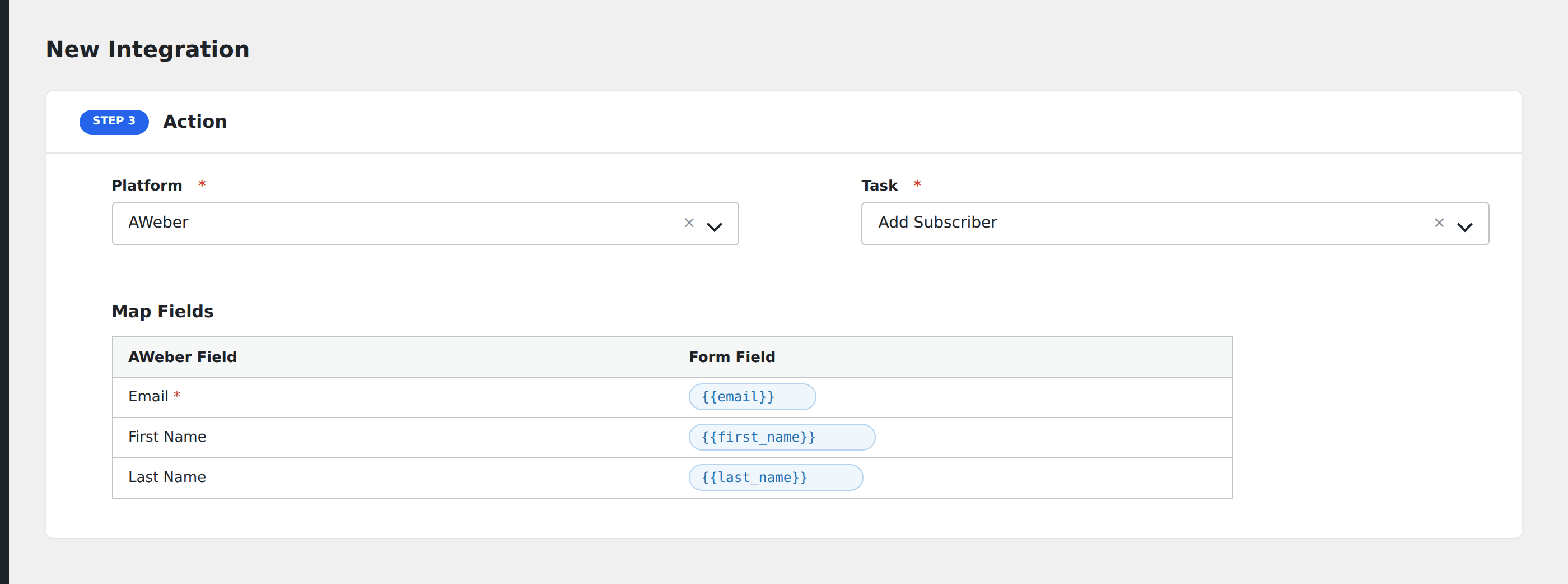
Select

AWeber

in Platform dropdown. In the Pro version, you’ll get another option called

AWeber [PRO]

. Select that one. Then select

Subscribe To List

in the Task dropdown.

aweber - afi basic

The basic free version of the plugin will have the AWeber subscriber list, email, first name, and last name fields available.

aweber - afi pro

The Pro version of the plugin will allow you to update subscribers, add tags and custom fields.

Map Fields

aweber map fields

Available contact lists will be auto-populated in the list drop-down. Select the desired one. You will find AWeber fields on the left side and form fields drop-down on the right. This form field drop-down will contain the field titles of the form you selected in the trigger area. Map Email, First Name, Last Name, etc., and other fields that you want. Skip the fields that are not needed.

Update Contact: By default, the plugin will only add new subscribers to a AWeber list. If the contact already exists before in the list and your want to update it, check this box.

Tags: Put single or multiple tags values (comma-separated).

Custom Fields: Use key=value pair to add a custom field. The key is the Custom Field Name you saved in the custom fields section of AWeber. You can set a fixed data as the value or map a form field. To add multiple custom fields, use multiple key=value pairs separated with double pipe (||).

aweber custom fields
aweber custom field mapping

Save Integration

Finally, click the Save Integration button and you are done. Now you can start testing.

Troubleshooting

After the integration is made, when users fill up the form and submit it, the plugin initiates the process of sending data to the configured platform. It also saves a log that includes what data it tried to send, and what it got in response from that platform. So if you find an integration is not working, your first task is to check the logs. Go to AFI > Log menu and check the recent logs.

log

Common issues & fixes

Most AWeber issues are stale Authorization Codes or expired account links. Work through these in order:

  1. Get a fresh Authorization Code. Authorization Codes are short-lived; if Save fails, click Click here to get the code again, copy the new code immediately, and paste it back into AFI without delay.
  2. Reconnect a stale account. If integrations stop firing, open the AWeber account row in AFI > Settings > AWeber and re-run the Authorization Code flow on that account.
  3. Refresh the lists / fields dropdowns. Click the refresh icon next to each dropdown after creating new lists or custom fields in AWeber.
  4. Confirm the email field is mapped. AWeber deduplicates subscribers by email; without an email each submission fails.

Specific symptoms

  • “Authorization failed. Please check the code.” The Authorization Code expired or was already used; click Click here to get the code again, then paste the fresh code into AFI immediately.
  • 401 invalid_token. The stored refresh token was invalidated by an AWeber password change or admin revocation; re-run the Authorization Code flow on that account.
  • Tag names not applying. AWeber tag names are case-sensitive; copy them verbatim from AWeber or use lowercase consistently.
  • Custom fields missing in dropdown. Pro is required for full custom-field mapping; click refresh in the field dropdown after adding new fields in AWeber.
  • Lists dropdown empty after connecting. Click the refresh icon next to the list dropdown; if still empty, confirm the AWeber account you authorised owns the lists you expect.

Notes & caveats

  • One-click OAuth via Authorization Code. AFI ships its own AWeber OAuth client; the only value you paste into AFI is the Authorization Code AWeber gives you after you grant access.
  • Multiple AWeber accounts. Click Add Account again to authorise a second AWeber account; you can target different accounts from different integrations.
  • Compliance fields. AWeber enforces opt-in semantics on subscribers added via API; contacts added through AFI inherit the list’s default permission setting.
  • API rate limits. AWeber caps API calls per minute per account; enable AFI’s Job Queue (Settings > General) for high-volume forms to smooth bursts.

Related