 AFI
AFI
Cal.com
Cal.com is an open source scheduling platform and a popular Calendly alternative. With Advanced Form Integration (AFI), you can create a Cal.com booking automatically whenever someone submits a form on your WordPress site. For example, a consultation request form can book the visitor straight into your “30 Minute Call” event type, or an intake form can schedule a demo and pass the visitor’s answers into the booking questions.
Supported Features
- Create Booking: create a new booking against any Cal.com event type, including its custom booking questions.
- Cancel Booking (AFI Pro): cancel an existing booking by its booking UID, with an optional reason.
- Reschedule Booking (AFI Pro): move an existing booking to a new start time.
- Mark Attendee No-Show (AFI Pro): mark an attendee (or the host) absent on a booking.
What You’ll Need
- A Cal.com account with at least one event type.
- A Cal.com API key.
- AFI free for Create Booking. AFI Pro for Cancel, Reschedule, and Mark No-Show.
- A WordPress form plugin supported by AFI (WPForms, Contact Form 7, Gravity Forms, and many more).
Connecting Cal.com to AFI
AFI authenticates with a Cal.com API key sent as a Bearer token to the Cal.com v2 API.
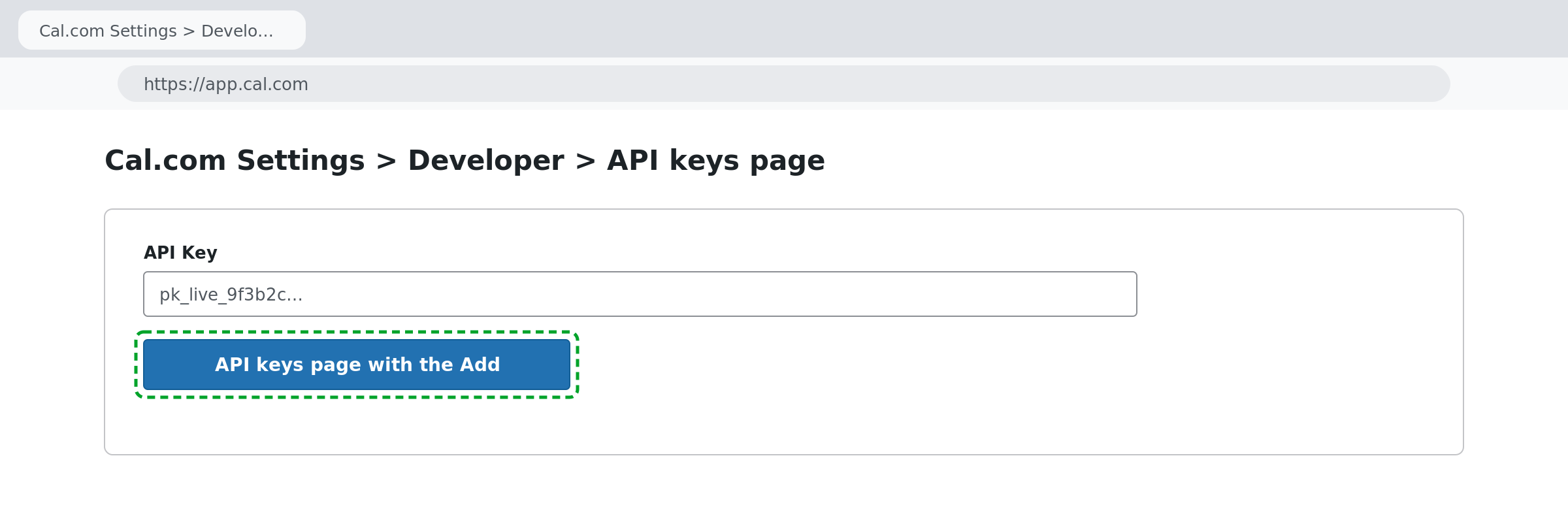
- Sign in to Cal.com and open Settings > Developer > API keys.
- Click Add to generate a new API key. Give it a descriptive name, such as WordPress, and pick an expiry.
- Copy the key right away. Cal.com only shows the secret once. It usually starts with
cal_live_.
- In your WordPress dashboard, go to AFI > Settings and open the Cal.com tab.
- Click to add a new account, give it a title, paste the API key into the API Key field, and save.
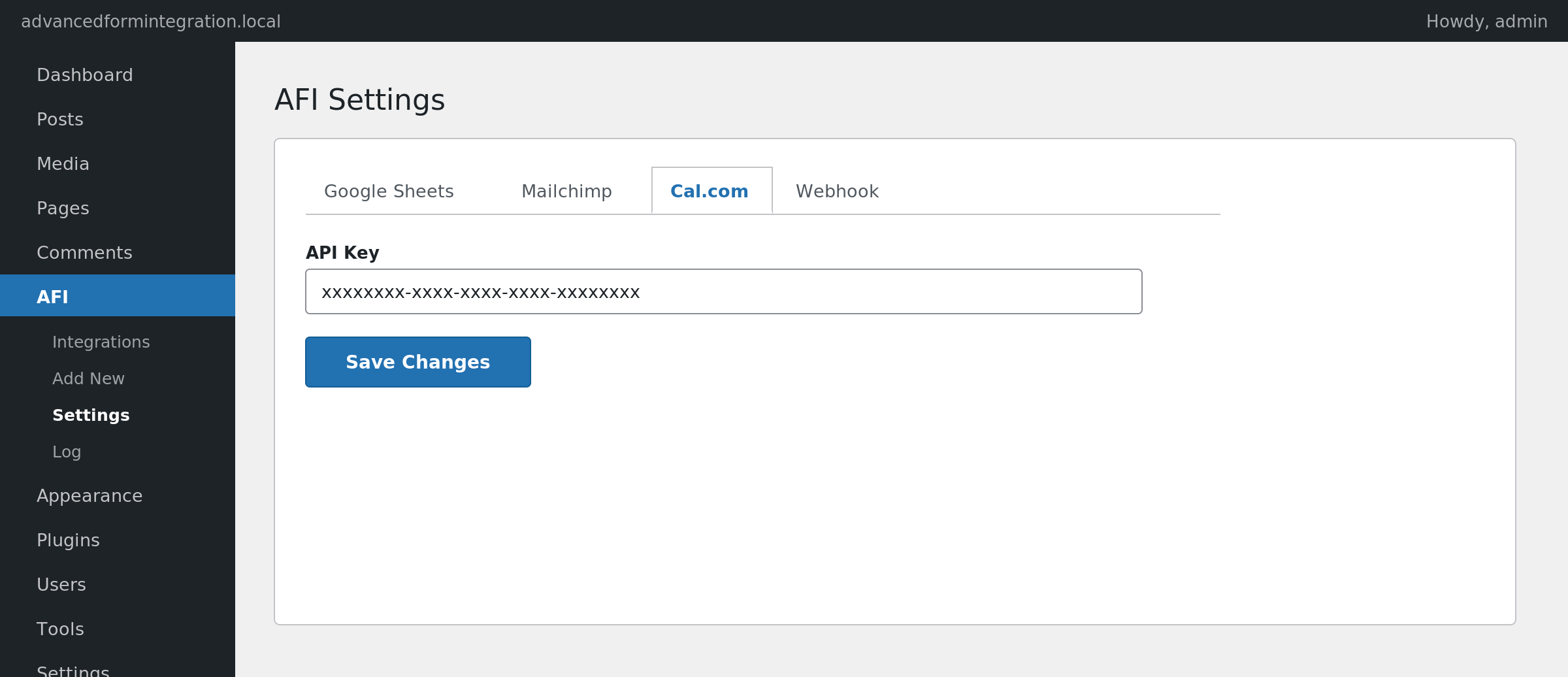
You can save more than one Cal.com account. Each integration picks the account it should use.
How to Create the Integration
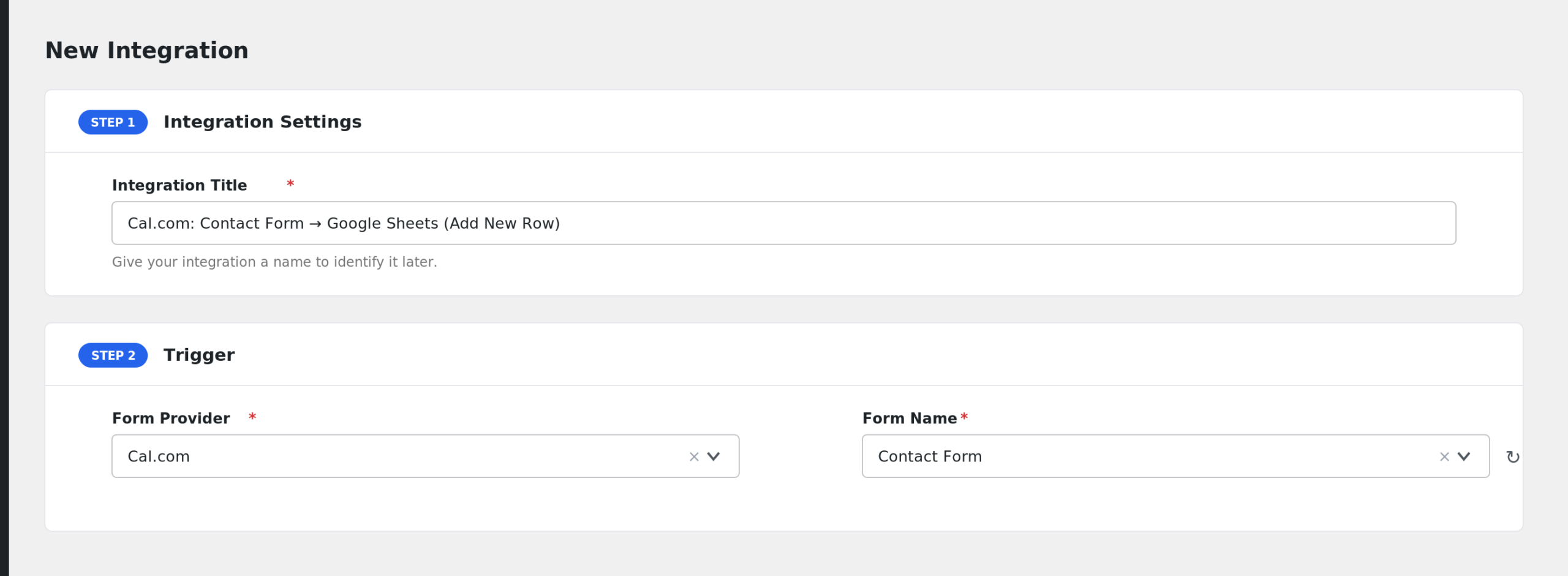
- Go to AFI > Add New.
- Rename the auto-filled Integration Title to something meaningful, such as “Consultation Form to Cal.com”.
- Under Trigger, select your form plugin and the specific form.
- Under Action, select Cal.com in the Platform dropdown. Pro users can select Cal.com [PRO] for the extra tasks.
- Choose the Task, for example Create Booking.
- Select your Cal.com Account.
- Select the Event Type. The booking is created against this event type, and its booking questions load below.
- Map the fields (see the table below).
- Click Save Integration.
Field Mapping
Create Booking
| Field | Description |
|---|---|
| Start | Booking start time in ISO 8601 UTC, for example 2026-01-15T10:00:00Z. Required. |
| Attendee Name | The attendee’s full name. Required. |
| Attendee Email | The attendee’s email address. Required. |
| Attendee Timezone | IANA timezone, such as America/New_York. Defaults to your site timezone. |
| Attendee Language | ISO 639-1 code. Defaults to en. |
| Attendee Phone | Phone number in E.164 format, used for SMS reminders. |
| Guests | Extra guest emails, comma separated. |
| Length in Minutes | Booking length, for variable-length event types. |
| Recurrence Count | Number of occurrences, for recurring event types. |
| [Question] fields | Any custom booking questions on the selected event type appear as extra fields. Required questions must be mapped or Cal.com rejects the booking. |
If Start, Attendee Name, or Attendee Email is missing at send time, AFI skips the request instead of sending one that Cal.com would reject.
Cancel Booking (AFI Pro)
| Field | Description |
|---|---|
| Booking UID | The booking uid, for example from a Cal.com webhook. Required. |
| Cancellation Reason | Optional reason text. |
Reschedule Booking (AFI Pro)
| Field | Description |
|---|---|
| Booking UID | The booking to move. Required. |
| New Start | New start time in ISO 8601 UTC. Required. |
| Rescheduling Reason | Optional reason text. |
Mark Attendee No-Show (AFI Pro)
| Field | Description |
|---|---|
| Booking UID | The booking to update. Required. |
| Attendee Email | The attendee to mark absent. Leave blank to mark the host absent. |
Troubleshooting
Authentication errors (401 or 403)
Check that you copied the full API key and that it has not expired. Cal.com keys can be created with an expiry date. Generate a fresh key under Settings > Developer > API keys and update it in AFI > Settings > Cal.com.
Bookings are not appearing in Cal.com
Open AFI > Log and find the entry for your submission. The log shows the exact request and Cal.com’s response. A common cause is an invalid Start value. It must be a future time in ISO 8601 UTC format, and it must fall inside the event type’s availability.
A required booking question is missing
If the event type has required custom questions, Cal.com rejects bookings that leave them blank. Reopen the integration, make sure the [Question] fields are mapped, and save again.