 AFI
AFI
WooCommerce Bookings
With Advanced Form Integration (AFI) you can send WooCommerce Bookings data anywhere the moment a booking is created or changes status. Add every new booking as a row in Google Sheets, subscribe customers to a Mailchimp list when their booking is confirmed, or create a deal in your CRM when a booking is paid.
What You’ll Need
- WooCommerce installed and active
- The WooCommerce Bookings extension installed and active
- Advanced Form Integration (free version works, AFI Pro also supported)
- An account on the receiving platform, such as Google Sheets, Mailchimp, or your CRM
How to Create the Integration
- Go to AFI > Add New in your WordPress dashboard.
- AFI auto-fills a default Integration Title. Rename it to something recognizable, like “Confirmed Bookings to CRM”.
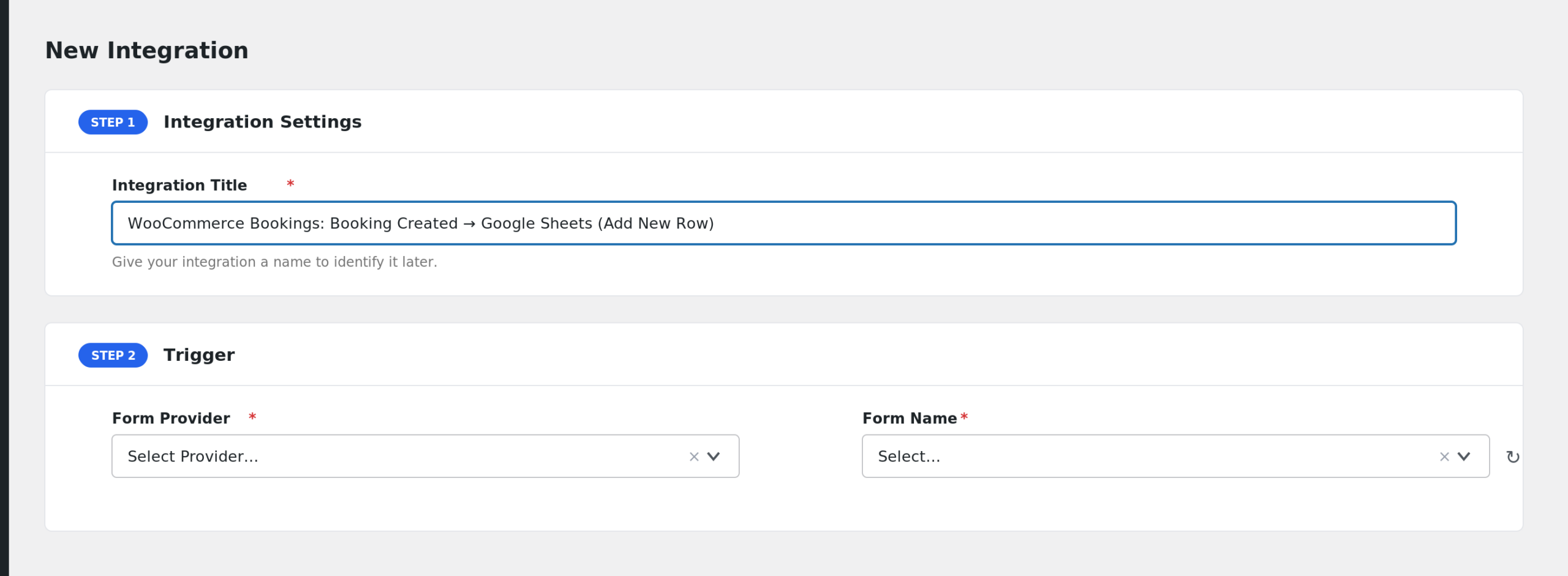
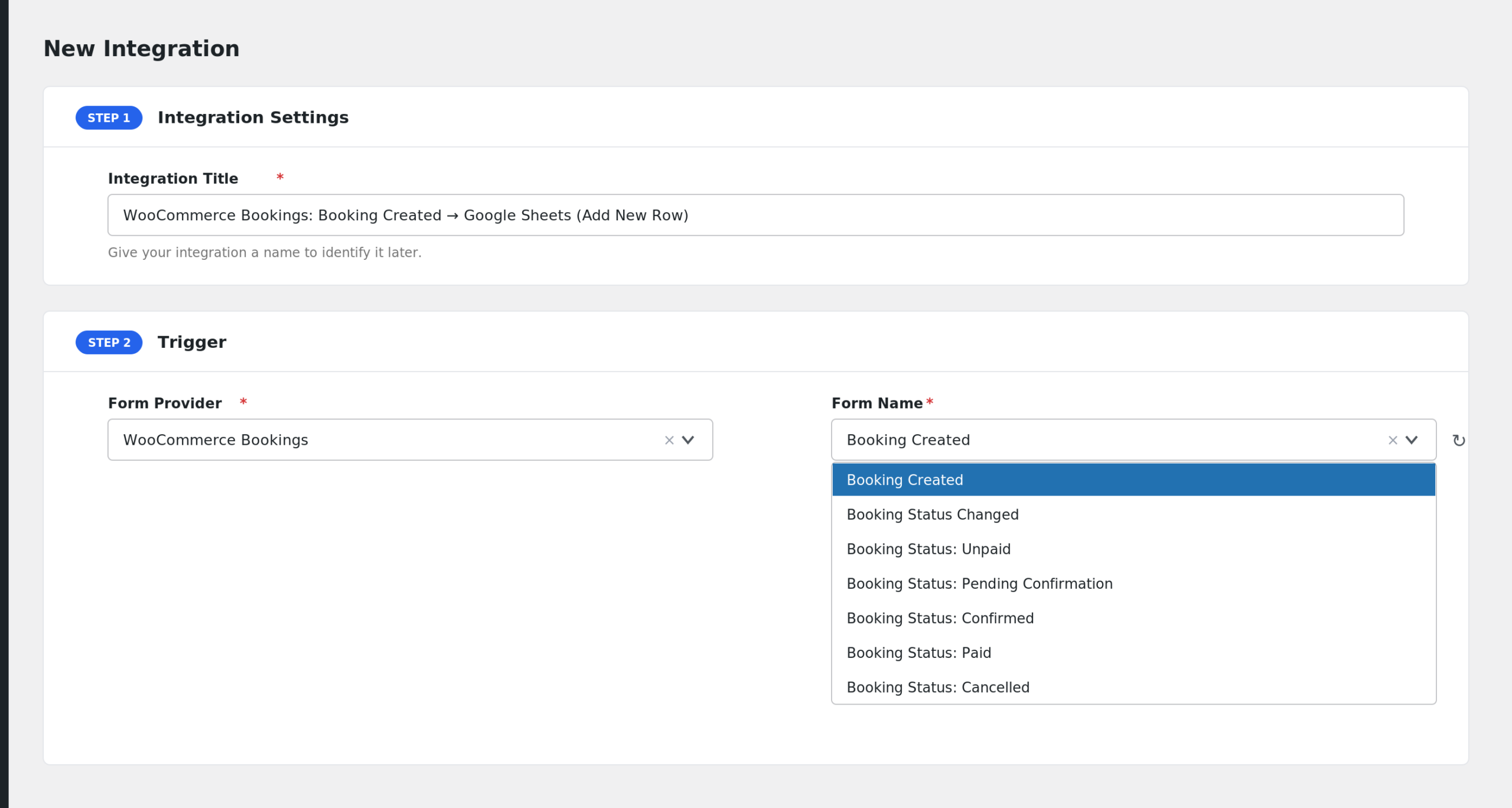
- Under Trigger, open the Form Provider dropdown and choose WooCommerce Bookings. The provider only appears when the WooCommerce Bookings plugin is active.
- In Form/Task Name, pick the booking event you want, for example Booking Created or Booking Status: Confirmed.
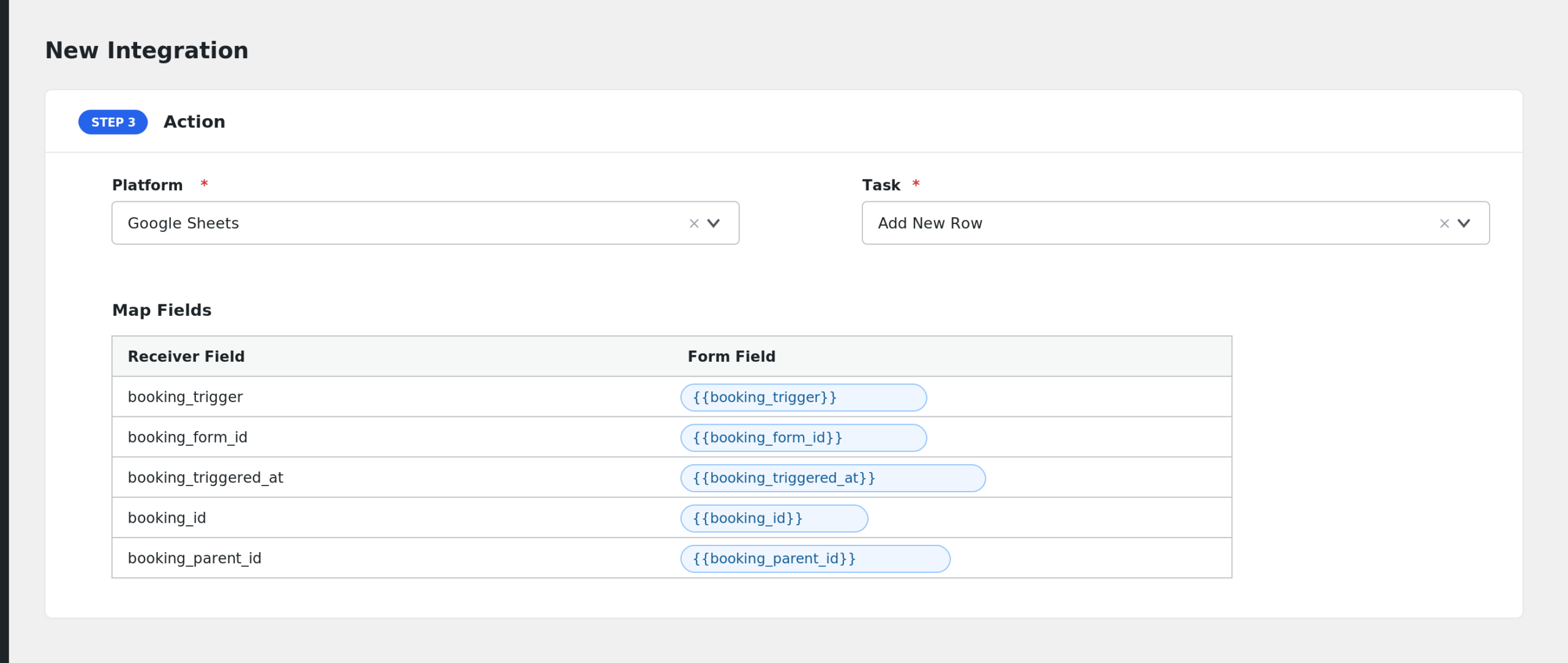
- Under Action, select your receiver platform and connect your account.
- Map the booking fields to the receiver’s fields. Customer email, product name, and start date are the usual starting points.
- Click Save Integration.
Available Events
- Booking Created: fires when a new booking is created.
- Booking Status Changed: fires on every status change and includes the previous status.
- Booking Status: Unpaid: fires when a booking becomes unpaid.
- Booking Status: Pending Confirmation: fires when a booking is waiting for confirmation.
- Booking Status: Confirmed: fires when a booking is confirmed.
- Booking Status: Paid: fires when a booking is paid.
- Booking Status: Cancelled: fires when a booking is cancelled.
- Booking Status: Complete: fires when a booking is marked complete.
Fields You Can Send
All events share the same field list. It covers the booking, the related order, and the customer.
| Field | Description |
|---|---|
| booking_trigger | Readable name of the event that fired |
| booking_form_id | Internal event key |
| booking_triggered_at | Date and time the event fired |
| booking_id | Booking ID |
| booking_parent_id | Parent booking ID |
| booking_order_id | Related order ID stored on the booking |
| booking_order_item_id | Order item ID |
| booking_status | Booking status key |
| booking_status_label | Readable booking status |
| booking_previous_status | Previous status key (status change events) |
| booking_previous_status_label | Readable previous status |
| booking_all_day | yes or no for all day bookings |
| booking_cost | Booking cost |
| booking_start | Start date in UTC |
| booking_start_local | Start date in local time |
| booking_end | End date in UTC |
| booking_end_local | End date in local time |
| booking_start_timestamp | Start as a Unix timestamp |
| booking_end_timestamp | End as a Unix timestamp |
| booking_duration_minutes | Duration in minutes |
| booking_duration_hours | Duration in hours |
| booking_persons_total | Total number of persons |
| booking_person_counts | Person counts as JSON |
| booking_person_details | Person type details as JSON |
| booking_person_details_plain | Person details as plain text |
| booking_resource_id | Resource ID |
| booking_resource_name | Resource name |
| booking_resource_base_cost | Resource base cost |
| booking_resource_block_cost | Resource block cost |
| booking_product_id | Bookable product ID |
| booking_product_name | Bookable product name |
| booking_product_sku | Product SKU |
| booking_product_type | Product type |
| booking_product_url | Product page URL |
| booking_display_cost | Product display cost |
| booking_created | Booking created date |
| booking_modified | Booking last modified date |
| booking_timezone | Booking timezone |
| booking_local_timezone | Customer timezone |
| booking_customer_id | Customer user ID |
| booking_customer_name | Customer name |
| booking_customer_email | Customer email |
| booking_is_guest | yes when the booking was made by a guest |
| booking_cancel_url | Customer cancel URL |
| booking_edit_url | Admin edit URL for the booking |
| booking_notes | Customer note from the order |
| order_id | Order ID |
| order_number | Order number |
| order_status | Order status |
| order_total | Order total |
| order_subtotal | Order subtotal |
| order_total_tax | Order total tax |
| order_discount_total | Order discount total |
| order_discount_tax | Order discount tax |
| order_shipping_total | Order shipping total |
| order_shipping_tax | Order shipping tax |
| order_currency | Order currency |
| order_payment_method | Payment method key |
| order_payment_method_title | Payment method title |
| order_transaction_id | Transaction ID |
| order_created | Order created date |
| order_completed | Order completed date |
| order_paid_date | Order paid date |
| order_items | Order line items as JSON |
| order_coupons | Coupon codes used, comma separated |
| order_url | Order admin URL |
| billing_first_name | Billing first name |
| billing_last_name | Billing last name |
| billing_company | Billing company |
| billing_address_1 | Billing address line 1 |
| billing_address_2 | Billing address line 2 |
| billing_city | Billing city |
| billing_state | Billing state |
| billing_postcode | Billing postcode |
| billing_country | Billing country |
| billing_email | Billing email |
| billing_phone | Billing phone |
| shipping_first_name | Shipping first name |
| shipping_last_name | Shipping last name |
| shipping_company | Shipping company |
| shipping_address_1 | Shipping address line 1 |
| shipping_address_2 | Shipping address line 2 |
| shipping_city | Shipping city |
| shipping_state | Shipping state |
| shipping_postcode | Shipping postcode |
| shipping_country | Shipping country |
| shipping_phone | Shipping phone |
| customer_ip_address | Customer IP address |
| customer_user_agent | Customer browser user agent |
| customer_note | Order customer note |
| booking_meta_json | All booking meta as JSON |
| order_meta_json | All order meta as JSON |
| product_meta_json | All product meta as JSON |
| resource_meta_json | All resource meta as JSON |
You can also pull individual meta values with smart tags using these prefixes: bookingmeta_, ordermeta_, productmeta_, resourcemeta_, and customermeta_. For example, {{bookingmeta_some_key}} sends that booking meta value.
Only Send Bookings for One Product
Use conditional logic to limit the integration to a single bookable product. Add a condition so the integration runs only when booking_product_id equals your product’s ID, or when booking_product_name equals its exact name. This is handy when one spreadsheet should track one service only.
Troubleshooting
WooCommerce Bookings is not in the Form Provider dropdown
The provider only shows when the WooCommerce Bookings plugin is active. Check the Plugins screen, activate it, then reload the AFI editor.
The integration is not firing
Check AFI > Log first. If there is no entry, make sure the event matches what actually happened. A booking that goes straight to Paid will not fire the Confirmed event. The generic Booking Status Changed event is the safest catch-all.
Previous status fields are empty
booking_previous_status and booking_previous_status_label are only filled on status change events. On Booking Created they are always empty.