 AFI
AFI
Spectra Pro Forms
Spectra adds a Forms block to the WordPress block editor, so you can build contact and lead forms right inside your pages. Connect Spectra forms to Advanced Form Integration (AFI) and every submission can trigger an automation. You can collect leads in Google Sheets, subscribe visitors to Mailchimp, or send new inquiries straight into your CRM.
What You’ll Need
- The Spectra plugin (with its Form block) installed and active, with at least one form published on a page or post
- Advanced Form Integration, free or AFI Pro
- An account on the receiving platform, such as Google Sheets or Mailchimp
How to Create the Integration
- Go to Advanced Form Integration > Add New.
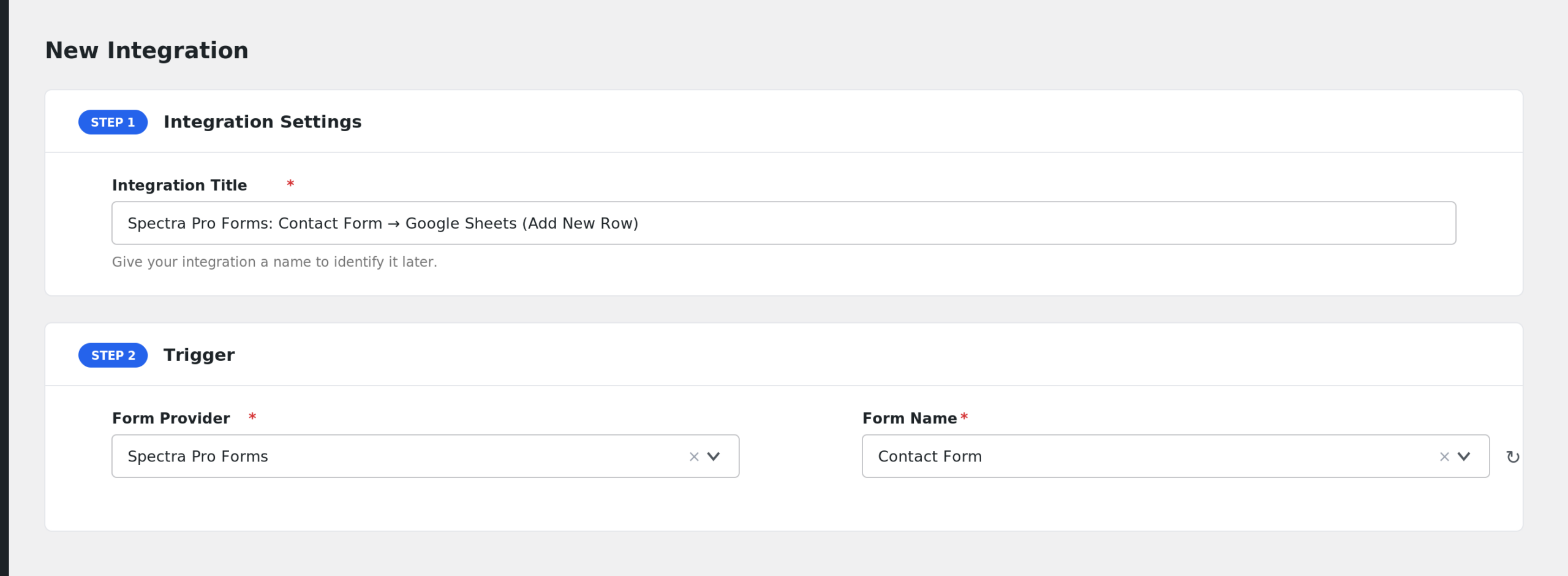
- AFI auto-fills a default Integration Title. Rename it to something recognizable, like “Spectra Lead Form to CRM”.
- In the Trigger section, open the Form Provider dropdown and select Spectra Pro Forms. If it is missing, activate the Spectra plugin first.
- In the Form/Task Name dropdown, pick your form. AFI scans your published content for Spectra form blocks and lists each one as “Post Title – Form Label”, so the same form label can appear once per page it lives on.
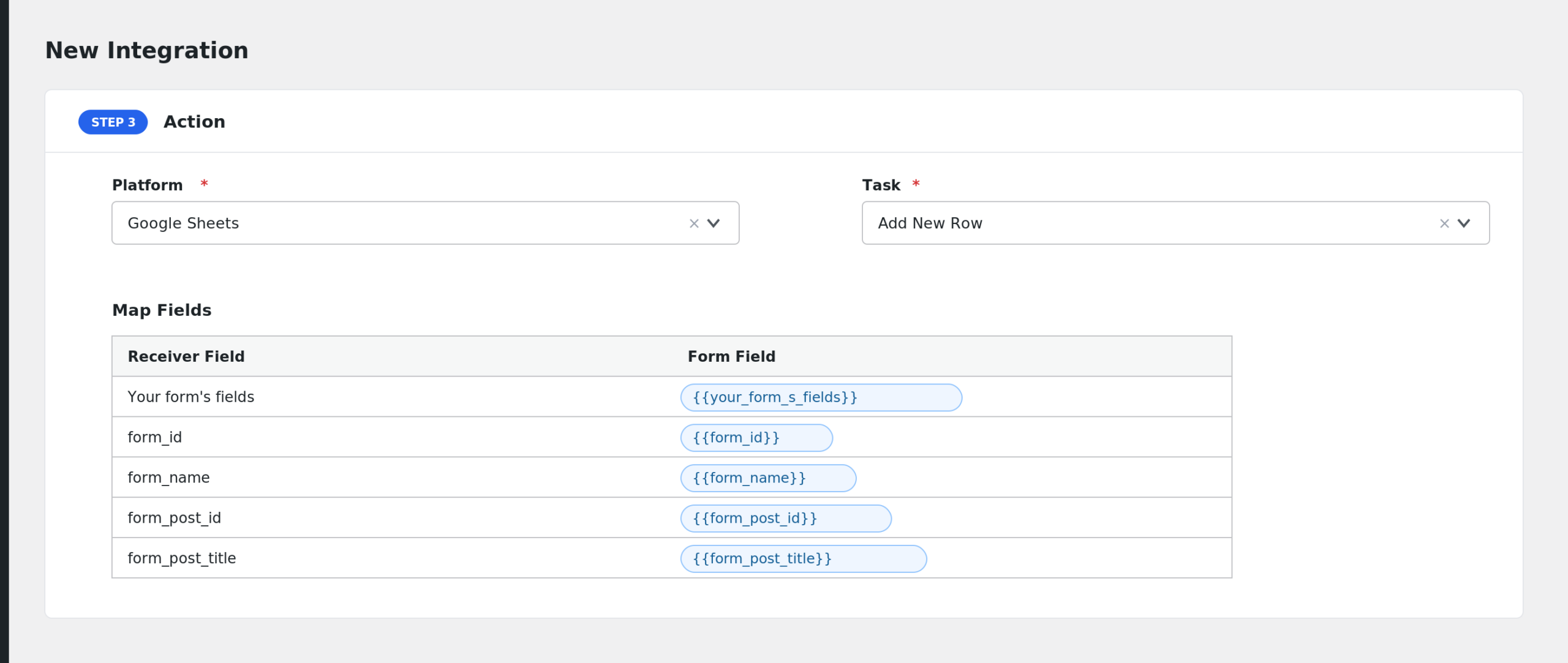
- Under Action, choose the receiver platform and connect your account.
- Map the form fields to the receiver’s fields. AFI reads the form block and lists each field by its label.
- Click Save Integration, then submit the form on the live page to test.
Fields You Can Send
Spectra form fields are dynamic. AFI extracts every field from the form block, using the field’s label to build its tag. For example a “Work Email” field becomes work-email. Alongside your own fields, these are available:
| Field | Description |
|---|---|
| Your form’s fields | Each Spectra form field appears under a key generated from its label |
| form_id | The block ID of the Spectra form |
| form_name | The form label set on the block, or the page title if no label is set |
| form_post_id | The ID of the post or page containing the form, included in the payload |
| form_post_title | The title of the post or page containing the form, included in the payload |
| submission_date | The date and time of the submission, included in the payload |
| user_ip | The visitor’s IP address, included in the payload |
| user_agent | The visitor’s browser user agent, included in the payload |
Multi-value fields such as checkboxes are joined into a single comma separated string. AFI also adds its standard special tags, such as user and post details.
Only Send Submissions from One Page
Conditional logic is an AFI Pro feature. If the same Spectra form design is reused on several pages, you can filter by page. Set a condition so the action only runs when form_post_title equals your landing page title, and submissions from other pages are skipped.
Troubleshooting
Spectra Pro Forms is missing from the Form Provider dropdown
AFI only lists providers whose plugins are active. Confirm Spectra is installed and activated, then reload the AFI page.
My form is not in the Form/Task Name dropdown
AFI discovers forms by scanning published posts and pages for Spectra form blocks, including forms inside reusable blocks. If the page holding the form is a draft, publish it. Then reload the AFI screen.
The integration is not firing
The trigger fires on Spectra’s form success event, so the form must submit successfully on the front end. Submit a test entry, watch for the form’s success message, and check AFI > Log. Also confirm you selected the correct “Post Title – Form Label” entry, since the same form label can exist on multiple pages.
Fields arrive blank or under odd names
Field tags are generated from field labels. If you edit a label after saving the integration, the tag changes and the old mapping stops matching. Re-open the integration, refresh the field list, and remap.