 AFI
AFI
Simple Basic Contact Form
Simple Basic Contact Form is a lightweight contact form plugin that adds one clean form to your site with a shortcode. Connect it to Advanced Form Integration (AFI) and every submission can flow somewhere useful automatically. You can add each sender to a Google Sheets list, subscribe them to Mailchimp, or create a new contact in your CRM the moment the form is sent.
What You’ll Need
- The Simple Basic Contact Form plugin installed and active
- Advanced Form Integration. The free version sends the Name and Email fields. AFI Pro unlocks the remaining fields like Subject and Message.
- An account on the receiving platform, such as Google Sheets or Mailchimp
How to Create the Integration
- Go to Advanced Form Integration > Add New in your WordPress dashboard.
- A default Integration Title is auto-filled. Rename it to something recognizable, like “Contact Form to Mailchimp”.
- In the Trigger section, open the Form Provider dropdown and select Simple Basic Contact Form. The plugin must be active, otherwise it will not appear in this list.
- In the Form/Task Name dropdown, select Simple Basic Contact Form. This plugin provides a single site-wide form, so there is only one entry.
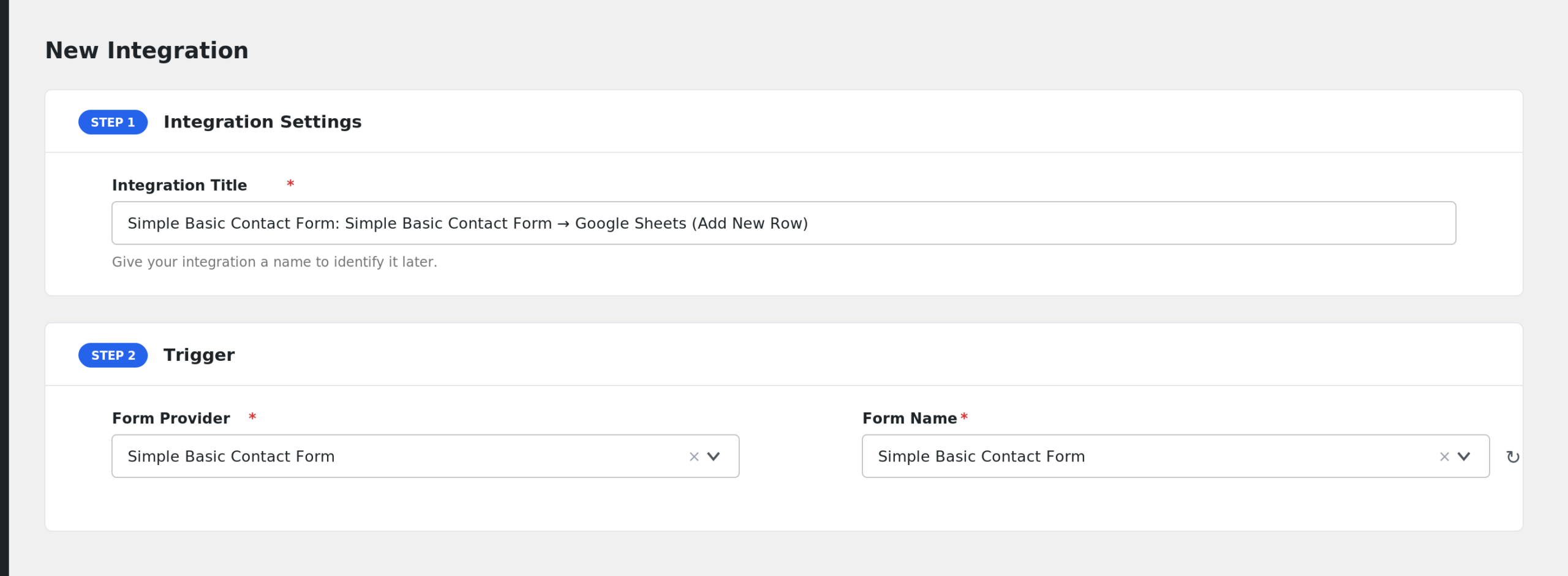
- On the free AFI plan you will see a note under the trigger: “The basic AFI plugin supports name and email fields only.”
- Under Action, choose your receiver platform and connect your account.
- Map the form fields to the receiver’s fields, for example Name and Email to Mailchimp merge fields.
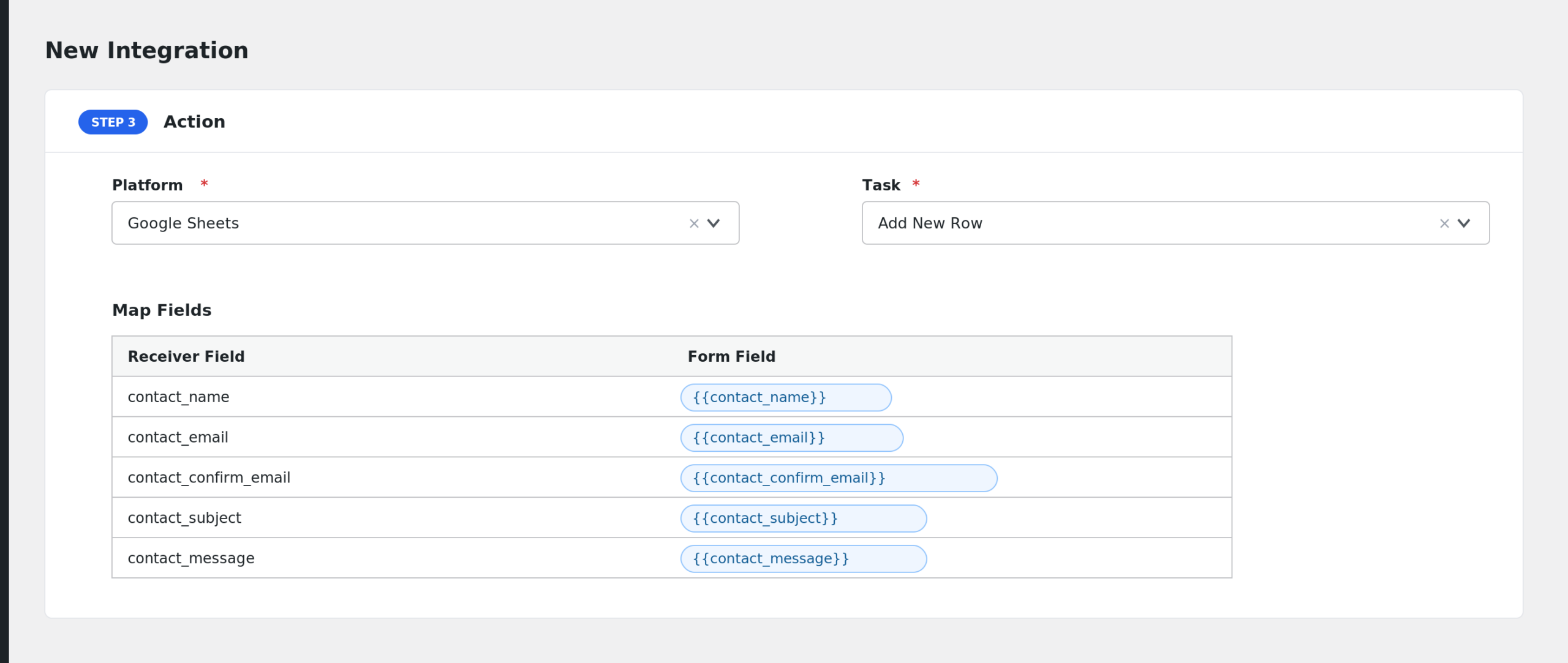
- Click Save Integration and send a test submission from the form.
Fields You Can Send
| Field | Description |
|---|---|
| contact_name | The sender’s name |
| contact_email | The sender’s email address |
| contact_confirm_email | The confirm email value (AFI Pro) |
| contact_subject | The email subject line (AFI Pro) |
| contact_message | The message text (AFI Pro) |
| contact_response | The captcha or response field value (AFI Pro) |
| contact_recipient | The recipient email address configured in the plugin (AFI Pro) |
| contact_headers | The email headers of the notification (AFI Pro) |
| contact_from_email | The From email address of the notification (AFI Pro) |
| form_url | The URL of the page containing the form (AFI Pro) |
| user_agent | The visitor’s browser user agent (AFI Pro) |
| form_id | Always “contactForm” for this provider |
| form_title | Always “Simple Basic Contact Form” |
| submission_date | The date and time of the submission |
| user_ip | The visitor’s IP address |
AFI also adds its standard special tags, such as user and post details, to the field list.
Note: on the free AFI plan, only contact_name and contact_email are captured from the form itself. Upgrade to AFI Pro to send the subject, message, and the other fields above.
Route Messages by Subject
Conditional logic is an AFI Pro feature. Since the subject field (contact_subject) is available on Pro, you can run an integration only when the subject contains a keyword. For example, only create a CRM deal when contact_subject contains “quote”, and let general messages go to a Google Sheets archive instead.
Troubleshooting
Simple Basic Contact Form is not in the Form Provider dropdown
AFI checks that the plugin is active before listing it. Confirm Simple Basic Contact Form is installed and activated under Plugins, then reload the AFI page.
The integration is not firing
AFI listens to the plugin’s email-sending hook, so the submission must reach the point where the plugin sends its notification email. Submit a test message, then check AFI > Log for an entry. If the log is empty, verify the form actually sent its email and that your integration is saved and enabled.
Message and subject arrive blank
On the free AFI plan only Name and Email are sent. The Subject, Message, and other fields require AFI Pro. If you are on Pro and a field is still blank, re-check the mapping row for that field.