RegistrationMagic

Estimated reading: 4 minutes

RegistrationMagic handles user registration and custom forms in WordPress. Connect it to Advanced Form Integration (AFI) and every completed submission can be sent to your other tools automatically. Add new members to a Google Sheets roster, subscribe registrants to Mailchimp, or create contacts in your CRM the moment someone signs up.

What You’ll Need

  • The RegistrationMagic plugin installed and active, with at least one form.
  • Advanced Form Integration (free version) installed and active. This trigger works without AFI Pro.
  • An account on the receiving platform, for example Google Sheets or Mailchimp.

How to Create the Integration

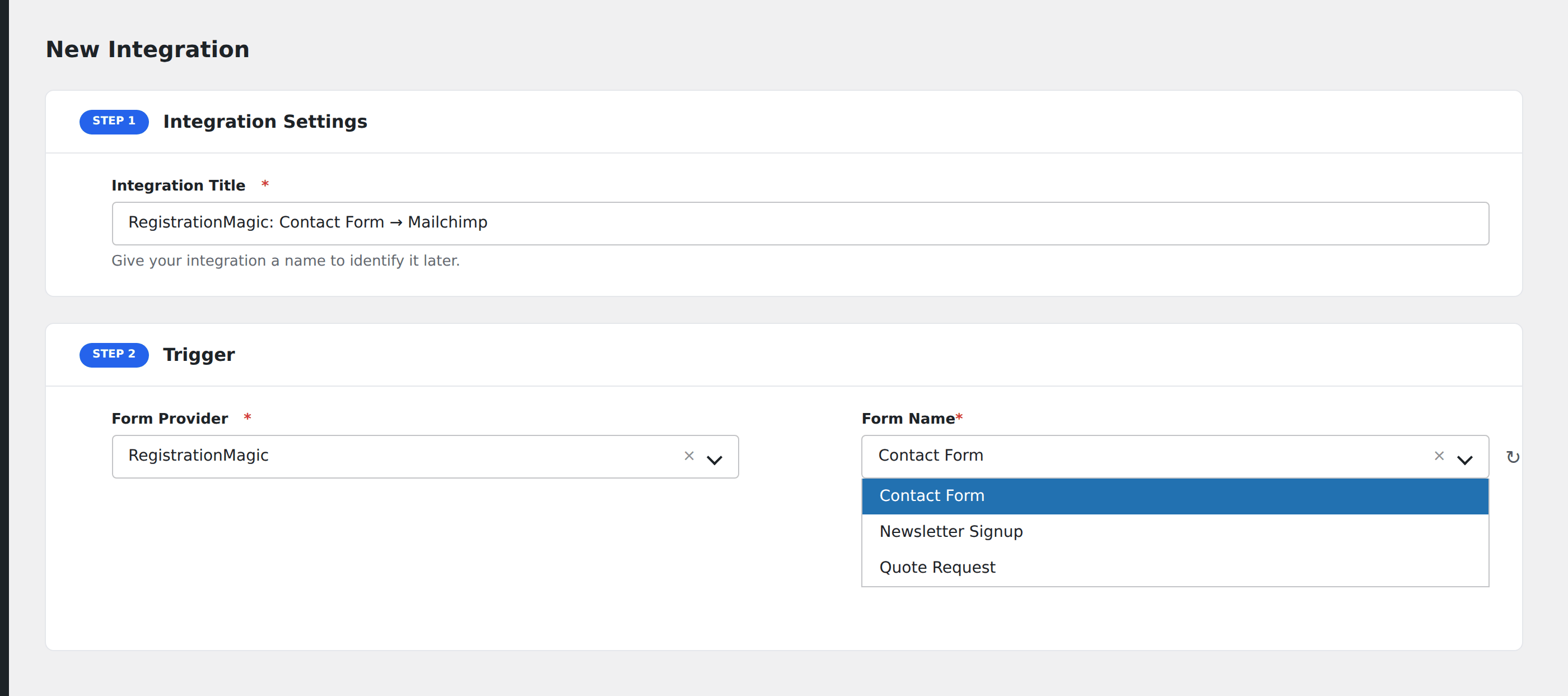
  1. In your WordPress dashboard, go to AFI > Add New.
  2. AFI fills in a default Integration Title. Rename it to something recognizable, like “RM Signup Form to CRM”.
  3. In the Trigger section, open the Form Provider dropdown and select RegistrationMagic. The RegistrationMagic plugin must be active or it will not appear.
  4. In the Form/Task Name dropdown, pick the RegistrationMagic form you want to connect. AFI lists all forms from RegistrationMagic by name.

AFI Trigger section with RegistrationMagic selected and a form chosen in Form/Task Name

  1. In the Action section, choose your receiving platform and task, for example Mailchimp > Subscribe.
  2. Map the RegistrationMagic fields to the receiver’s fields. Your form’s own fields appear by their labels, followed by submission and user details.

field mapping area showing RegistrationMagic fields mapped to receiver fields

  1. Click Save Integration.

completed RegistrationMagic integration with Save Integration button highlighted

Submit the form once as a test and confirm the data arrives on the receiving platform.

Fields You Can Send

AFI lists every field defined in the selected RegistrationMagic form, in the order they appear, using each field’s label. On top of those, these submission details are available:

Field Description
Form ID Numeric ID of the RegistrationMagic form.
Form Name The form’s name.
Submission ID ID of the stored submission.
Submission Token RegistrationMagic’s unique token for the submission.
Submission Date When the submission was recorded.
User ID WordPress user ID created or matched by the registration.
User Email The email address captured with the submission.
User IP The submitter’s IP address.
User Browser The submitter’s browser.
WP User Login The WordPress username, when a user account is involved.
WP User Email The WordPress account email.
WP User First Name The account’s first name.
WP User Last Name The account’s last name.
WP User Display Name The account’s display name.
WP User Roles The account’s role(s), comma separated.
Submission Admin URL Direct link to view the submission in the RegistrationMagic admin.

AFI also adds its general Special Tags (such as _Date, _Time, and site details). See Smart Tags and Field Mapping.

Conditional Logic Example

Say your registration form has a Membership Type dropdown. You can add only premium signups to a VIP list:

  • Enable Conditional Logic on the integration.
  • Set the rule to: Membership Type equals Premium.

Standard registrants skip the integration, and premium members get the VIP treatment automatically.

Troubleshooting

RegistrationMagic is not in the Form Provider dropdown

Confirm the RegistrationMagic plugin is active under Plugins, then reload the AFI Add New screen.

The Form/Task Name dropdown is empty

AFI reads forms from the RegistrationMagic database tables. Create at least one form in RegistrationMagic first, then reload the AFI page.

The integration is not firing

AFI fires when RegistrationMagic marks a submission as completed. If your form uses payment or admin approval steps, the trigger fires when the submission completes, not necessarily at the first click. Submit a test entry, then check AFI > Log for a captured record. Also confirm the integration is active and the right form is selected.

Fields arrive blank on the receiver

Open AFI > Log and inspect the captured data for the entry. Field data is keyed by field ID, so if you rebuilt the form and field IDs changed, remap the fields in your integration. User account fields (WP User Login and friends) are only filled when the submission creates or belongs to a WordPress user.

Related Docs