 AFI
AFI
Ninja Tables
This guide covers Ninja Tables as a trigger (sender). That means Advanced Form Integration (AFI) watches your Ninja Tables data and reacts when a row is added, updated, or deleted. If you want the opposite direction, sending form submissions into a Ninja Tables table, see the Ninja Tables receiver doc instead.
With this trigger, every change to a table row can update your other tools automatically. Mirror new rows into Google Sheets, notify your team through a webhook, or sync updated records into a CRM.
What You’ll Need
- The Ninja Tables plugin installed and active, with at least one table.
- Advanced Form Integration (free version) installed and active. This trigger works without AFI Pro.
- An account on the receiving platform, for example Google Sheets.
How to Create the Integration
- In your WordPress dashboard, go to AFI > Add New.
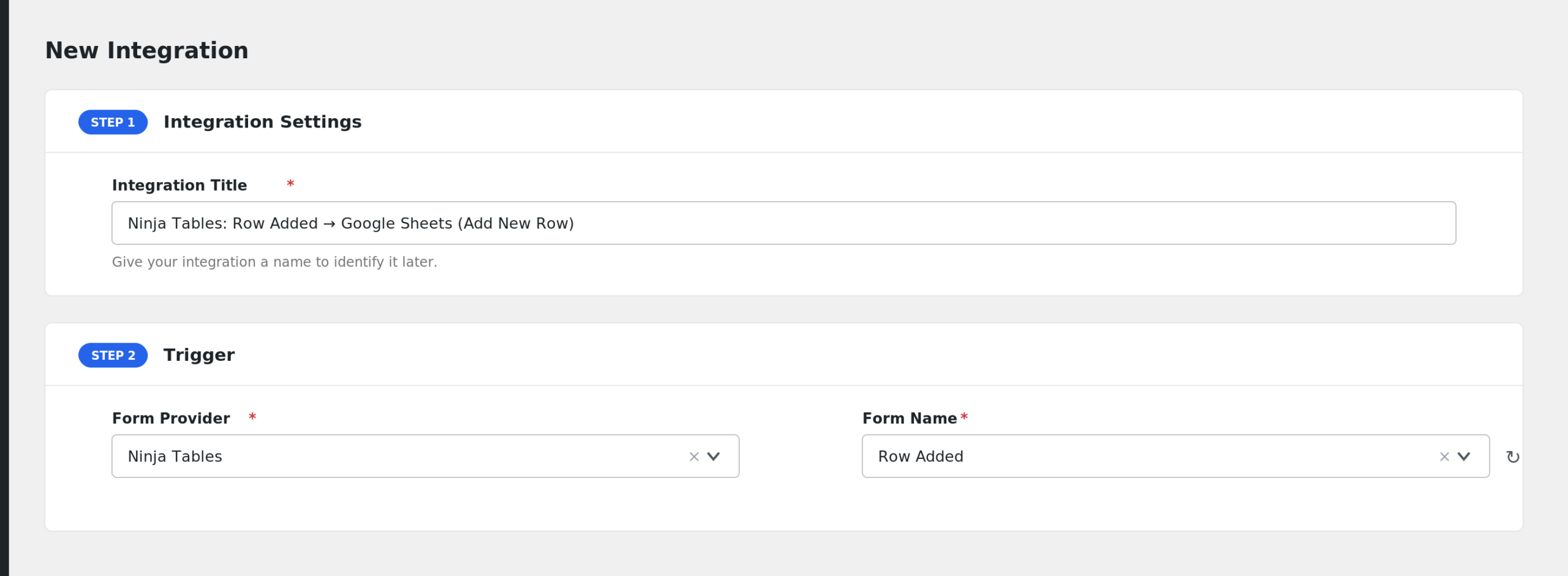
- AFI fills in a default Integration Title. Rename it to something recognizable, like “Ninja Tables Rows to Google Sheets”.
- In the Trigger section, open the Form Provider dropdown and select Ninja Tables. The Ninja Tables plugin must be active or it will not appear.
- In the Form/Task Name dropdown, choose the event you want to watch: Row Added, Row Updated, or Row Deleted.
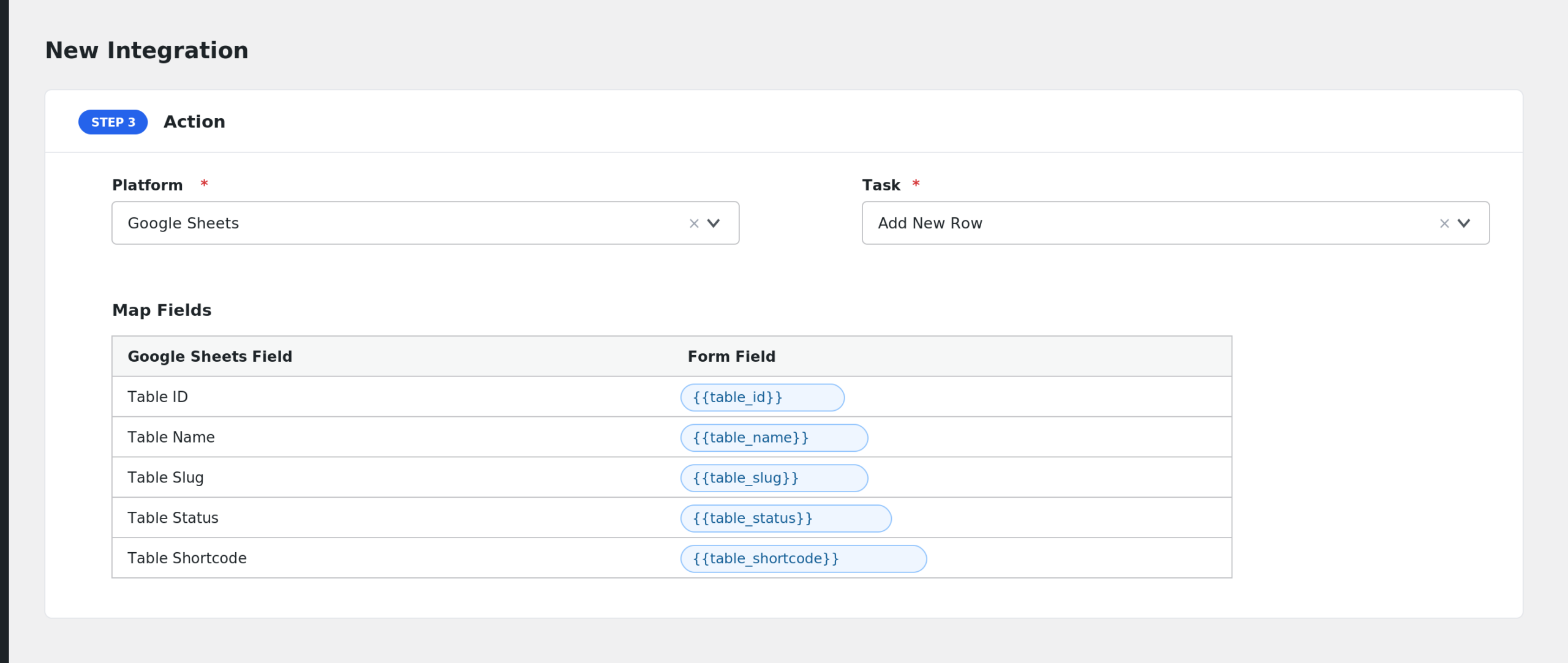
- In the Action section, choose your receiving platform and task, for example Google Sheets > Add Row.
- Map the Ninja Tables fields to the receiver’s fields. Table details, row values, and owner details are all available.
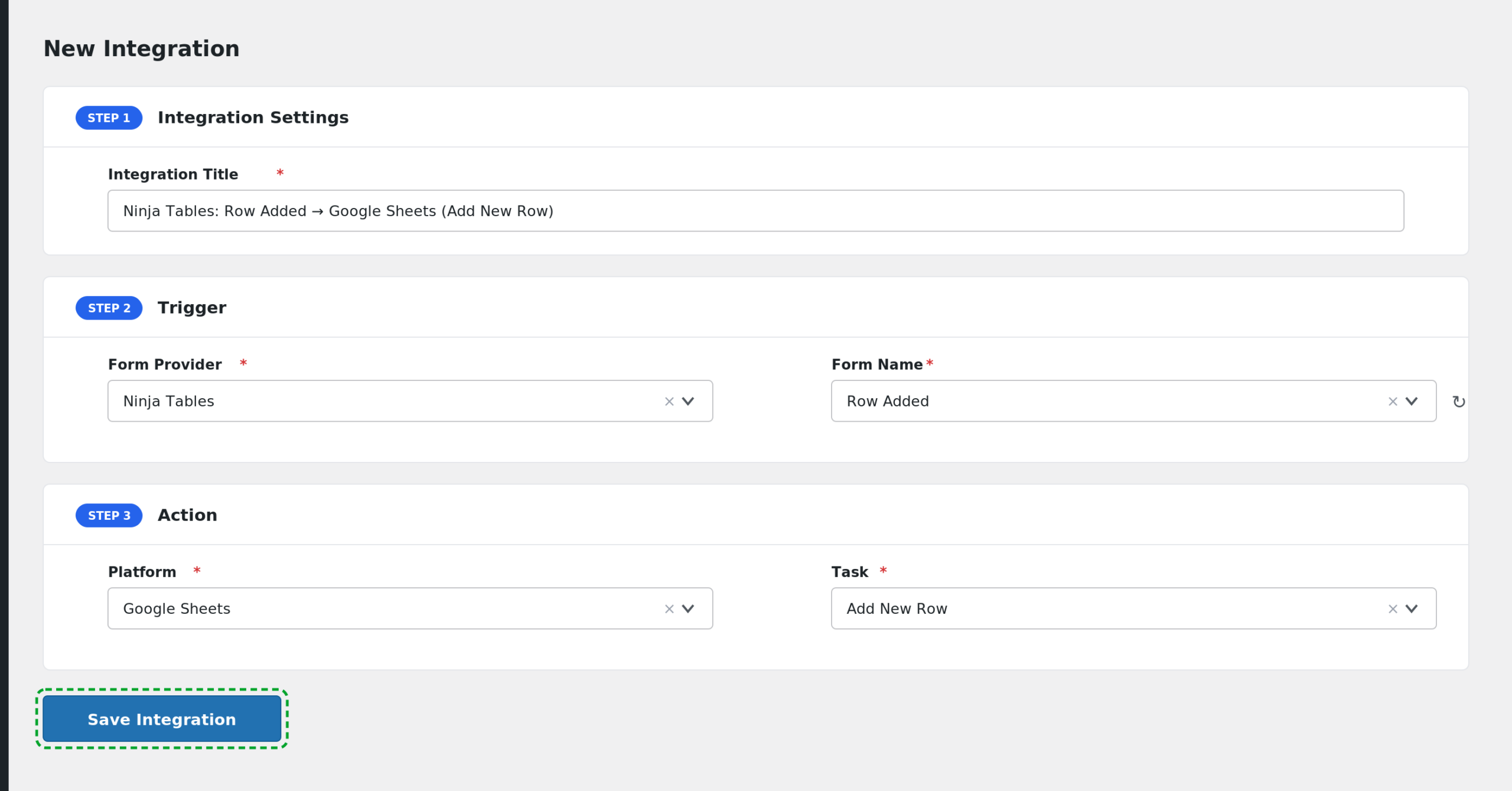
- Click Save Integration.
Add or edit a row in any Ninja Table and confirm the data arrives on the receiving platform.
Available Events
- Row Added: fires when a new row is inserted into a table.
- Row Updated: fires when an existing row is edited. Adds an extra Updated Attributes (JSON) field.
- Row Deleted: fires just before rows are removed, once per deleted row.
Note that the event applies to all tables. Use conditional logic on Table ID or Table Name if you only care about one table.
Fields You Can Send
| Field | Description |
|---|---|
| Table ID | Numeric ID of the table. |
| Table Name | The table’s title. |
| Table Slug | The table’s slug. |
| Table Status | The table post status, usually publish. |
| Table Shortcode | The ready-to-use [ninja_table id=”…”] shortcode. |
| Table URL | Permalink of the table. |
| Event Action | added, updated, or deleted. |
| Row ID | Numeric ID of the affected row. |
| Row Attribute | The row’s attribute value from the database. |
| Row Values (JSON) | All column values of the row as a JSON string. |
| Row Settings (JSON) | The row’s settings as JSON. |
| Row Created At | When the row was created. |
| Row Updated At | When the row was last updated. |
| Owner ID | WordPress user ID of the row owner. |
| Owner Email | The owner’s email address. |
| Owner Login | The owner’s login name. |
| Owner Display Name | The owner’s display name. |
| Owner First Name | The owner’s first name. |
| Owner Last Name | The owner’s last name. |
| Owner Role | The owner’s role(s). |
| Owner Registered | The owner’s registration date. |
| Raw Attributes (JSON) | The raw attributes passed by Ninja Tables, as JSON. |
| Updated Attributes (JSON) | Only for Row Updated: the changed attributes as JSON. |
In addition, AFI sends each column value individually. Every column appears twice in the payload: once as row_ plus the column key, and once as column_ plus a slug of the column label. These per-column values are available for mapping through the data captured in AFI > Log.
Conditional Logic Example
You probably do not want every table to trigger the integration. Limit it to one table:
- Enable Conditional Logic on the integration.
- Set the rule to: Table ID equals 12 (use your table’s ID).
Now only changes to table 12 are sent to the receiver.
Troubleshooting
Ninja Tables is not in the Form Provider dropdown
Confirm the Ninja Tables plugin is active under Plugins, then reload the AFI Add New screen.
The integration is not firing
The trigger fires on Ninja Tables’ own add, update, and delete hooks, so rows changed directly in the database or by bulk import tools that bypass those hooks will not trigger it. Make a change through the Ninja Tables admin UI and check AFI > Log for a new entry.
I get events from tables I do not care about
The events cover every table on the site. Add a conditional logic rule on Table ID or Table Name to filter, as shown above.
Row values arrive as JSON instead of separate fields
Row Values (JSON) is intentionally a single JSON string. To send individual columns, map the per-column fields (the row_ or column_ keys shown in the captured data in AFI > Log) instead.