 AFI
AFI
Hash Form
Hash Form is a drag and drop form builder for WordPress. When you connect it to Advanced Form Integration (AFI), every submission can be forwarded automatically to your other tools. Send entries to Google Sheets for record keeping, subscribe contacts to Mailchimp, or create deals in a CRM the moment a lead submits your form.
What You’ll Need
- The Hash Form plugin installed and active, with at least one form created.
- Advanced Form Integration installed and active. The free version sends name and email fields only. AFI Pro unlocks all fields.
- An account on the receiving platform, such as Google Sheets or Mailchimp.
How to Create the Integration
- Go to AFI > Add New in your WordPress dashboard.
- AFI auto-fills a default Integration Title. Rename it to something you will recognize, like “Hash Form Quote Request to CRM”.
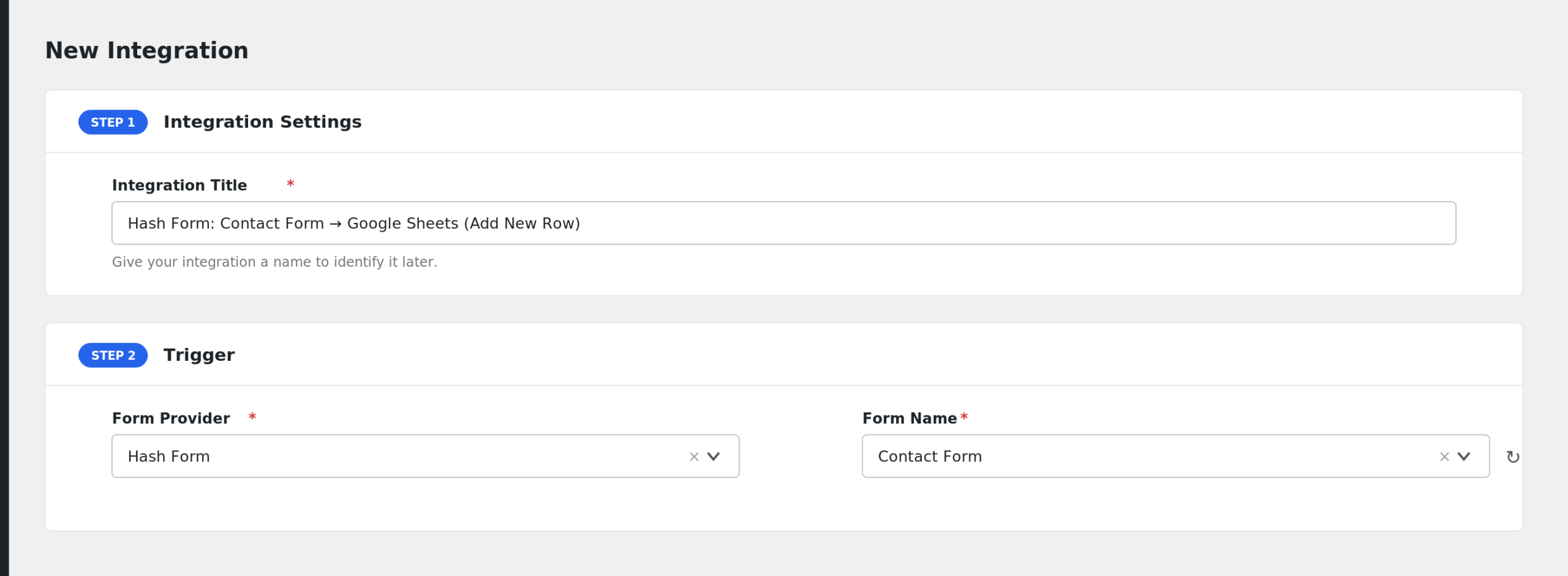
- In the Trigger section, select Hash Form from the Form Provider dropdown. If it is missing, confirm the Hash Form plugin is active.
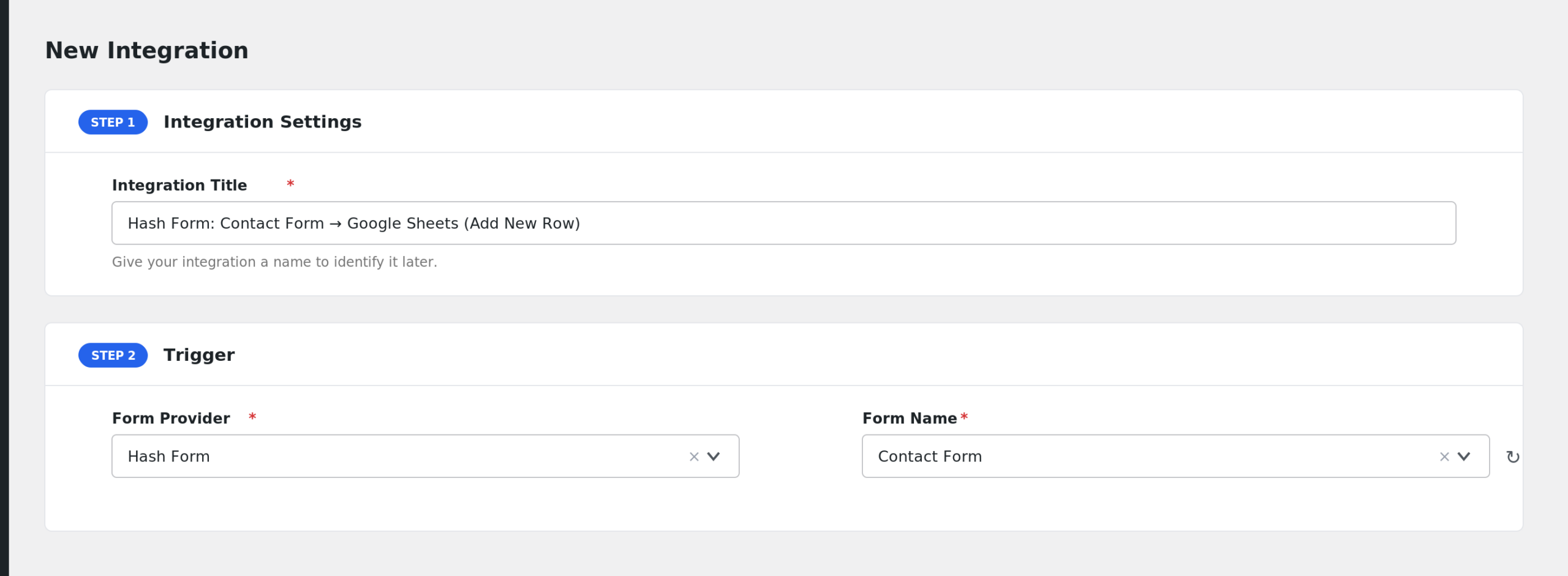
- Choose your form in the Form/Task Name dropdown. AFI lists all Hash Form forms that are not in the trash.
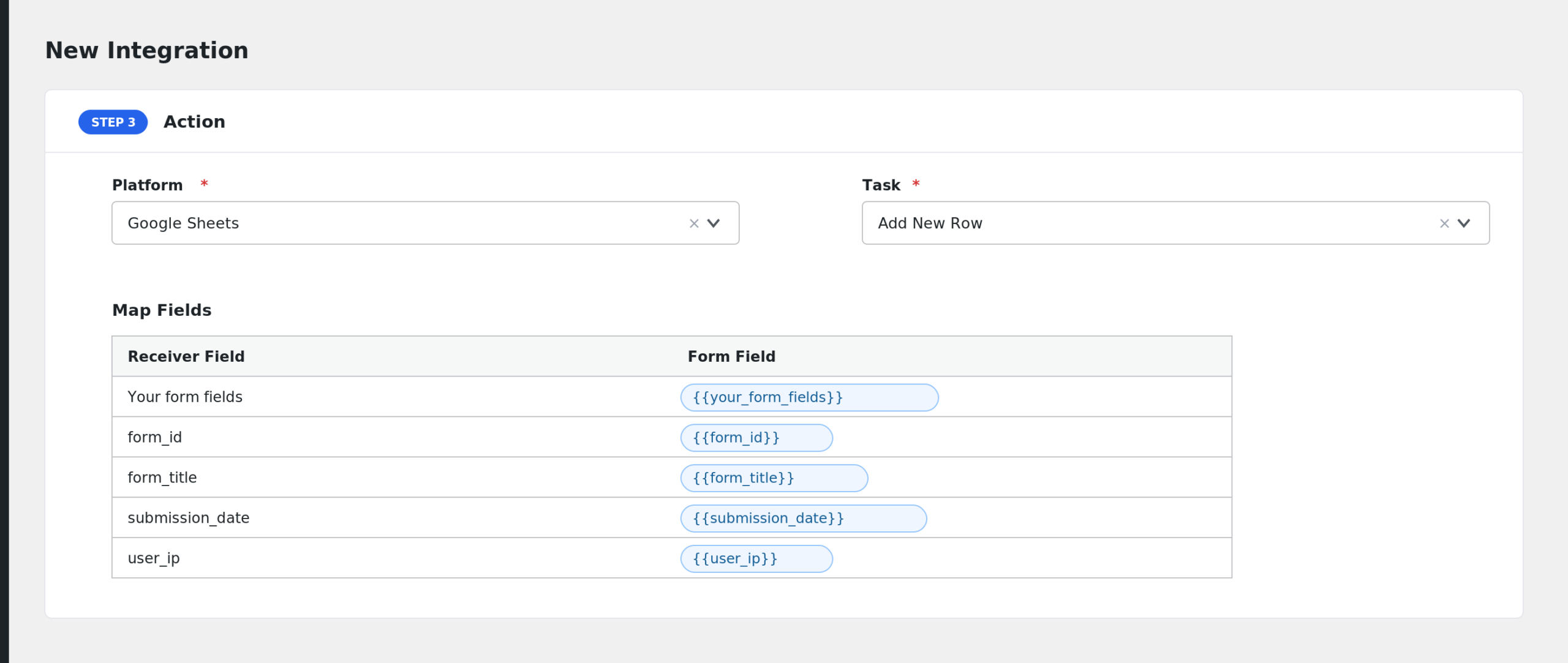
- Under Action, pick the receiver platform and connect your account.
- Map the Hash Form fields to the receiver fields with the tag picker.
- Click Save Integration, then submit a test entry.
Fields You Can Send
Your form fields appear in the dropdown with keys like field_your_field_key, labeled with the field name you set in the builder. AFI adds these extra fields:
| Field | Description |
|---|---|
| Your form fields | Each Hash Form field, keyed by its field key. |
| form_id | The ID of the form. |
| form_title | The name of the form. |
| submission_date | The date and time the entry was created. |
| user_ip | The IP address of the visitor. |
| entry_id | The Hash Form entry ID. |
| entry_url | A direct admin link to view the entry. |
| location | The URL of the page where the form was submitted. |
Multi-value answers such as checkboxes are combined into one comma separated string. General special tags are also available in the dropdown.
Note: With the free version of AFI, only name and email field types are available for mapping. Upgrade to AFI Pro to send every field.
Conditional Logic Example
Suppose your Hash Form has a dropdown for budget. Add a condition so the integration runs only when the budget field is Above $5000. Small inquiries stay in your inbox, and high-value leads land in your CRM immediately. Conditional logic requires AFI Pro.
Troubleshooting
Hash Form is not in the Form Provider list
The Hash Form plugin must be active. AFI checks for its core classes before showing the provider.
My form is missing from the dropdown
AFI lists every Hash Form form except trashed ones. Restore the form from the trash or create a new one, then reload the AFI screen.
The integration is not firing
AFI runs after Hash Form finishes its own email step. Submit the form on the front end and make sure Hash Form accepts the entry. Then check AFI > Log to see if the trigger ran and what the receiver replied.
Fields arrive blank
Empty answers are skipped, so a blank receiver field usually means the visitor left the field empty or the mapping points to the wrong field key. Re-open the integration, reselect the form, and remap. On the free version, only name and email fields carry data.