 AFI
AFI
Fluent Community
Fluent Community adds spaces, feeds, and courses to your WordPress site. When you connect it to Advanced Form Integration (AFI), community activity can trigger automations anywhere. You can add new space members to a Mailchimp list, log course enrollments in Google Sheets, or send new member details to your CRM for onboarding.
What You’ll Need
- The Fluent Community plugin installed and active
- Advanced Form Integration (free version is enough for this trigger)
- An account on the receiving platform, such as Google Sheets, Mailchimp, or a CRM
How to Create the Integration
- Go to AFI > Add New.
- AFI fills in a default Integration Title. Rename it to something recognizable, such as “Course Enrollments to Google Sheets”.
- In the Trigger section, select Fluent Community from the Form Provider dropdown. Fluent Community must be active on your site or the provider will not appear.
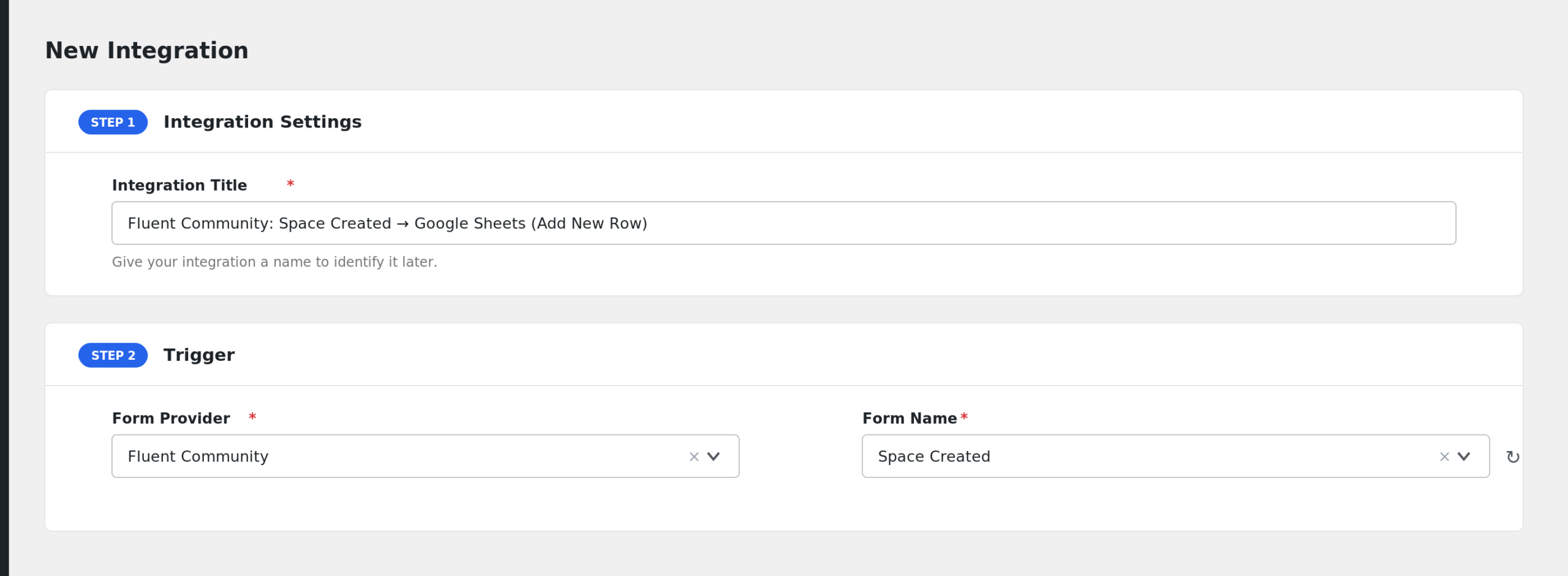
- In the Form/Task Name dropdown, choose the event, for example Course Enrollment.
- Under Action, select your receiver platform and connect your account.
- Map the Fluent Community fields to the receiver fields. For enrollments you would typically map User Email, User Display Name, and Course Title.
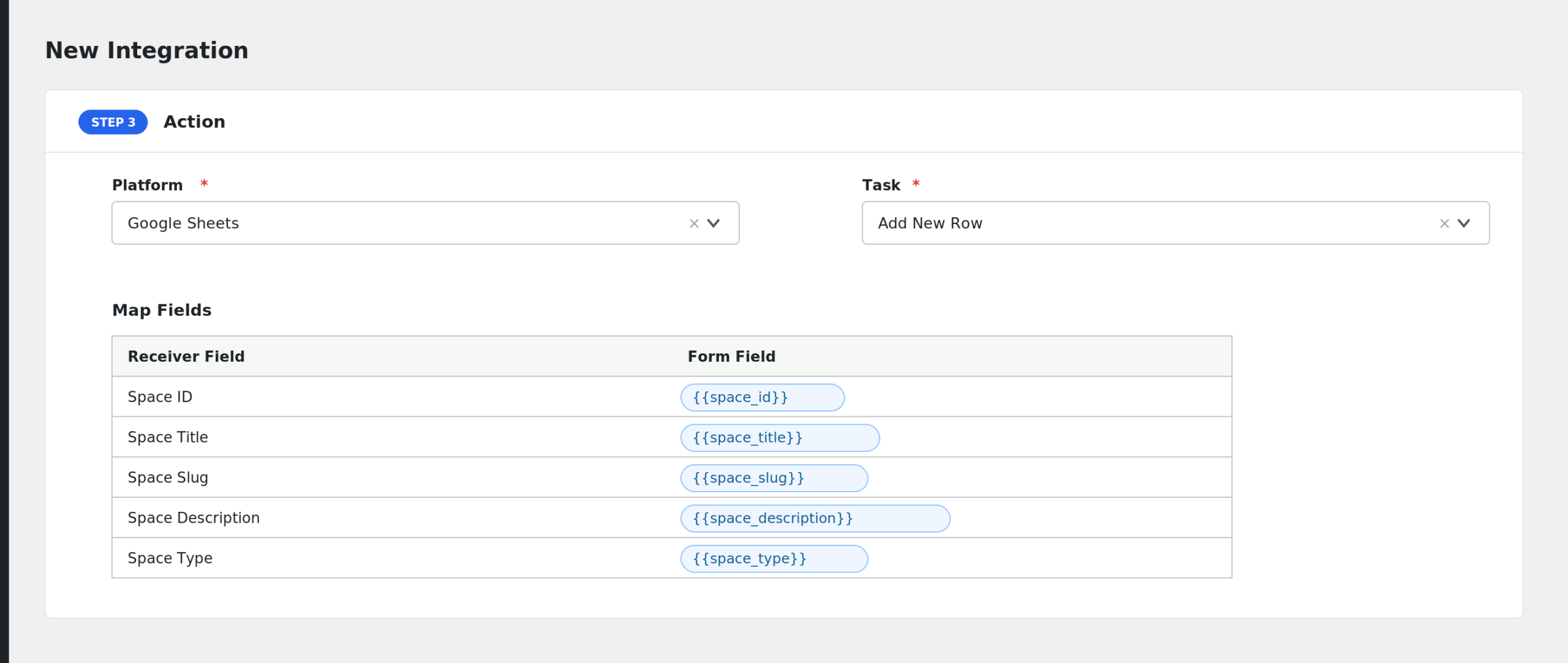
- Click Save Integration.
- Test by joining a space or enrolling a user in a course.
Available Events
- Space Created: fires when a new space is created in the community.
- Member Joined Space: fires when a user joins a space, whether they join themselves or are added by an admin.
- Feed Created: fires when a new post is published in a community feed.
- Course Enrollment: fires when a user is enrolled in a course.
Fields You Can Send
Space Created
| Field | Description |
|---|---|
| Space ID | ID of the new space |
| Space Title | Space name |
| Space Slug | Space slug |
| Space Description | Space description |
| Space Type | Space type |
| Space Privacy | public, private, or secret |
| Space Status | Space status |
| Space Created By (User ID) | User who created the space |
| Space Logo | Logo URL |
| Space Cover Photo | Cover photo URL |
| Space Settings (JSON) | Space settings as JSON |
| Space Meta (JSON) | Space meta as JSON |
| Space URL | Link to the space |
| Space Additional Data (JSON) | Extra creation data as JSON |
Member Joined Space
| Field | Description |
|---|---|
| Space ID, Space Title, Space Slug | Space basics |
| Space Type, Space Privacy, Space Status | Space configuration |
| Space Created By (User ID) | Space creator |
| Space URL | Link to the space |
| User ID | Joining user’s ID |
| User Login | Username |
| User Email | Email address |
| User Display Name | Display name |
| User First Name, User Last Name | Name fields |
| User Roles (JSON) | WordPress roles as JSON |
| User Registered At | Site registration date |
| User URL | User website URL |
| Membership ID | Membership record ID |
| Membership Role | Role inside the space |
| Membership Status | Membership status |
| Membership Created At, Membership Updated At | Membership timestamps |
| Joined By | How or by whom the member was added |
Feed Created
| Field | Description |
|---|---|
| Feed ID | ID of the post |
| Feed Title | Post title |
| Feed Message | Post content |
| Feed Message Rendered | Rendered HTML content |
| Feed Type | Feed type |
| Feed Content Type | Content type |
| Feed Space ID | Space the post belongs to |
| Feed Privacy | Post privacy |
| Feed Status | Post status |
| Feed Priority | Post priority |
| Feed Comments Count | Number of comments |
| Feed Reactions Count | Number of reactions |
| Feed Featured Image | Featured image URL |
| Feed Meta (JSON) | Post meta as JSON |
| Feed URL | Link to the post |
| Feed Created At, Feed Updated At | Post timestamps |
| Author ID, Author Login, Author Email | Post author basics |
| Author Display Name | Author display name |
| Author Roles (JSON) | Author roles as JSON |
Course Enrollment
| Field | Description |
|---|---|
| Course ID, Course Title, Course Slug | Course basics |
| Course Description | Course description |
| Course Type, Course Privacy, Course Status | Course configuration |
| Course Created By (User ID) | Course creator |
| Course Settings (JSON), Course Meta (JSON) | Course data as JSON |
| Course URL | Link to the course |
| User ID, User Login, User Email | Enrolled user basics |
| User Display Name, User First Name, User Last Name | Name fields |
| User Roles (JSON) | WordPress roles as JSON |
| User Registered At, User URL | Registration date and website |
| Enrollment ID | Enrollment record ID |
| Enrollment Role, Enrollment Status | Enrollment details |
| Enrollment Created At, Enrollment Updated At | Enrollment timestamps |
| Enrolled By | How or by whom the user was enrolled |
Note: AFI skips values that are empty at the source, so optional fields may arrive blank on the receiver.
Send Only Members of One Space
If you run several spaces but only want one of them synced to Mailchimp:
- Create an integration on the Member Joined Space event.
- Enable Conditional Logic.
- Set the condition to: Space Slug equals your-space-slug.
- Save the integration.
Only members joining that specific space are sent to your list.
Troubleshooting
Fluent Community is not in the dropdown
Confirm the Fluent Community plugin is active. AFI only lists providers whose plugin is running.
The integration is not firing
Check AFI > Log after a test action. If there is no entry, verify the integration is active and the right event is selected. Feed Created fires only for new posts, not edits.
Fields arrive blank
Fluent Community only sends values that exist. A member without a first name, or a space without a logo, will produce empty fields on the receiver. Map the JSON fields when you want the full raw data for debugging.