Braze

Estimated reading: 2 minutes

Overview

AFI pushes users and custom events into Braze, the cross-channel customer-engagement platform. Use form submissions, orders, and signups to identify Braze users and trigger Canvas / Campaign automations.

Supported actions

  • Track User — upsert a user attribute payload (matched by external_id or email).
  • Track Event — fire a custom event with properties for Canvas / Campaign targeting.
  • Track Purchase — log a purchase event for revenue reporting and triggered messaging.

Authentication

  1. Log in to Braze.
  2. Open Settings > APIs & Identifiers.
  3. Create a new API key with scopes users.track (and users.export.id if you need lookups).
  4. Note your Braze REST endpoint (depends on cluster — e.g. https://rest.iad-01.braze.com).
  5. In AFI go to Settings > Braze and paste the REST endpoint and API key.

How to create the integration

  1. In WordPress admin, go to AFI > New Integration.
  2. Pick your Sender (Contact Form 7, WPForms, WooCommerce, etc.) and the form / event to listen on.
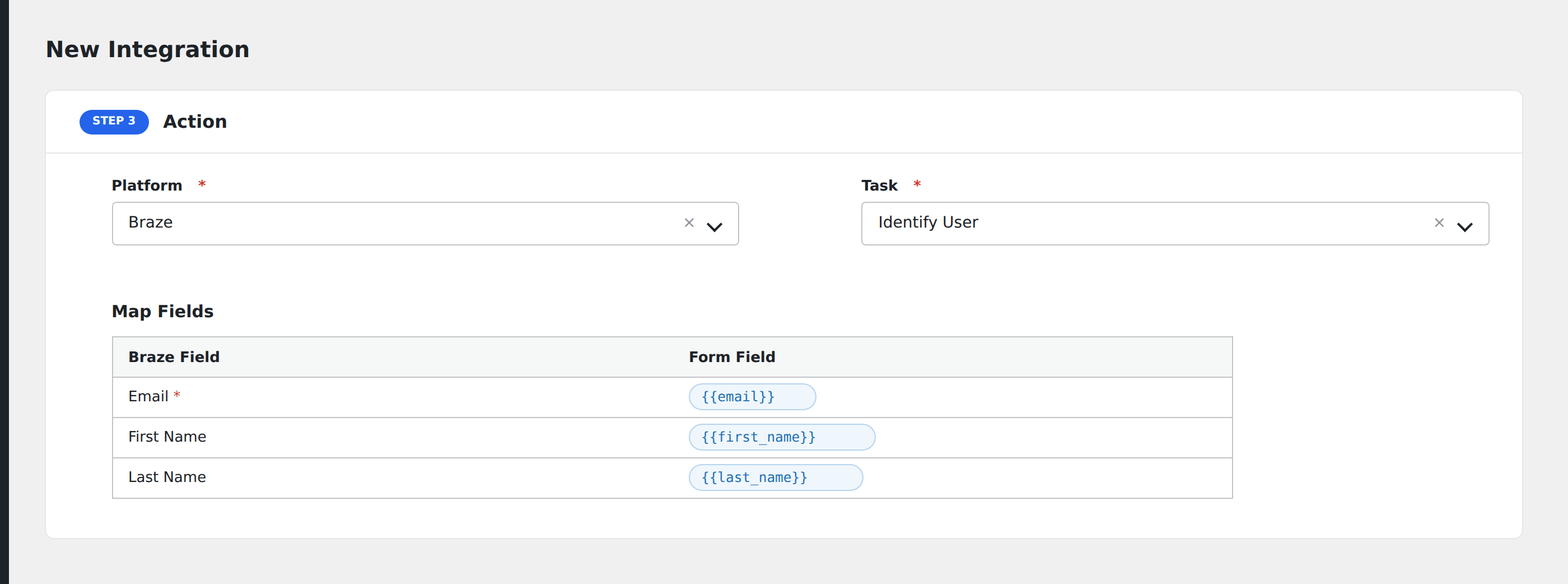
  3. Pick Braze as the Receiver, then pick the Task you want to run.
  4. Map sender fields onto Braze’s fields. An external ID or email is required to identify the user.
  5. Optional: add Conditional Logic so the action only fires on matching submissions.
  6. Save and run a test submission. Check AFI > Log if anything looks off.

Notes & caveats

  • Cluster URL matters. Braze hosts customers on multiple regional clusters (US, EU). Picking the wrong endpoint returns 401 silently.
  • Reserved attribute names like email, first_name, last_name, phone, country are well-defined; custom attributes can be any other key.
  • Rate limits are generous (default 250k requests/hour) but bursts can throttle — enable AFI’s background queue for high-volume forms.

Related