AFI
AFI
FollowUpBoss
FollowUpBoss is a CRM widely used by real-estate professionals. Advanced Form Integration sends form submissions to FollowUpBoss as new leads, with source attribution and custom field mapping.
What you’ll need
- An active FollowUpBoss account.
- A FollowUpBoss API key (Admin → API).
- The Advanced Form Integration plugin installed and activated.
Connect FollowUpBoss to AFI
- In WordPress, go to AFI → Settings → FollowUpBoss.
- Paste the API key and click Save Changes.
Create the integration
- Go to AFI → Add New.
- Configure the trigger.
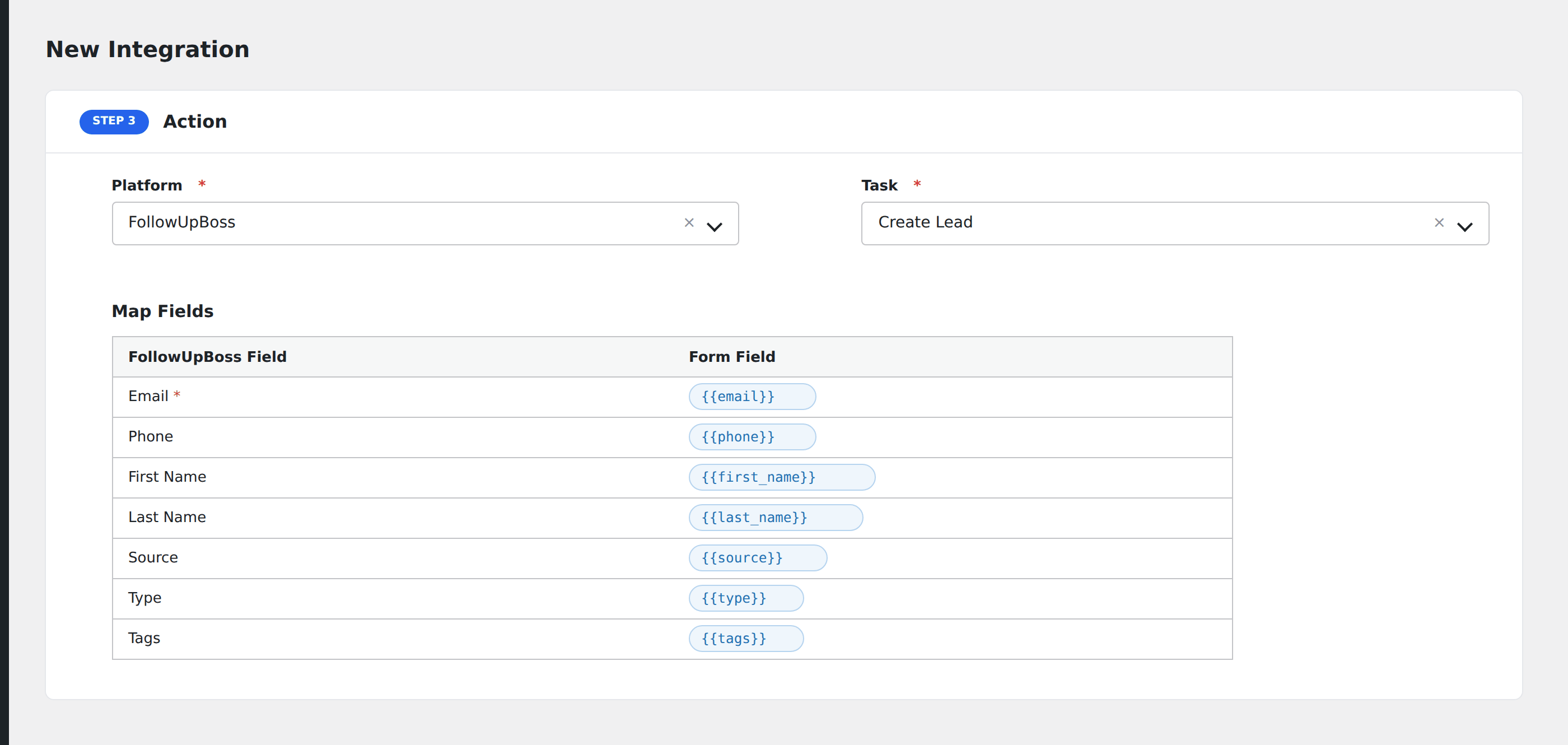
- In Action → Platform, select FollowUpBoss.
- In Task, choose Create Lead.
- Map the form fields:
- Email or Phone (one is required).
- First Name, Last Name, Source.
- Type: Buyer / Seller / Renter etc.
- Tags: comma-separated.
- Optional: configure Conditional Logic.
- Click Save Integration.