 AFI
AFI
BuddyPress
BuddyPress is the long-running open-source community plugin for WordPress. Advanced Form Integration captures BuddyPress events (new member registrations, profile updates, group joins) and routes the data to any of 200+ destinations.
What you’ll need
- The BuddyPress plugin installed and activated.
- The Advanced Form Integration plugin installed and activated.
Event data captured
| Field | Format |
|---|---|
| Event type | registration, profile_updated, group_joined, friendship_accepted, etc. |
| Member name | First and last separately |
| Member email | Same as input |
| Username | Same as input |
| User ID | Numeric WordPress user ID |
| Profile fields | Each xprofile field captured by name |
| Group name | The group (if applicable) |
| Created at | YYYY-MM-DD HH:MM:SS |
Custom xProfile fields you’ve added in BuddyPress → Settings → Profile Fields also flow through with their field name.
Create the integration
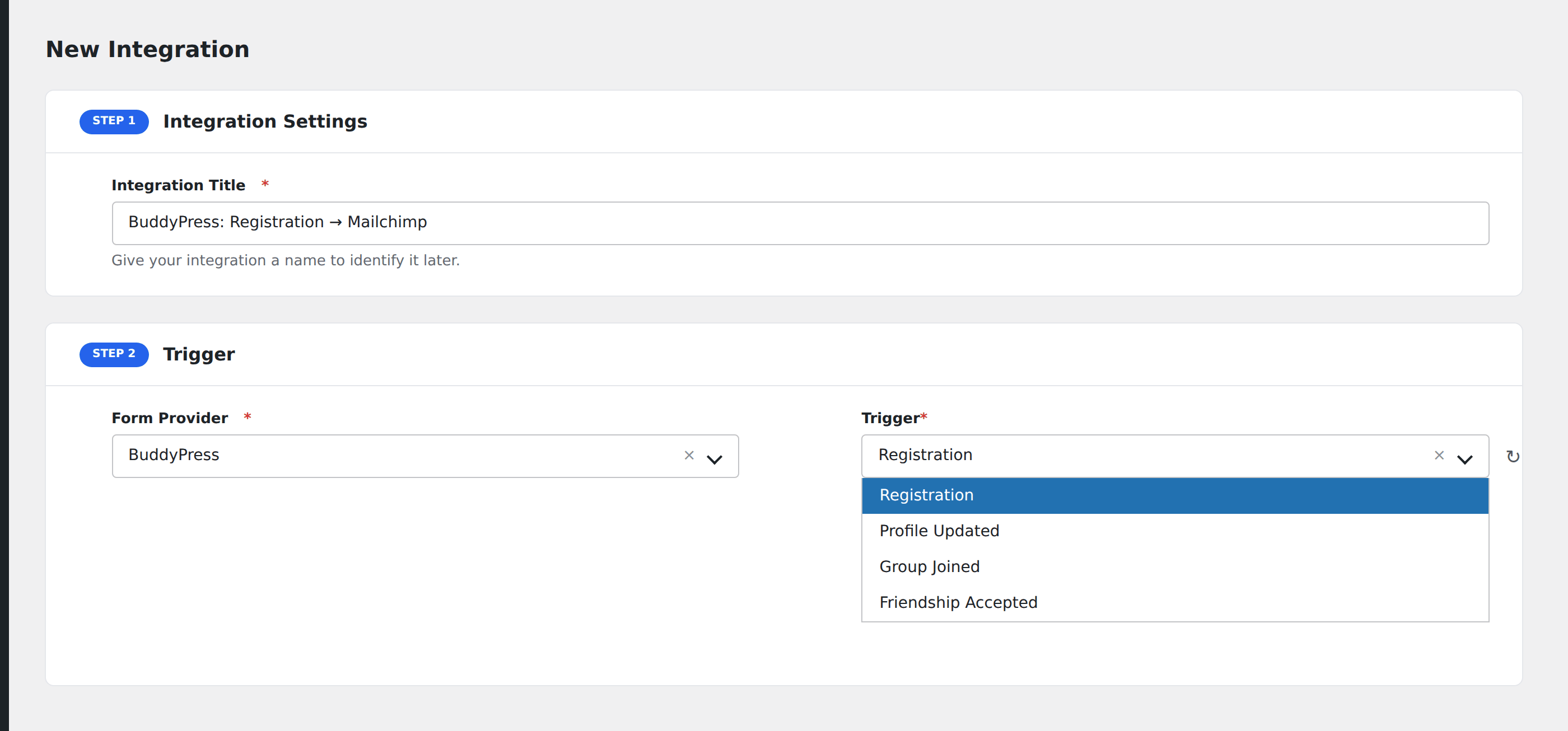
- Go to WP Admin → AFI → Add New.
- Enter an Integration Title, e.g.
New BP member → Mailchimp. - In Trigger → Form/Data Provider, select BuddyPress.
- In Form/Task Name, choose the event type.
- In Action → Platform, pick the destination and complete the field mapping.
- Optional: configure Conditional Logic.
- Click Save Integration.
Conditional logic example
Goal: when a new BuddyPress member’s profile lists their Role as Educator, also add them to a special “Educators” segment in Mailchimp.
Create the Mailchimp integration on the Registration event. Open the Conditional Logic panel, add a condition with the role xprofile field, Equal To, value Educator. In the Mailchimp action panel, set the Tag field to Educators.
Troubleshooting
Profile field not appearing in mapping
xProfile fields are exposed only after the first member submits the registration form with that field populated. Submit a test registration to surface custom fields.
Activation-required registrations
If your BuddyPress install requires email activation before registration completes, AFI fires the registration event after activation, not before. Members who never activate don’t fire the event.