AFI
AFI
Appointment Hour Booking
Overview
AFI captures every booking made through the Appointment Hour Booking plugin and sends it to your receiver of choice — push appointments to your CRM, sync them to Google Calendar, notify a Slack channel, or log them to a sheet.
Available triggers
AFI listens for the following events from Appointment Hour Booking. Each event runs as its own integration — you can have several integrations on the same plugin firing on different events.
- New booking submitted
- Booking status updated
Mappable fields
Each booking event exposes the customer fields you defined on the form (name, email, phone, custom fields), plus the selected date, time slot, and service. The booking_id and status are available so you can reconcile records with the plugin’s own booking list.
Requirements
- Appointment Hour Booking plugin installed and activated.
- At least one published booking form.
Quick start
- In WordPress admin, go to AFI > New Integration.
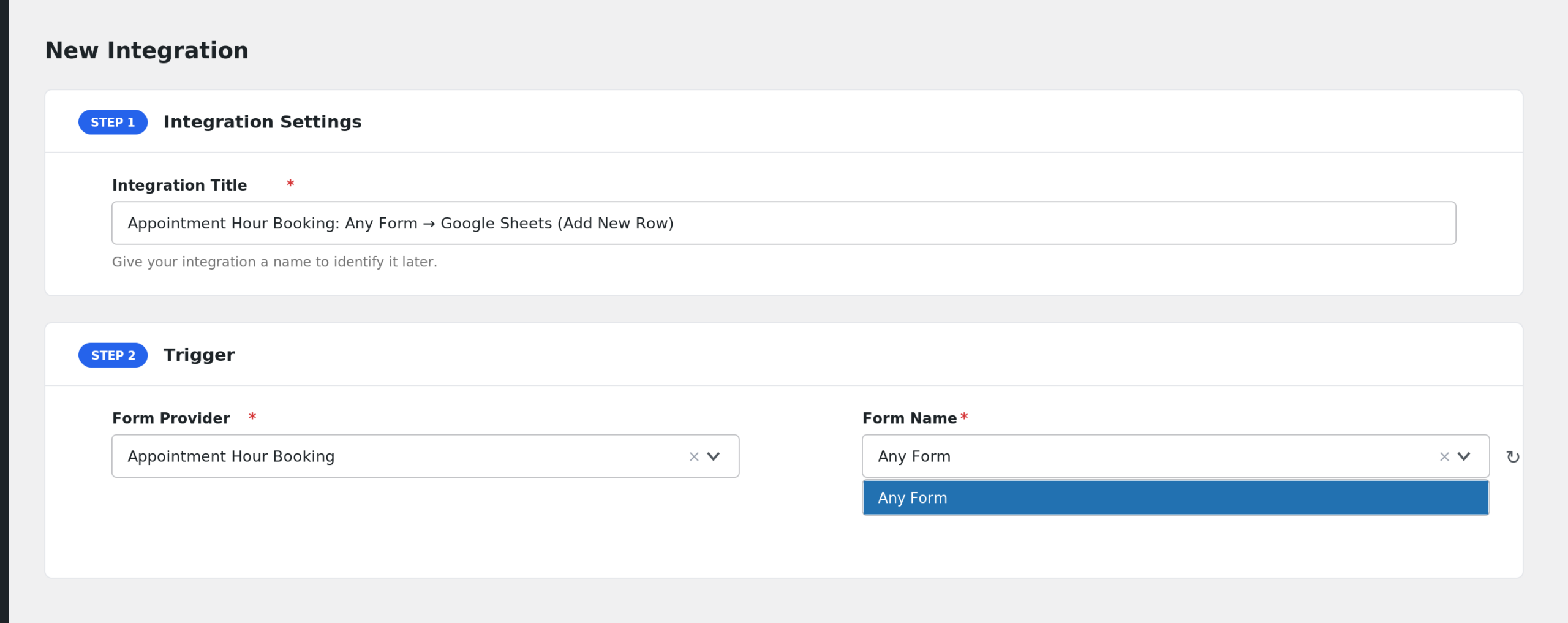
- Trigger > Sender: pick Appointment Hour Booking.
- Event / Form: pick the specific event you want this integration to listen on (e.g. New booking submitted).
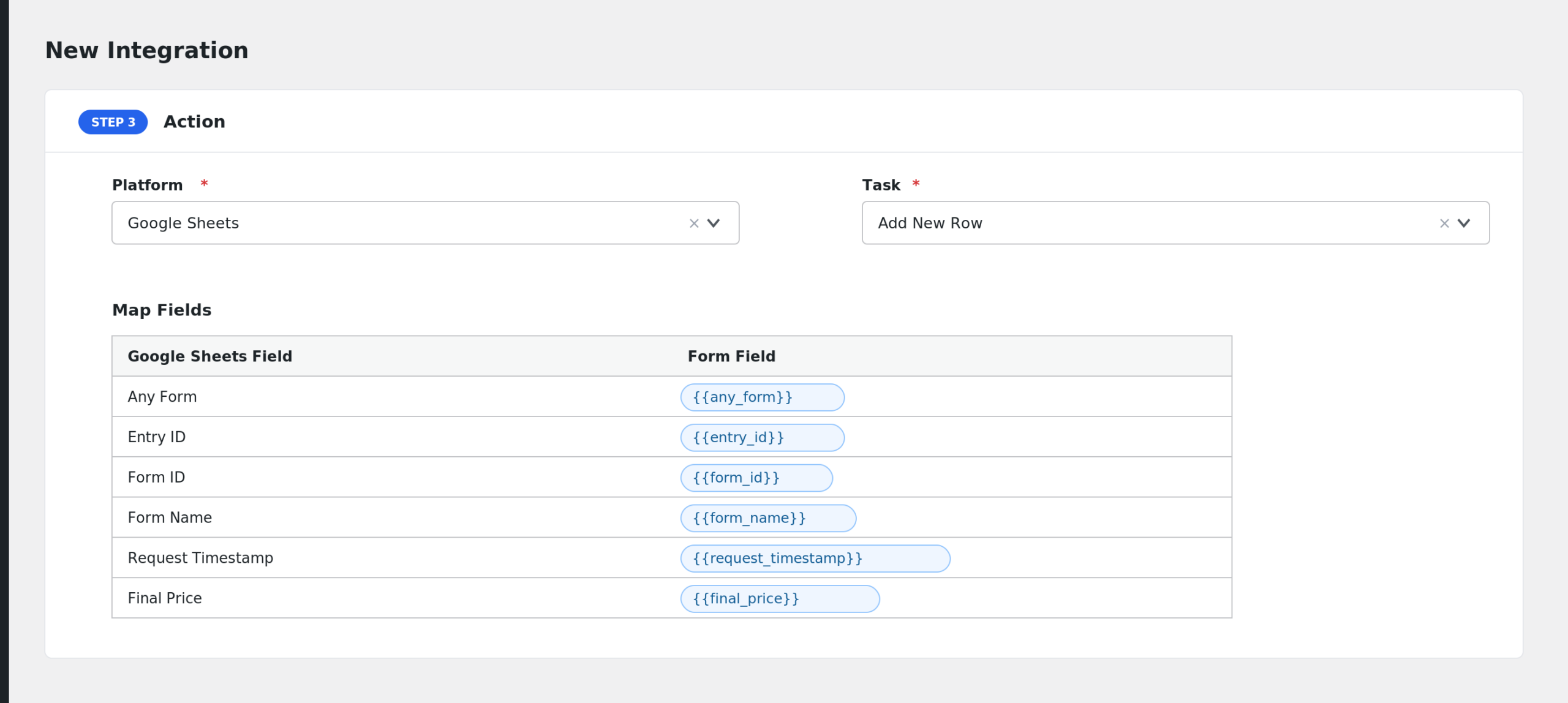
- Pick a Receiver (e.g. Mailchimp, HubSpot, Google Sheets, Slack) and the desired task.
- Map Appointment Hour Booking fields onto the receiver’s fields. Use special tags (
{{_date}},{{_user_ip}}, etc.) for values not present in the form. - Optional: add Conditional Logic to control when the receiver is called.
- Save and run a test event to confirm the integration. Check AFI > Log if anything looks off.
Notes & caveats
- Custom fields are picked up automatically by their slug — keep the slugs short and stable.
- Status updates include the new status only; if you need both old and new, log them yourself with a
cpappb_update_statushook.
Related