 AFI
AFI
ARMember
ARMember is a feature-rich WordPress membership plugin from Repute InfoSystems. Advanced Form Integration captures ARMember events (new memberships, plan changes, renewals, cancellations) and routes the data to any of 200+ destinations.
What you’ll need
- The ARMember plugin (free or Premium) installed and activated.
- At least one membership plan configured.
- The Advanced Form Integration plugin installed and activated.
Member event data captured
| Field | Format |
|---|---|
| Member name | First and last separately |
| Member email | Same as input |
| Member phone | Same as input |
| Username | Same as input |
| Plan name | The plan they’re on |
| Plan ID | Numeric ARMember plan ID |
| Plan amount | Numeric, in your default currency |
| Currency | 3-letter code |
| Billing cycle | monthly, yearly, one-time |
| Status | active, pending, cancelled, expired |
| Event type | signup, renewal, cancellation, expiration, upgrade, downgrade |
| Subscription start date | YYYY-MM-DD |
| Next payment date | YYYY-MM-DD |
Custom registration-form fields you’ve added in ARMember also flow through with their field name.
Create the integration
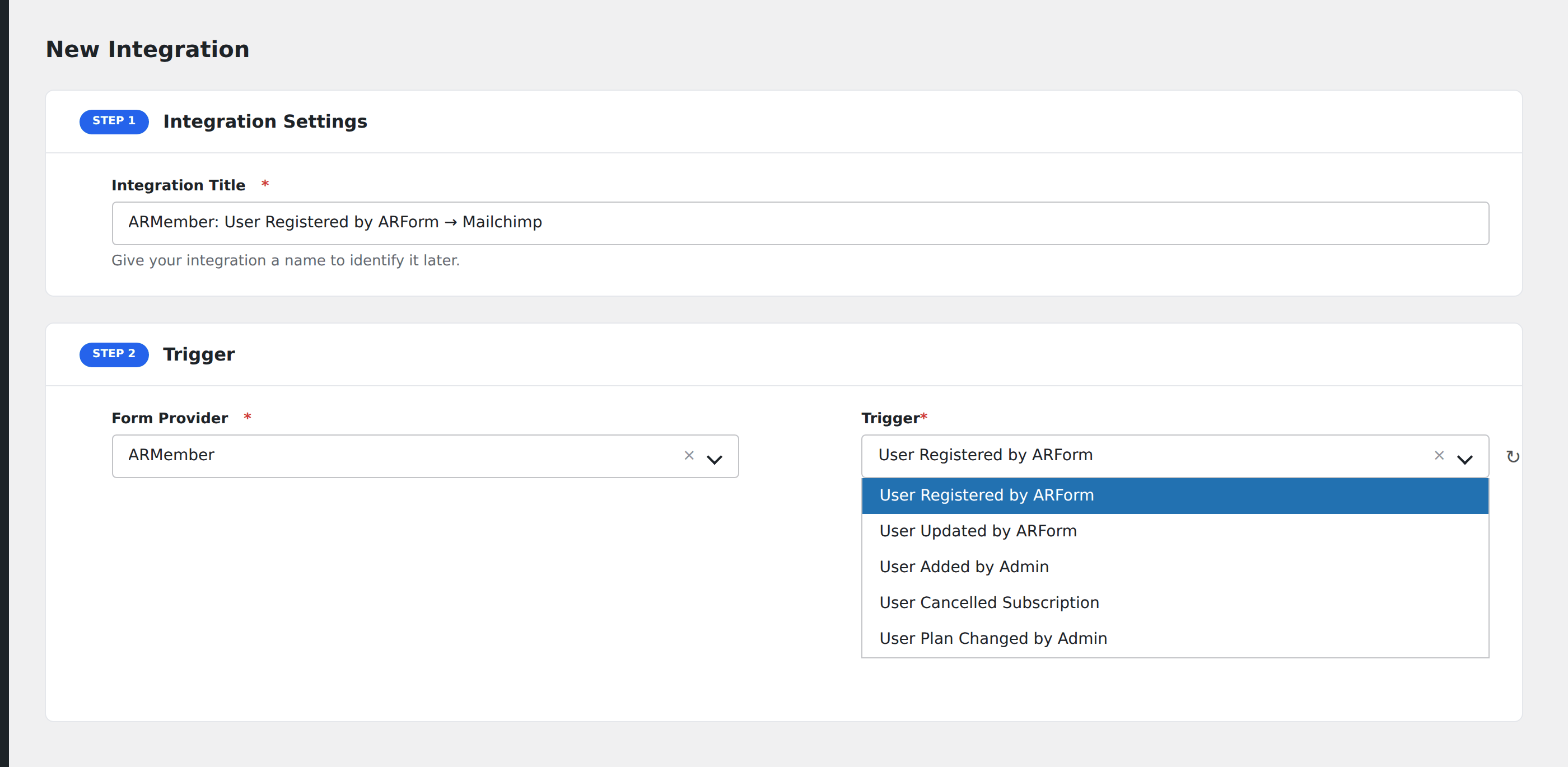
- Go to WP Admin → AFI → Add New.
- Enter an Integration Title, e.g.
New member → Mailchimp. - In Trigger → Form/Data Provider, select ARMember.
- In Form/Task Name, choose the event (Signup, Renewal, Cancellation, etc.).
- In Action → Platform, pick the destination and complete the field mapping.
- Optional: configure Conditional Logic.
- Click Save Integration.
Conditional logic example
Goal: when a member upgrades to the Premium plan, ping the customer success team’s Slack channel and add them to a “Premium Members” tag in Mailchimp.
Create two integrations on the ARMember Upgrade event. Add the same Equal To condition on the plan name field with value Premium to both. The events tied to lower-tier plans don’t fire either integration.
Troubleshooting
Cancellation event missing data
ARMember’s cancellation event fires after the member confirms cancellation. If a member’s payment lapses without explicit cancellation, the event is expiration, not cancellation. Listen for both if you need to catch all departures.
Custom fields not appearing
ARMember exposes custom registration fields only after the first member signs up with that field populated. Submit a test signup to surface the fields in the mapping dropdown.