 AFI
AFI
Mailify
Mailify is a French email-marketing platform popular with EU-based small businesses. Advanced Form Integration sends form submissions to Mailify as new contacts on a chosen list, with full custom-field mapping in Pro.
What you’ll need
- An active Mailify account.
- Your Mailify Account Number and API Key (instructions on the AFI Mailify settings page).
- The Advanced Form Integration plugin installed and activated.
Connect Mailify to AFI
- In WordPress, go to AFI → Settings.
- Enable Mailify and click Save Changes.
- Open the Mailify tab. Find the in-page instructions on locating your Mailify Account Number and API Key.
- Enter the Account Number and API Key.
- Click Save Changes.
Create the integration
- Go to AFI → Add New.
- Configure the trigger.
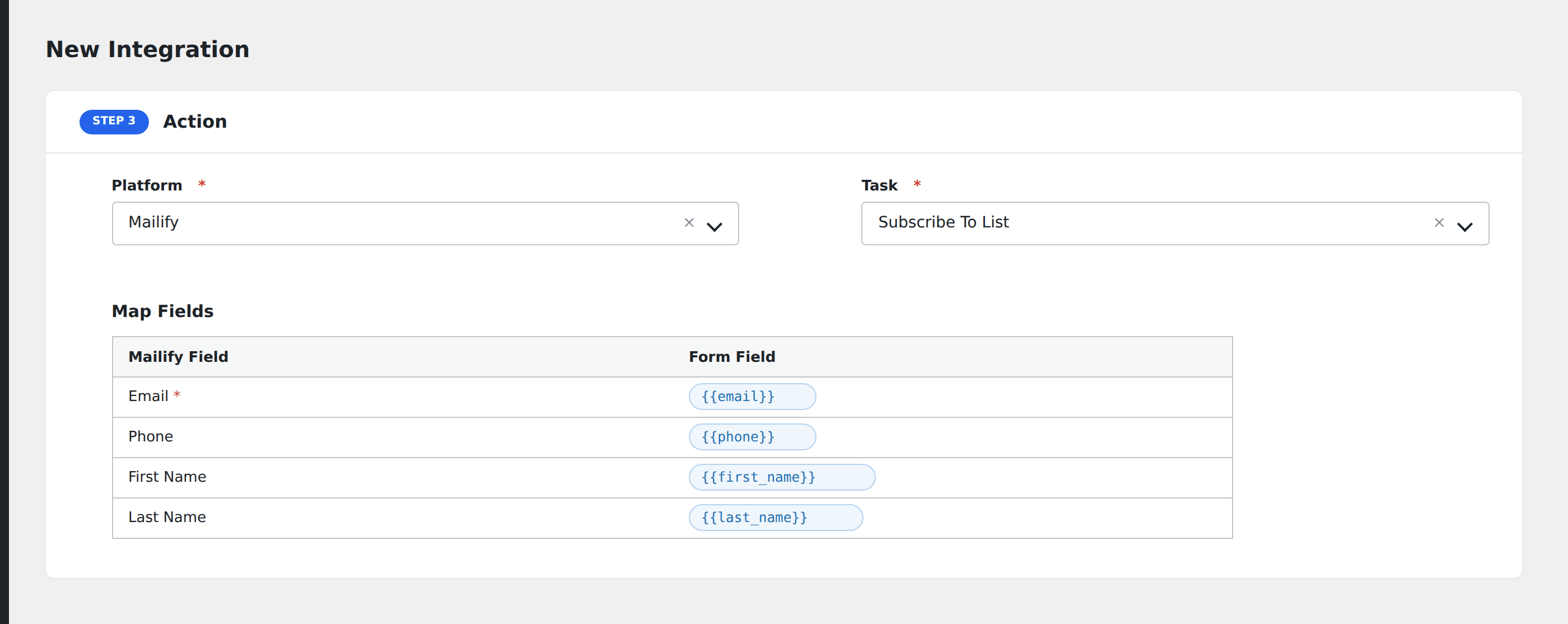
- In Action → Platform, select Mailify (or Mailify [PRO] if using Pro).
- In Task, choose Subscribe To List.
- Pick the Mailify Contact List: AFI loads your lists automatically.
- Map the form fields:
- Email (required), First Name, Last Name.
- On Pro: any custom fields configured on the chosen list.
- Optional: configure Conditional Logic.
- Click Save Integration.
Tasks supported
Subscribe To List
Adds the form submitter as a contact on the chosen Mailify list. Re-submissions update the existing contact rather than creating duplicates.
Pro features
The Pro Mailify integration adds custom field mapping. Pick a list and AFI fetches every additional field defined on that list (phone, company, custom attributes), exposing them in the mapping screen alongside Email, First Name, Last Name.
Conditional logic example
Subscribe to your “FR” Mailify list only when the form’s language field equals “FR”. English submissions go to the “EN” list via a separate integration.
Troubleshooting
Integration doesn’t fire
Open AFI → Log and find the most recent entry. The log shows the request payload sent to Mailify and the response received, usually pointing straight at the cause.
“Authentication failed”
Mailify requires both the Account Number and API Key. The Account Number is shown on Mailify’s settings page. It’s a separate value from the API Key.
Custom field not visible
Custom fields are available in the Pro version. The free integration includes Email, First Name, and Last Name.