 AFI
AFI
Inbound Webhooks
The Inbound Webhooks sender turns AFI into a generic webhook receiver. Instead of capturing submissions from a WordPress form plugin, AFI listens on a URL you can call from any external system (a Stripe payment, a typeform.com form, a Make/Zapier scenario, a custom backend script) and routes the incoming payload to any of the 200+ supported destinations.
Inbound Webhooks is a Pro feature of AFI.
What you’ll need
- AFI Pro license activated on your WordPress site.
- The external system that will POST data to your inbound webhook URL.
- The Advanced Form Integration plugin installed and activated.
Create an inbound webhook in AFI
- Go to WP Admin → AFI → Inbound Webhooks (the menu item only appears after Pro is active).
- Click Add New.
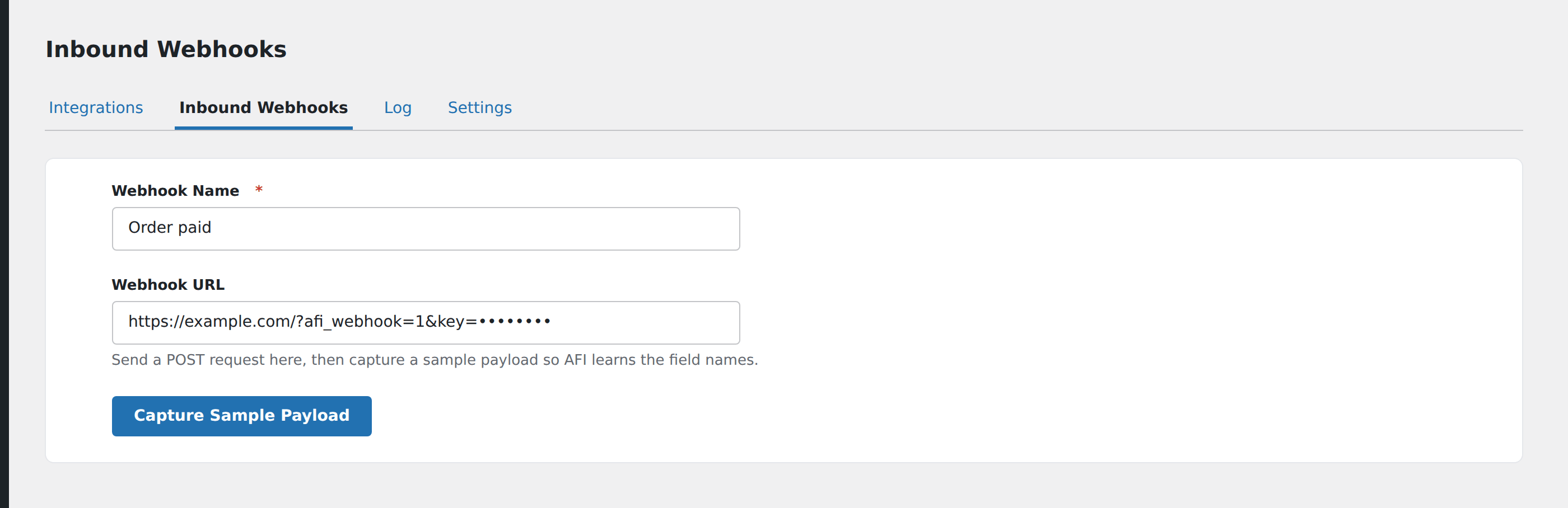
- Give the webhook a memorable name, e.g.
Stripe → MailchimporTypeform → Sheets. - AFI generates a unique webhook URL like
https://yoursite.com/?adfoin_inbound_webhook=abc123xyz. - Send a test POST to the URL from your source system, then return to the AFI screen and click Capture Sample Payload. AFI parses the incoming JSON, learns the field structure, and shows the captured fields.
- Click Save.
Create the integration
Once the inbound webhook is saved, it shows up as a Form Provider in AFI → Add New.
- Go to WP Admin → AFI → Add New.
- In Trigger → Form/Data Provider, select Inbound Webhooks.
- In Form/Task Name, choose the webhook you created.
- In Action → Platform, pick the destination and complete its field mapping.
- Click Save Integration.
The mapped fields use the same {field_name} token format as form-plugin integrations, with field names taken from the keys in the JSON payload you captured.
Payload format
AFI accepts both application/json and standard application/x-www-form-urlencoded payloads. For JSON:
{
  "name": "Sarah Lin",
  "email": "sa***@**me.co",
  "plan": "Pro"
}
Each top-level key becomes a token ({name}, {email}, {plan}) you can map to destination fields. Nested JSON is flattened with dot notation: {customer.email}, {address.country}.
Securing the URL
The webhook URL contains a random token, which gives reasonable obscurity, but anyone who knows the URL can post to it. Two options to harden it:
- Rotate the URL: delete the webhook in AFI and create a new one. This invalidates the old URL.
- Use a header secret: if your source system supports custom headers, add a header like
X-Webhook-Secret: <your-secret>and configure AFI to reject requests without it (requires the latest Pro version).
For sensitive data, terminate the webhook on a server you control and forward to AFI rather than exposing the URL directly to third parties.
Conditional logic example
Goal: when a Stripe webhook fires for a new subscription, only push to Mailchimp if the subscription’s plan field equals Pro.
On the integration, open the Conditional Logic panel, add a condition with the plan field, Equal To operator, and value Pro. Free-tier subscriptions are ignored by this integration but can still feed other destinations.
Troubleshooting
Webhook URL returns 404
The Inbound Webhook menu item is only visible when AFI Pro is active. Confirm Pro is activated and the license is valid in AFI → License.
Captured fields don’t include the field I want
The sample POST didn’t include that field. Re-send a test POST with all the fields populated, then click Capture Sample Payload again to refresh the field schema.
“Failed to capture payload” error
The incoming POST isn’t valid JSON or form-encoded data, or the request is too large (>1MB by default). Check the source system’s payload format and size.