 AFI
AFI
Mailgun Transactional
This integration sends a one-off transactional email via Mailgun when a form is submitted, useful for confirmation emails, receipts, lead-magnet delivery, or internal alerts. It’s separate from the standard Mailgun integration which handles mailing-list membership.
What you’ll need
- An active Mailgun account with at least one verified sending domain.
- Your Mailgun Private API key (Account Settings → API Keys).
- Your Mailgun region (US or EU).
- The Advanced Form Integration plugin installed and activated.
Connect Mailgun Transactional to AFI
- In WordPress, go to AFI → Settings → Mailgun Transactional.
- Enter the API key and pick the region.
- Click Save Changes.
Create the integration
- Go to AFI → Add New.
- Configure the trigger.
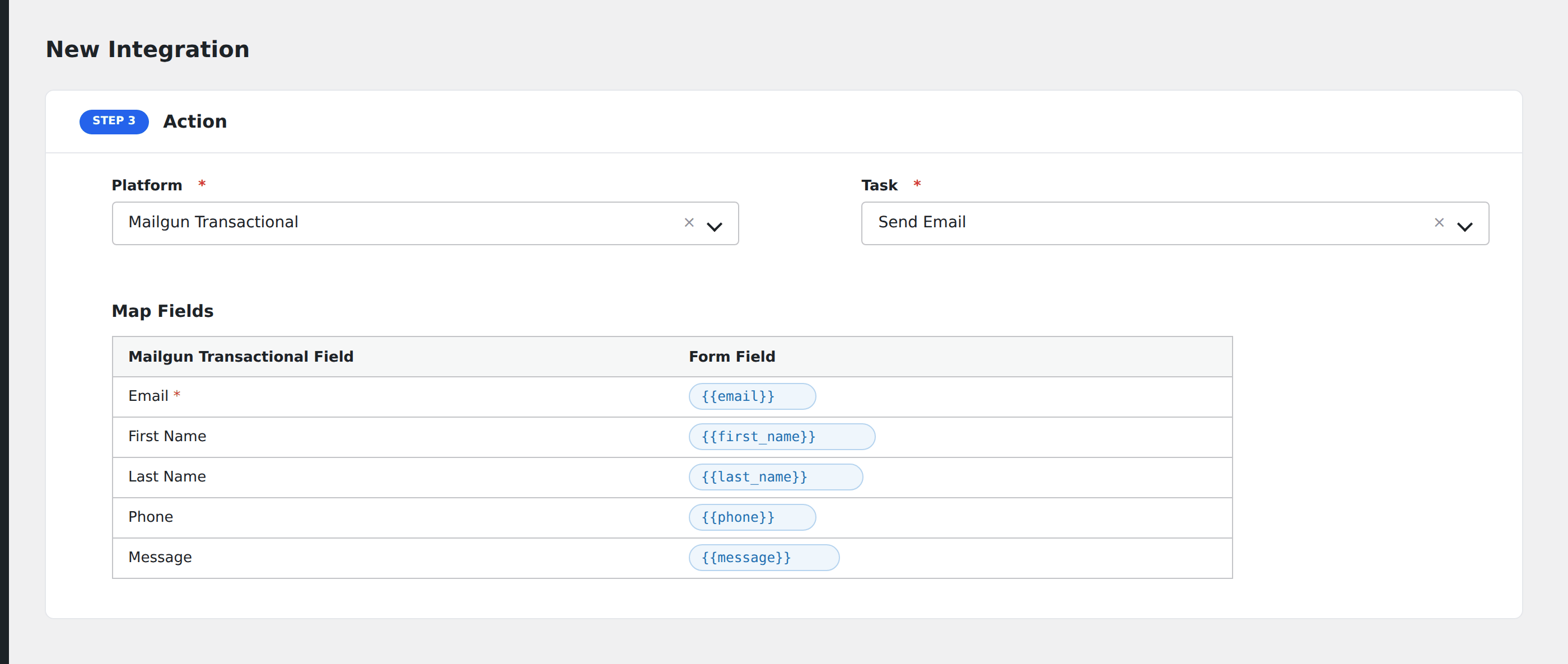
- In Action → Platform, select Mailgun Transactional.
- In Task, choose Send Email or Send Template.
- Pick the Domain (Mailgun verified sending domain).
- Map the fields:
- From: sender address (must be on the verified domain).
- To: recipient (typically map to the form’s email field).
- Subject.
- Text Body and/or HTML Body for raw send.
- For templated send: Template Name plus Template Variables (mapped per template variable).
- Cc, Bcc, Reply To.
- Tags for filtering in Mailgun’s analytics.
- Optional: configure Conditional Logic.
- Click Save Integration.
Tasks supported
Send Email
Sends a one-off email built from form data. Use this when you don’t need a saved template.
Send Template
Renders a saved Mailgun template with variables pulled from the form. Recommended for any email you send more than once.
Conditional logic example
Send a “thank you for upgrading” template only when the form’s plan field equals “premium”. Free signups get a different template through a separate integration.
Troubleshooting
“Forbidden”
Mailgun rejects sends from unverified domains. Verify the From domain in Mailgun under Sending → Domains.
Email accepted but never received
Mailgun’s “accepted” status only confirms the API call succeeded. Check the Logs tab in Mailgun for the actual delivery status. Bounces, spam complaints, and DNS-related rejections are tracked there.
Related docs
- Mailgun (mailing list): for adding subscribers to mailing lists
- Send Contact Form 7 to Mailgun Transactional
- Conditional Logic