 AFI
AFI
Microsoft Teams
Microsoft Teams is where many teams already spend their day, so it is a natural place to be notified about form activity. With Advanced Form Integration (AFI), every form submission can post a message card to a Teams channel: new leads land in your sales channel, support requests ping the helpdesk channel, and order notifications reach operations, all in real time.
Supported Features
- Post a message card to a Teams channel, with a title and a markdown-capable body
- Works with Microsoft 365 Workflow webhooks (the current, recommended method) and legacy Office 365 Connector webhooks
- No OAuth and no Azure app registration: the webhook URL is the only credential
- Save several webhooks and post to different channels from different integrations
What You’ll Need
- A Microsoft Teams account with permission to add Workflows to a channel
- The AFI plugin (free) installed and active
- A form plugin connected as the sender
Get the Channel Webhook URL
Teams now uses Workflows for incoming webhooks:
- In Teams, open the channel you want to post to, click the three dots next to the channel name, and choose Workflows.
- Select the template “Post to a channel when a webhook request is received”.
- Follow the prompts and create the workflow.
- Copy the generated webhook URL. Teams shows it only once, so copy it right away. It looks like https://prod-XX.westeurope.logic.azure.com:443/workflows/…
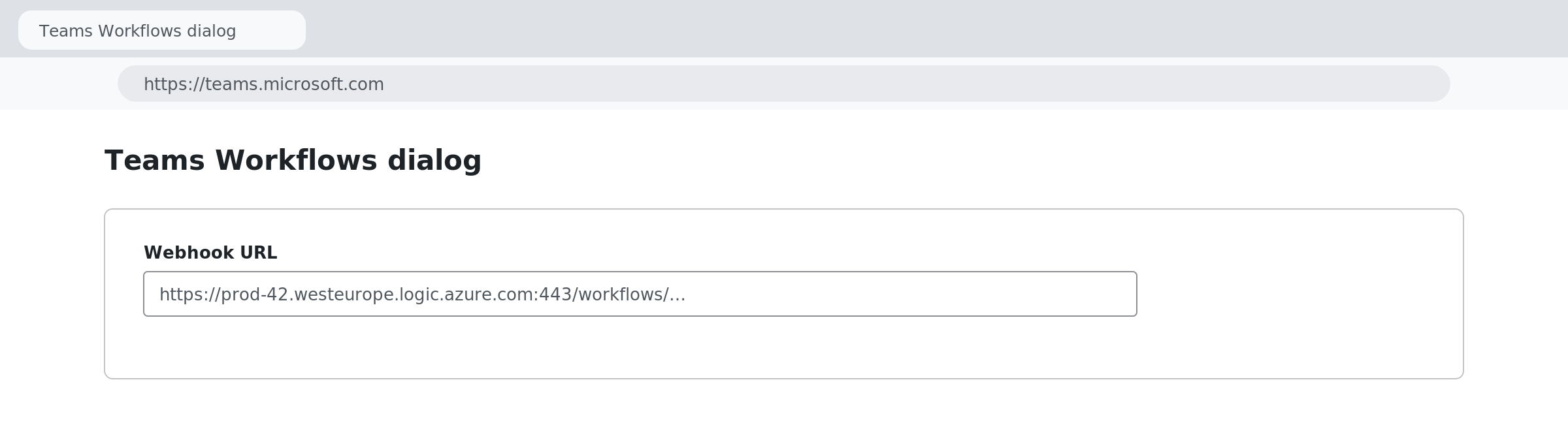
Legacy Office 365 Connector webhook URLs (https://yourtenant.webhook.office.com/webhookb2/…) still work if you already have one, but Microsoft is phasing them out.
Save the Webhook in AFI
- In WordPress, go to AFI > Settings, enable the Microsoft Teams tab, and open it.
- Paste the Incoming Webhook URL and save.
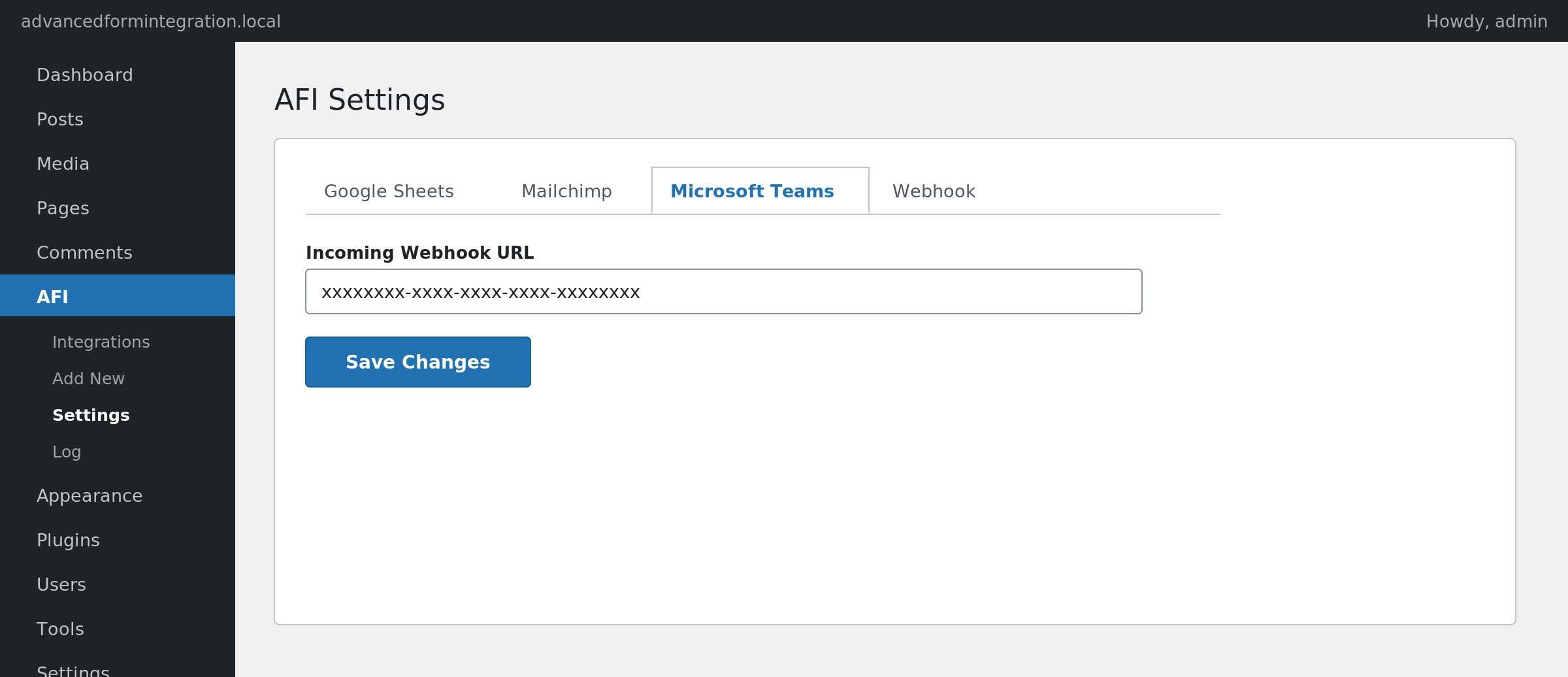
Each saved account is one channel webhook. To post to several channels, add one account per channel and pick the right one in each integration.
How to Create the Integration
- Go to AFI > Add New.
- Rename the auto-filled Integration Title, for example “Contact Form to Sales Channel”.
- Under Trigger, select your form plugin and the specific form.
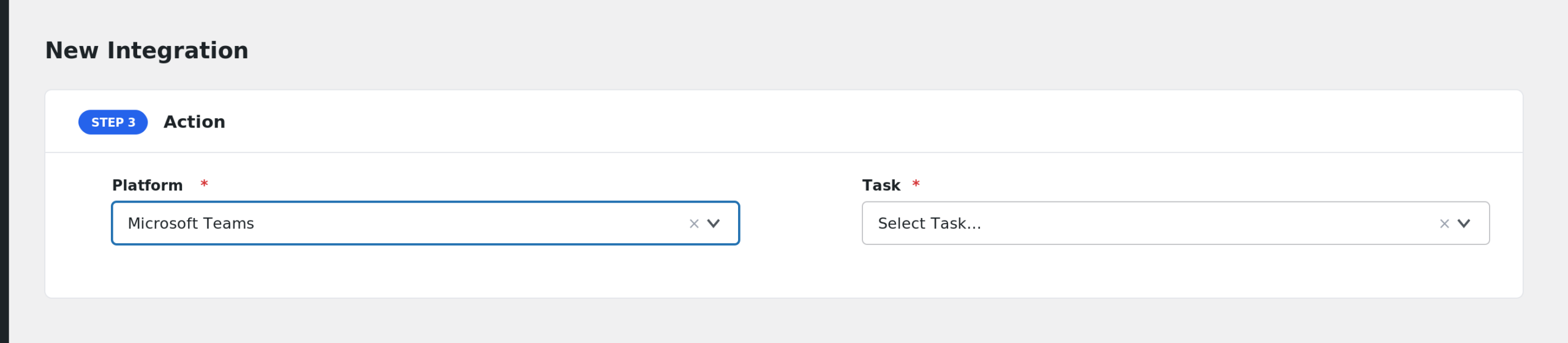
- Under Action > Platform, select Microsoft Teams and the Post Message to Channel task.
- Select the channel webhook under the account dropdown.
- Fill in the two message fields (see below), then click Save Integration.
Field Mapping
| Field | Description |
|---|---|
| Title | The card heading, for example “New Lead from Contact Form” |
| Message | The card body. Supports markdown, and you can mix static text with form field tags |
A useful Message pattern:
**Name:** {{name}}
**Email:** {{email}}
**Message:** {{message}}
Replace the tags with your own form’s field tags from the mapping dropdown.
Troubleshooting
Nothing appears in the channel
Go to AFI > Log and check the response. If the URL is rejected, recreate the workflow and paste the new URL: workflow webhooks stop working when the workflow is edited, disabled, or its owner leaves.
The message posts but looks plain
The body is rendered as an Adaptive Card. Keep the markdown simple: bold, italics, links, and line breaks work best.
I need to post to two channels
Create a second workflow in the other channel, save its URL as another account in the Teams settings tab, and create a second integration pointing at it.