 AFI
AFI
HT Contact Form
HT Contact Form is a simple drag and drop contact form builder from HasThemes. Connect it to Advanced Form Integration (AFI) and each submission is passed on to the tools you already use. You can collect entries in Google Sheets, grow a Mailchimp audience, or push new contacts into a CRM automatically.
What You’ll Need
- The HT Contact Form plugin installed and active, with at least one form built.
- Advanced Form Integration, free or Pro. This trigger works fully in the free version.
- An account on the receiving platform, such as Google Sheets or Mailchimp.
How to Create the Integration
- Go to AFI > Add New in your WordPress dashboard.
- AFI fills in a default Integration Title. Rename it to something you will recognize, like “HT Contact Form to Mailchimp”.
- In the Trigger section, choose HT Contact Form from the Form Provider dropdown. The HT Contact Form plugin must be active or the option will not show.
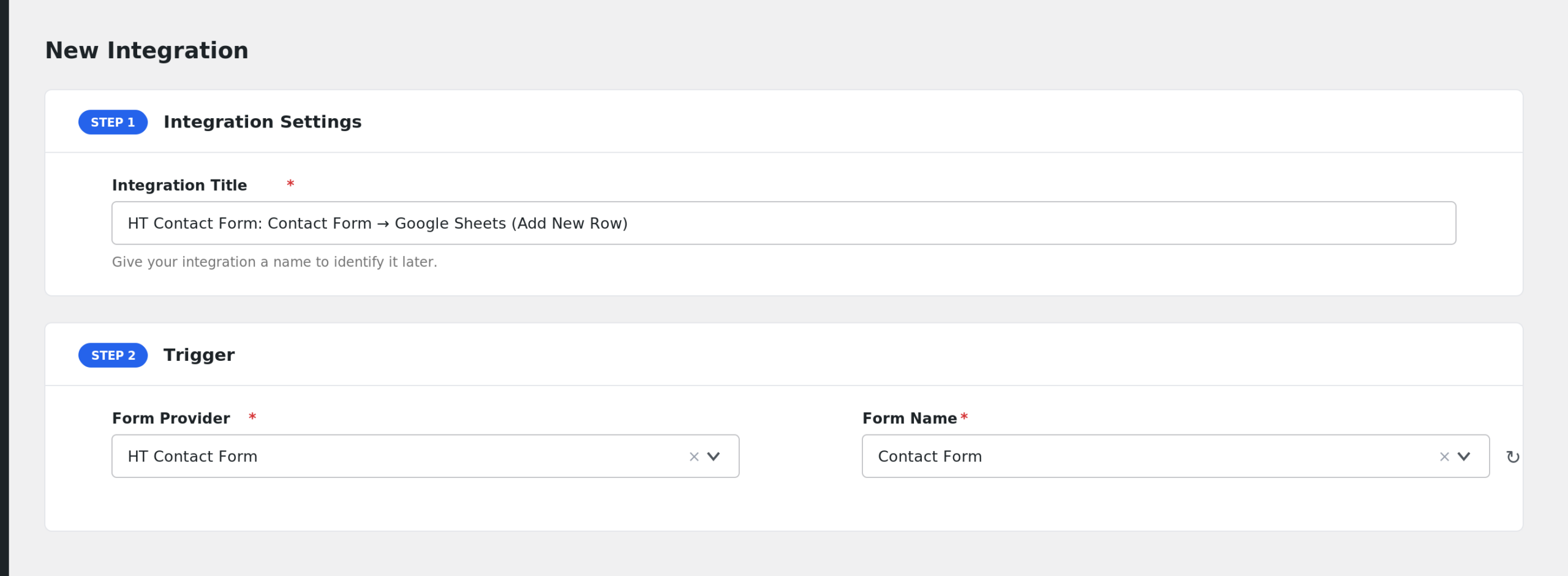
- Select your form in the Form/Task Name dropdown. AFI lists all HT Contact Forms by title, sorted alphabetically.
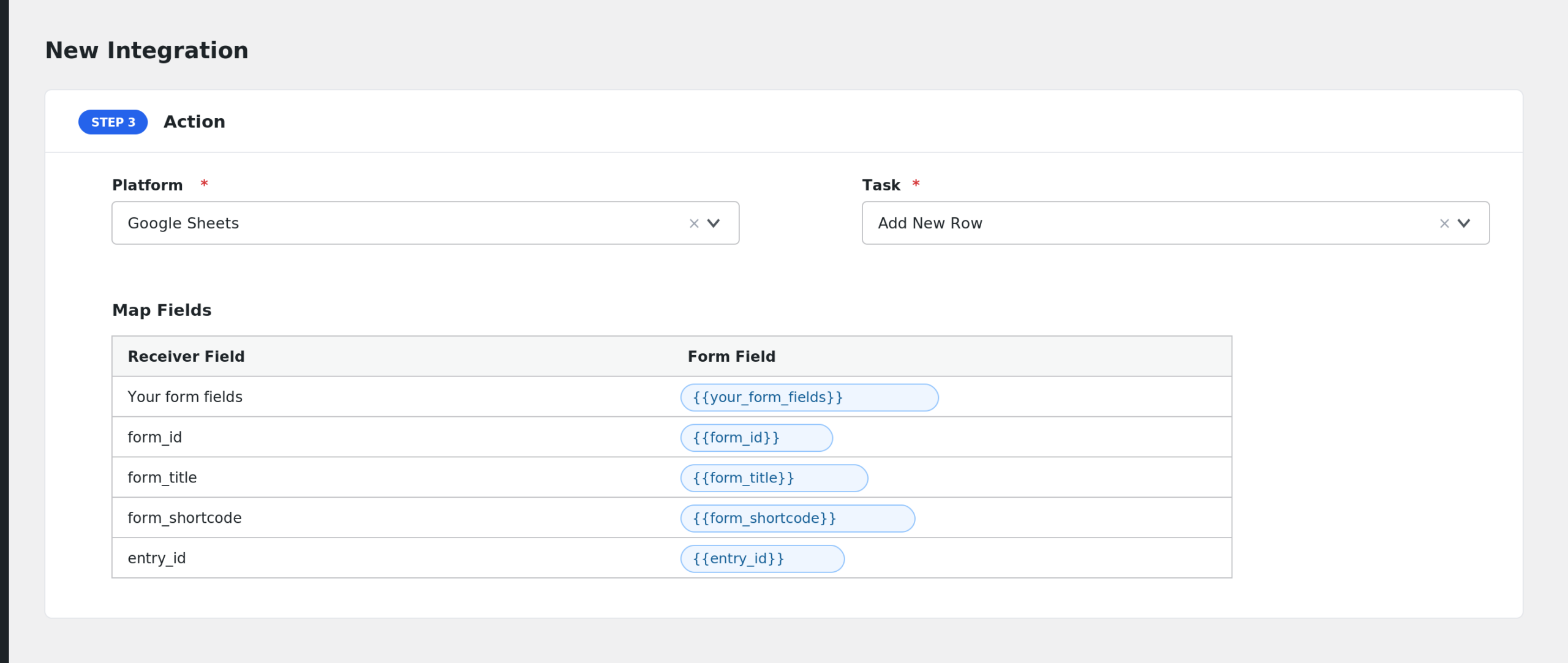
- Under Action, pick your receiver platform and connect the account.
- Map the form fields to the receiver fields using the tag picker.
- Click Save Integration and submit a test entry to confirm everything flows.
Fields You Can Send
AFI reads the field names defined in your form and lists each one for mapping. Field names are normalized, so special characters become underscores. These extra fields are added automatically:
| Field | Description |
|---|---|
| Your form fields | Every named field in the form, shown as “Field: name”. |
| form_id | The ID of the form. |
| form_title | The title of the form. |
| form_shortcode | The shortcode used to embed the form. |
| entry_id | The ID of the saved entry. |
| created_at | When the entry was created. |
| user_id | The WordPress user ID, if the visitor was logged in. |
| ip_address | The IP address of the visitor. |
| browser | The browser used for the submission. |
| device | The device type used for the submission. |
| source_url | The page URL where the form was submitted. |
Array values are sent as a JSON string. General special tags such as user and post data also appear in the dropdown.
Conditional Logic Example
If your form includes a subject dropdown, add a condition so the integration only runs when the subject equals Partnership. Routine questions stay in email, and partnership requests go straight to your CRM. Conditional logic requires AFI Pro.
Troubleshooting
HT Contact Form is not in the Form Provider list
Make sure the HT Contact Form plugin is active. AFI checks for the plugin before listing the provider.
My form is missing from the dropdown
Newly created forms appear after a page reload. If the form still does not show, open it in the HT Contact Form builder and save it again.
The integration is not firing
AFI listens to the HT Contact Form after-submission event. Submit the form on the front end and confirm it succeeds, then open AFI > Log to check whether the trigger fired and what the receiver returned.
Fields arrive blank
Field keys are the normalized versions of your input names. If you renamed fields after saving the integration, edit it, reselect the form, and remap the fields from the dropdown.