 AFI
AFI
Google Tasks
Google Tasks is Google’s lightweight to-do list, integrated with Gmail and Google Calendar. Advanced Form Integration creates Google Tasks from your form submissions, useful for personal follow-up workflows or simple intake routing.
What you’ll need
- A Google account with Tasks enabled.
- The Advanced Form Integration plugin installed and activated.
Connect Google Tasks to AFI
- In WordPress, go to AFI → Settings → Google Tasks.
- Click Connect to Google Tasks and complete the OAuth flow.
- Grant the Tasks scope.
Create the integration
- Go to AFI → Add New.
- Configure the trigger.
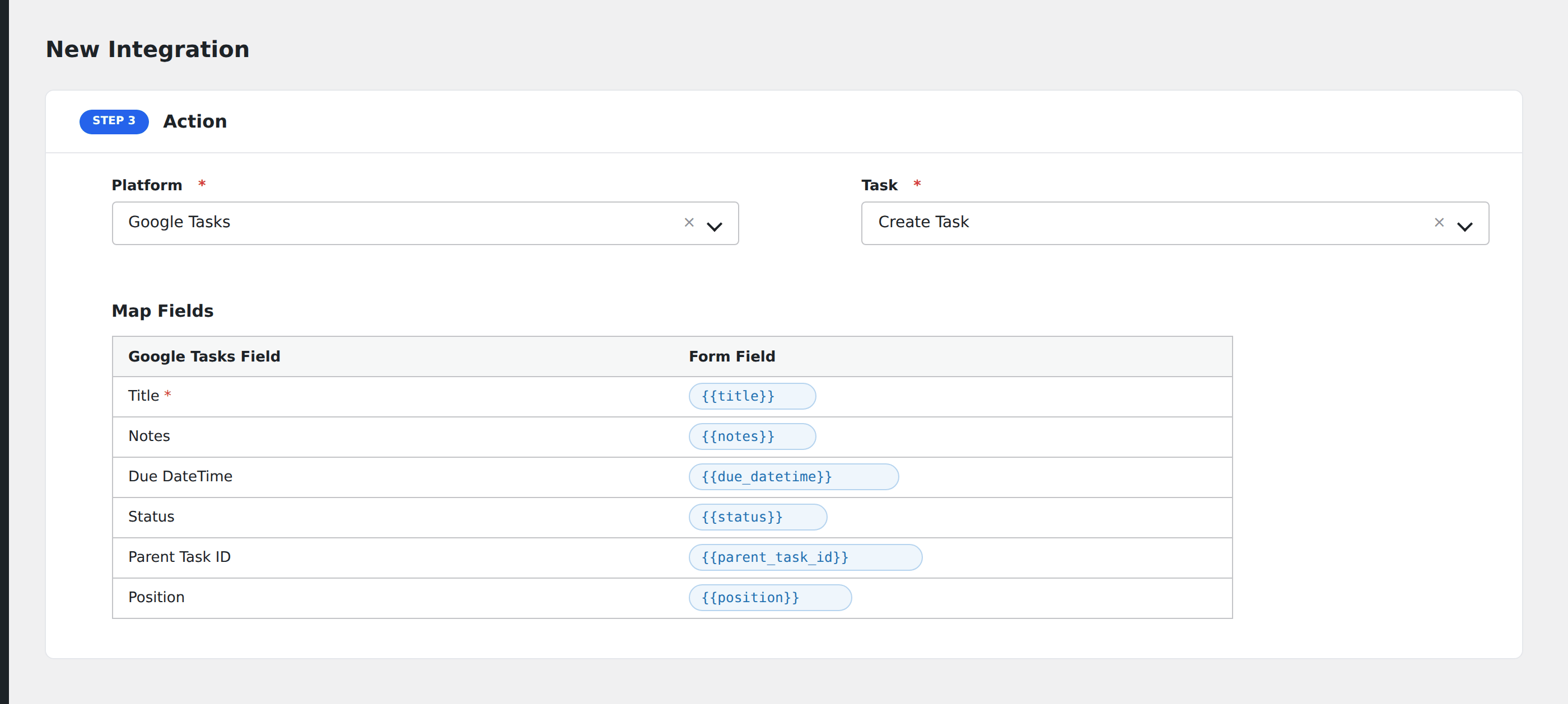
- In Action → Platform, select Google Tasks.
- In Task, choose Create Task.
- Pick the destination Task List.
- Map the form fields:
- Title (required): the task name.
- Notes: task body / details.
- Due Date (ISO
YYYY-MM-DD): Google Tasks supports a date but no specific time.
- Optional: configure Conditional Logic.
- Click Save Integration.
Conditional logic example
Create a Google Task on your “Urgent follow-ups” task list only when the form’s priority field is “high”. Standard inquiries skip the task and go to your CRM only.
Troubleshooting
Task list dropdown empty
The connected Google account must have at least one task list. Open Google Tasks in the browser and create a list, then return to AFI and refresh.
Re-authorization needed
Google OAuth refresh tokens can be revoked if the workspace admin tightens app access. Return to AFI → Settings → Google Tasks and reconnect if integrations stop firing.