 AFI
AFI
Jobber
Jobber is a field service management platform for home and commercial service businesses. It handles client management, job scheduling, invoicing, and dispatching. Advanced Form Integration creates clients and jobs in Jobber from your WordPress form submissions using the GraphQL API.
What you’ll need
- An active Jobber account.
- A Jobber Developer App with an OAuth2 Access Token (see below).
- The Advanced Form Integration plugin installed and activated.
Get your Jobber credentials
- Open the Jobber Developer Center and create (or open) a developer app.
- Generate an OAuth2 access token for that app.
- Copy the access token.
- In WordPress, go to AFI → Settings → Jobber.
- Click Add Account, paste the access token, and give the account a name.
- Optional: pin a specific GraphQL version (YYYY-MM-DD) or leave blank to use the bundled default.
- Click Save.
AFI sends requests to https://api.getjobber.com/api/graphql using Bearer authentication and the X-JOBBER-GRAPHQL-VERSION header.
Create the integration
- Go to AFI → Add New.
- Give the integration a name, for example
Service request to Jobber. - Under Trigger, pick the form plugin and the specific form.
- Under Action → Platform, select Jobber.
- In Task, choose Create Client & Job.
- Pick the saved account in the Jobber Account dropdown.
- Map your form fields onto the Jobber fields listed below.
- Optional: open Conditional Logic to limit which submissions are sent.
- Click Save Integration.
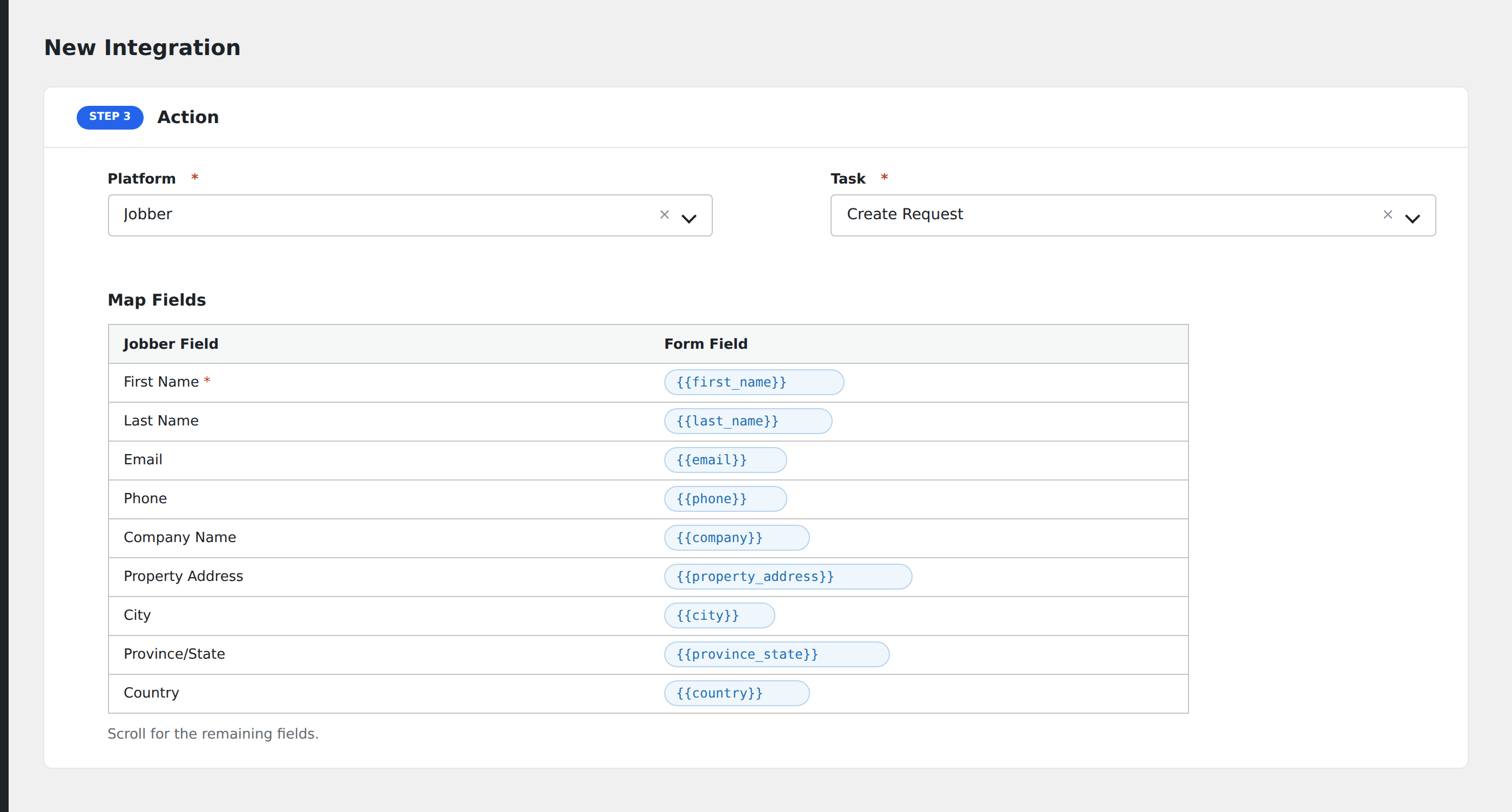
Tasks supported
Create Client & Job
Creates or updates a client and then creates a job linked to that client, using two sequential GraphQL mutations:
- Client resolution: if an Existing Client ID is mapped, AFI edits that client via
clientEdit. Otherwise, if any client fields are mapped, AFI creates a new client viaclientCreateand captures the returned client ID. - Job creation: creates a job under that client via
jobCreate. The Job Title is required; AFI will not send the mutation if it is empty.
Client fields
| Field | Field key | Notes |
|---|---|---|
| Existing Client ID | client_id |
Skips client creation; edits existing client instead |
| Client First / Last Name | first_name, last_name |
|
| Company Name | company_name |
|
email |
Sent as primary email | |
| Mobile / Primary Phone | mobile_phone, phone |
|
| Address fields | address_line1, address_line2, city, province, postal_code, country |
Billing address |
Job fields
| Field | Field key | Required | Notes |
|---|---|---|---|
| Job Title | job_title |
Yes | Required by Jobber’s API |
| Job Description | job_description |
No | |
| Job Instructions | job_instructions |
No | |
| Job Start | job_start_at |
No | ISO 8601, e.g. 2026-05-15T09:00:00Z |
| Job End | job_end_at |
No | ISO 8601 |
AFI normalizes date/time values to ISO 8601 UTC. If the mapped value is already in ISO format, it passes through unchanged.
Pro features
The Pro integration extends the free version with client and job tags, external IDs, and custom JSON merging for advanced field mapping. Pro uses the same Jobber access token connection.
Tags
Pro adds tag fields for both clients and jobs. Enter tags as comma-separated strings. Trigger tags (e.g. {form_source}) are supported.
External ID
Pro adds a Client externalId field, useful for syncing the Jobber client back to your own system.
Custom JSON merge
Pro provides two raw JSON textareas: one for Client and one for Job payloads. The JSON is deep-merged into the GraphQL mutation input, giving access to fields the basic mapper does not expose (custom fields, line items, job form IDs, schedule attributes, etc.).
Feature comparison
| Feature | Free | Pro |
|---|---|---|
| Create / update client + job | ✅ | ✅ |
| Standard client fields (name, email, phone, address) | ✅ | ✅ |
| Standard job fields (title, description, schedule) | ✅ | ✅ |
| ISO 8601 date normalization | ✅ | ✅ |
| Client and Job tags | No | ✅ |
| Client externalId | No | ✅ |
| Custom JSON merge (customFields, lineItems, etc.) | No | ✅ |
Conditional logic example
Only create Jobber jobs for service requests that include a service address. Add a condition on address_line1 being not empty. General enquiries that do not require a site visit go to an email-only integration.
Troubleshooting
GraphQL errors in the log
AFI parses both top-level errors and per-mutation userErrors from Jobber’s response. The first error message is surfaced in the log entry. Common causes: missing required fields, invalid field names, or an outdated GraphQL API version.
Client created but job not created
The Job Title field is required by Jobber’s API. If it is empty or not mapped, AFI will not send the jobCreate mutation to avoid a guaranteed rejection.
Access token expired
Jobber OAuth2 tokens expire. Regenerate a new token in the Jobber Developer Center and update it in AFI → Settings → Jobber.