 AFI
AFI
Avada Form
Avada is one of the best-selling premium WordPress themes, with the Avada Builder including a built-in Forms element. Advanced Form Integration captures every Avada form submission and routes the data to any of 200+ destinations.
What you’ll need
- The Avada theme installed and activated.
- The Advanced Form Integration plugin installed and activated.
- An Avada form built in WP Admin → Avada → Forms.
Supported form fields
| Field type | Supported | Output format / notes |
|---|---|---|
| Text | Yes | Same as input |
| Yes | Same as input | |
| Number | Yes | Same as input |
| Phone | Yes | Same as input |
| URL | Yes | Same as input |
| Textarea | Yes | Same as input |
| Date | Yes | YYYY-MM-DD |
| Time | Yes | HH:MM |
| Select | Yes | The selected option |
| Radio | Yes | The selected option |
| Checkbox | Yes | Comma-separated selected values |
| Hidden | Yes | Same as the hidden value |
| Upload | Yes | Comma-separated public URL(s) |
| Consent | Yes | 1 when ticked, empty when not |
Create the integration
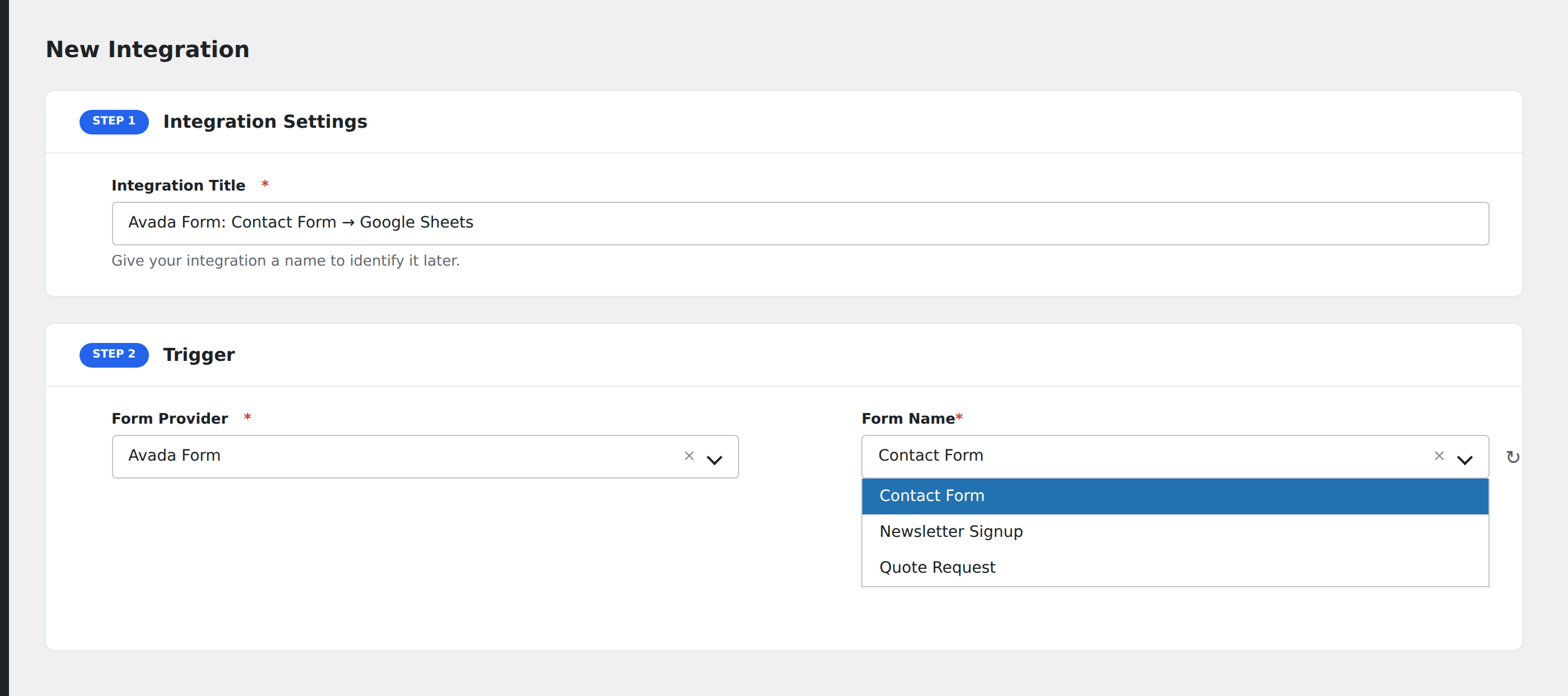
- Go to WP Admin → AFI → Add New.
- Enter an Integration Title.
- In Trigger → Form/Data Provider, select Avada Forms.
- In Form/Task Name, choose the Avada form to listen on.
- In Action → Platform, pick the destination and complete the field mapping.
- Optional: configure Conditional Logic.
- Click Save Integration.
Conditional logic example
Goal: when an Avada contact form’s Inquiry Type is Partnership, route to a partnerships Google Sheet rather than the standard CRM.
Create two integrations on the same form. On the partnerships integration, add a condition with the inquiry type field, Equal To, value Partnership.
Troubleshooting
Form not appearing in the Form/Task Name dropdown
Avada caches form metadata. Re-save the form in Avada → Forms to refresh, then reload the AFI integration screen.
Submissions reach the destination but fields are empty
Each Avada form field has a Name/ID in its settings. AFI maps from this ID. If it’s empty or duplicated across fields, mapping breaks. Set unique IDs on every field.