 AFI
AFI
Fundraising for WooCommerce
Fundraising for WooCommerce runs lottery and raffle style campaigns in your store. With Advanced Form Integration (AFI), you can automate everything around a campaign: log every ticket purchase in Google Sheets, add participants to a Mailchimp audience, notify your team in Slack when winners are declared, or push buyers into a CRM for follow-up.
What You’ll Need
- WooCommerce and the Fundraising for WooCommerce plugin installed and active, with at least one lottery product
- The AFI plugin (free) installed and active
- An account on the receiving platform you want to connect
Available Events
The Form/Task Name dropdown offers seven campaign events:
| Event | When it fires |
|---|---|
| Fundraising Lottery Started | A lottery campaign begins |
| Fundraising Lottery Ended | The campaign’s end date is reached |
| Fundraising Lottery Winners Declared | Winners are picked and the campaign finishes |
| Fundraising Lottery Failed | The campaign fails, for example minimum tickets not reached |
| Fundraising Lottery Relisted | A failed or ended campaign is relisted |
| Fundraising Ticket Created | A participant buys a ticket |
| Fundraising Ticket Confirmed | A ticket is confirmed after payment |
How to Create the Integration
- Go to AFI > Add New in your WordPress admin.
- A default title is auto-filled in the Integration Title box. Rename it, for example “Ticket Confirmed to Mailchimp”.
- In Trigger > Form Provider, select Fundraising for WooCommerce. WooCommerce and the Fundraising plugin must both be active.
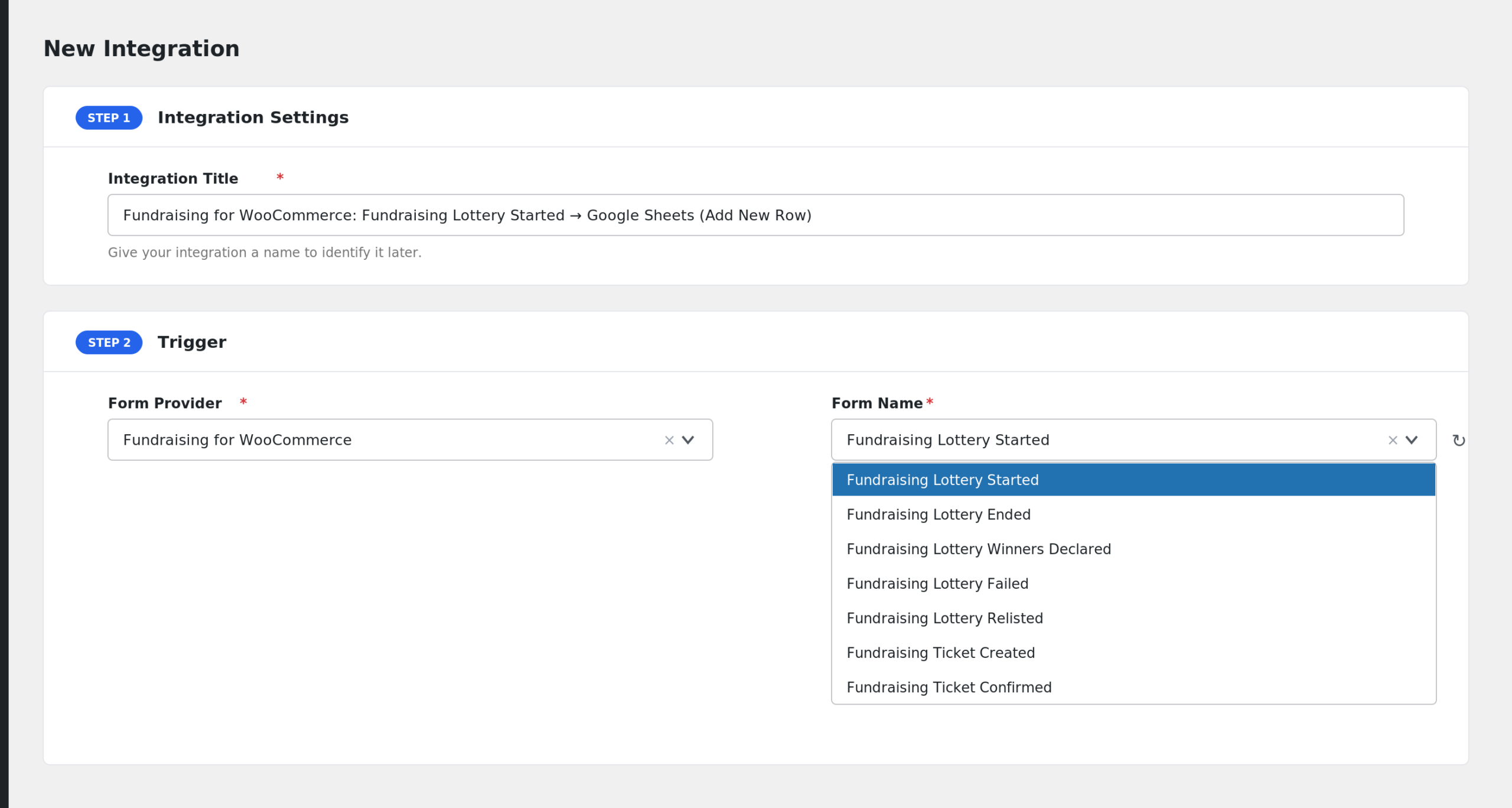
- In Form/Task Name, pick the event you want to react to.
- Under Action, select the receiver platform and its task.
- Map the fields to the receiver’s fields.
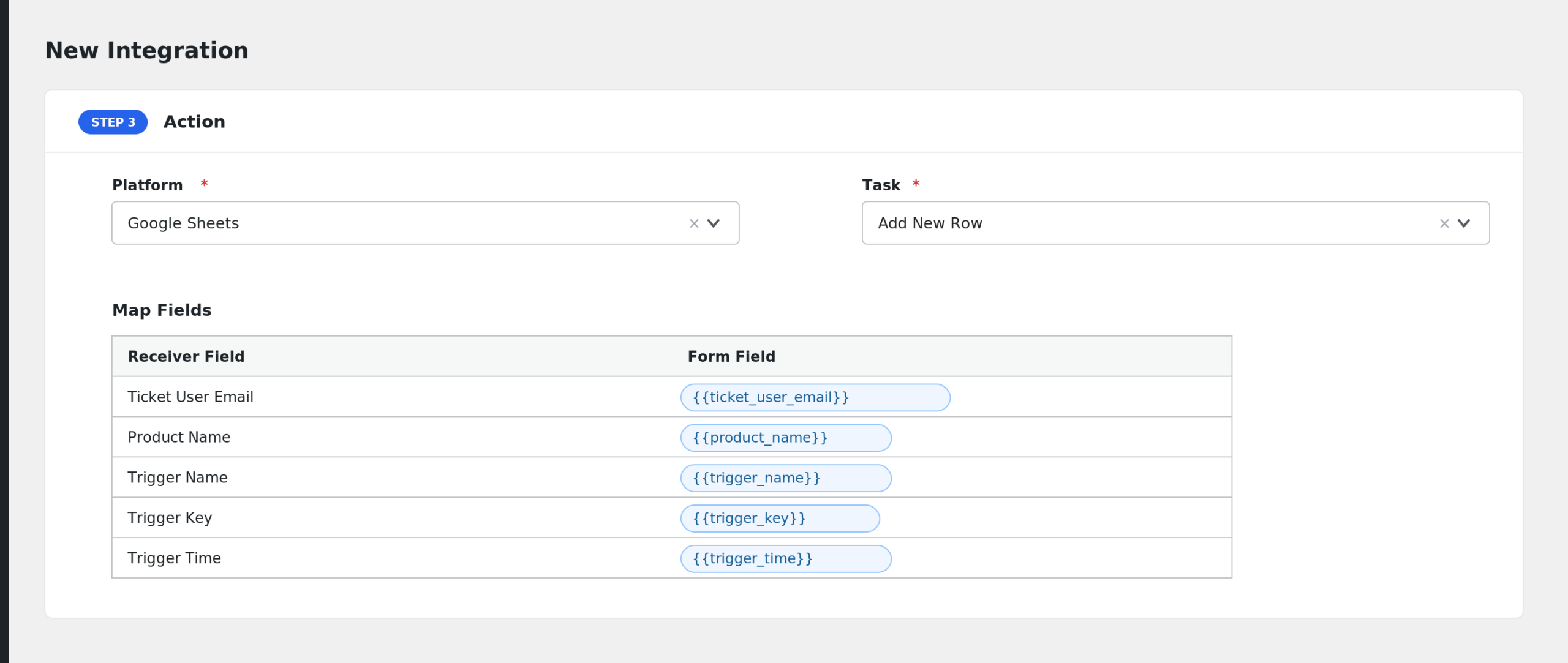
- Add Conditional Logic if needed (optional).
- Click Save Integration and run a test ticket purchase.
Fields You Can Send
The payload is extensive. The main groups:
| Group | Key fields |
|---|---|
| Event context | Trigger Name, Trigger Key, Trigger Time, Event Result and Label, Relist Iteration |
| Campaign product | Product ID, Name, SKU, URL, Status, Type |
| Lottery settings | Lottery Status and Label, Schedule Type, Start/End Date (local and GMT), Minimum/Maximum Tickets, User and Order ticket limits, Ticket Price Type, Regular and Sale Price |
| Tickets | Ticket Number, Status and Label, Amount, Currency, Created Date, Answer fields, Ticket Count |
| Participant | Ticket User ID, User Name, User Email, First Name, Last Name, IP Address |
| Winners | Winners Count, Unique Winners, Winner Selection Method, Winner User IDs, Winner User Emails, Instant Winner Ticket fields, Gift Product IDs and Names |
| Order | Order ID, Number, Status, Total, Currency, Payment Method, Transaction ID, Billing Email, Created/Completed/Paid dates, Order Admin URL |
| Outcome | Closed Flag and Dates, Failed Reason and Dates, Relisted Flag and Dates |
Ticket, participant, and order fields are filled on the ticket events; winner fields are filled when winners are declared.
Conditional Logic Example
To congratulate only big spenders, use the Fundraising Ticket Confirmed event and add a condition: select Order Total, choose Greater Than, and enter 100. Only confirmed tickets from orders above 100 will be sent to this integration.
Troubleshooting
Fundraising for WooCommerce is not in the Form Provider dropdown
Both WooCommerce and the Fundraising plugin must be active. Reload the New Integration page after activating them.
Winner fields are empty
Winner fields only carry values on the Winners Declared event. On other events they are blank by design.
The integration did not fire for a ticket
Ticket Created and Ticket Confirmed are different moments: creation happens at purchase, confirmation after payment completes. Check which event your integration uses, then check AFI > Log for the payload and response.