Fluent Support
Overview
You can now create support tickets automatically in Fluent Support when a form is submitted. This is useful for setting up a support workflow directly from your website’s contact or help request forms.
This integration works locally—no API keys are required since both AFI and Fluent Support run inside your WordPress site.
✅ Supported Feature
-
Create a support ticket in Fluent Support when a form is submitted.
🔧 How to Setup
Step 1: Ensure Fluent Support is Installed
Before setting up the integration:
-
Install and activate the Fluent Support plugin.
-
Set up at least one Mailbox and one Agent in Fluent Support.
-
No API credentials are needed.
Once the plugin is active, you’re ready to connect your forms.
Step 2: Create a New Integration
-
Go to AFI → Add New
-
You’ll see the New Integration screen
🔹 Title
Give your integration a name, like “Support Ticket on Submission”
🔹 Trigger
-
Form Provider: Choose your form plugin (e.g., WPForms, Gravity Forms, Fluent Forms, etc.)
-
Form/Task Name: Choose the form where support tickets will originate
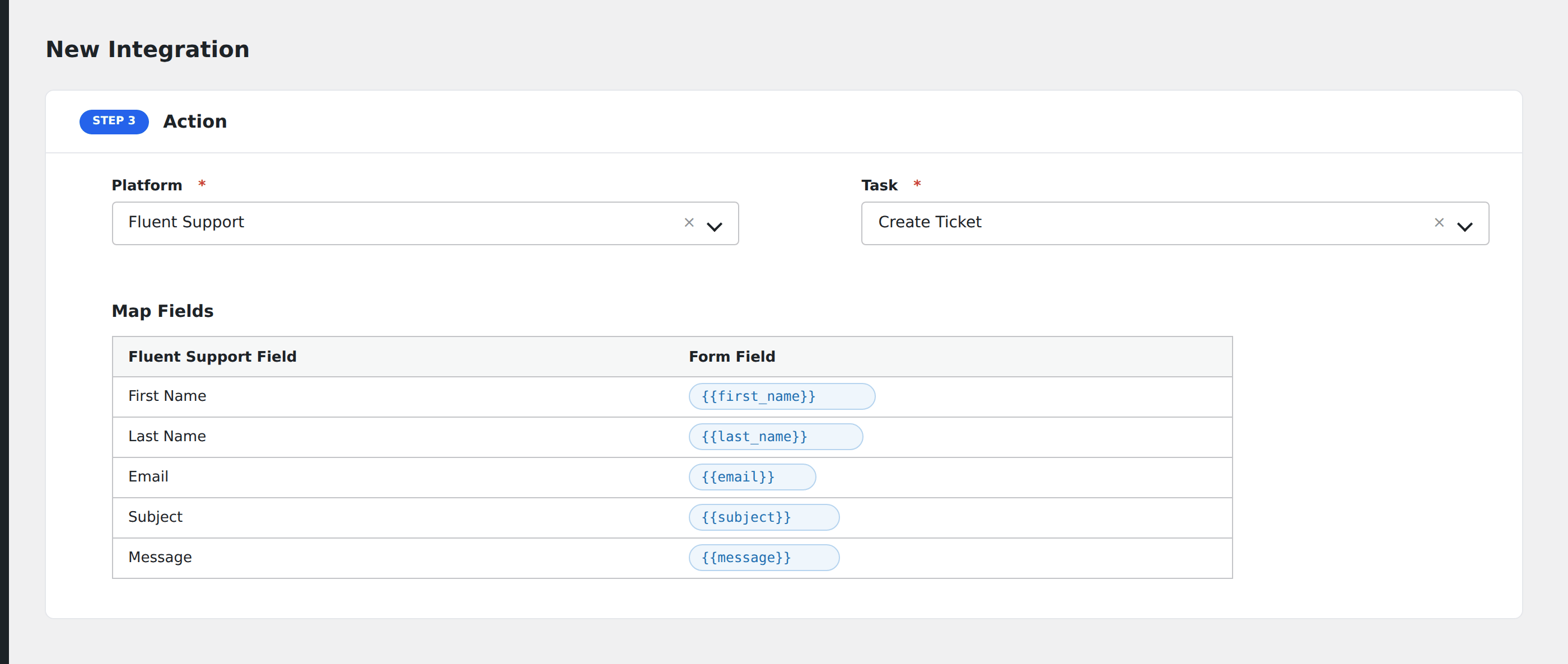
Step 3: Configure the Action
Platform
Select Fluent Support
Task
Choose Create Ticket
Step 4: Map Fields
You must map the following fields:
| Fluent Support Field | Description |
|---|---|
| Mailbox | The mailbox in which the ticket will be created |
| Agent | The agent assigned to handle the ticket |
| Email (required) | Customer’s email address |
| Subject (required) | Subject/title of the ticket |
| Message (required) | Description/content of the issue |
| First Name (optional) | Customer’s first name |
| Last Name (optional) | Customer’s last name |
Use the dropdown menus to map each of these Fluent Support fields with your form fields.
Step 5: Save the Integration
Click Save Integration at the bottom.
✅ Done! Now when someone submits the form, a new support ticket will be created in Fluent Support automatically.
🧪 Example Use Case
Let’s say you use a Contact Us form where users report issues. You can:
-
Automatically assign each issue to a support agent
-
Route tickets to the correct mailbox
-
Pre-fill user information to speed up support
🔍 Troubleshooting
If tickets aren’t being created:
-
Make sure the Fluent Support plugin is active.
-
Check that required fields (email, subject, message) are filled.
-
Go to AFI → Logs and review any errors related to Fluent Support.
-
Ensure the selected Mailbox and Agent exist and are active in Fluent Support.