 AFI
AFI
Robly
Robly is an email-marketing automation platform with a strong focus on deliverability. Advanced Form Integration sends form submissions to Robly as new contacts on a chosen list. the Pro version adds custom-field mapping and tag application.
What you’ll need
- An active Robly account.
- Your Robly API ID and API Key (Settings → API Details).
- The Advanced Form Integration plugin installed and activated.
Get your Robly API credentials
- Log in to your Robly account.
- Go to Settings → API Details.
- Copy your API ID and API Key.
Connect Robly to AFI
- In WordPress, go to AFI → Settings.
- Enable Robly and click Save Changes.
- Open the Robly tab.
- Enter the API ID and API Key.
- Click Save Changes.
Create the integration
- Go to AFI → Add New.
- Configure the trigger.
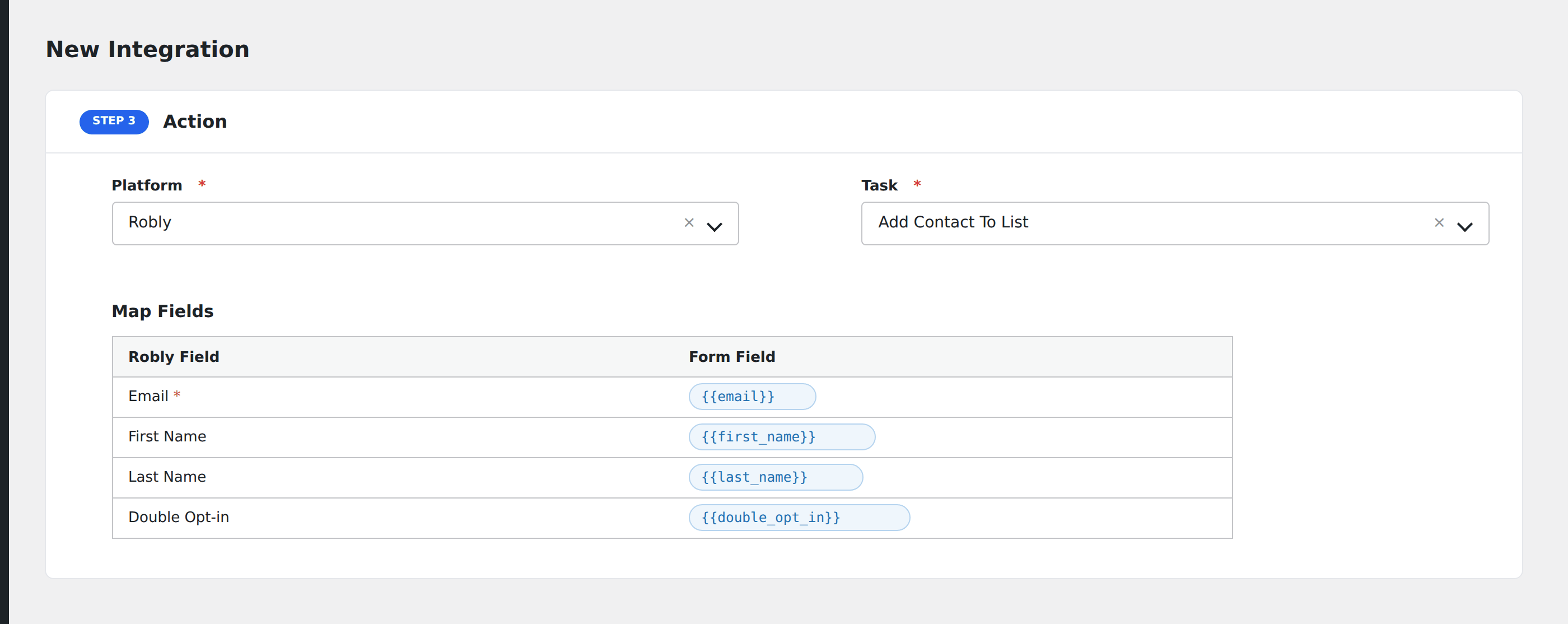
- In Action → Platform, select Robly (or Robly [PRO] if using Pro).
- In Task, choose Add Contact to List.
- Pick the Robly List: AFI loads your lists from Robly automatically.
- Map the form fields:
- Email (required), First Name, Last Name.
- On Pro: any custom fields configured on the chosen list, plus tag assignment.
- Optional: configure Conditional Logic.
- Click Save Integration.
Tasks supported
Add Contact to List
Adds or updates the contact on the chosen Robly list. Re-submissions update the existing contact rather than creating duplicates.
Pro features
The Pro Robly integration adds:
- Custom field mapping: pick a list and AFI auto-loads any additional fields defined for that list.
- Tag assignment: apply pre-created tags to the contact (tags must exist in Robly first).
Conditional logic example
Subscribe with tag vip only when the form’s customer_tier field equals “premium”. Standard subscribers still get added but skip the VIP tag.
Troubleshooting
Integration doesn’t fire
Open AFI → Log and find the most recent entry. The log shows the request payload sent to Robly and the response received, usually pointing straight at the cause.
“Authentication failed”
Robly requires both API ID AND API Key. Both come from the same Settings → API Details page; copy them carefully (no extra whitespace).
Tags not applying
Robly tags must be pre-created in your account before AFI can apply them. Tag names sent that don’t already exist are silently dropped.