 AFI
AFI
BombBomb
BombBomb is a video-email marketing platform used for relationship-driven outreach in real estate, sales, and customer success. Advanced Form Integration sends form submissions to BombBomb as new contacts assigned to a list.
What you’ll need
- An active BombBomb account.
- A BombBomb OAuth app with Client ID and Client Secret (BombBomb Developer Portal).
- The Advanced Form Integration plugin installed and activated.
Create a BombBomb OAuth app
- Log in to the BombBomb Developer Portal.
- Create or open an existing API application.
- Set the redirect URI to the value shown in AFI → Settings → BombBomb.
- Copy the Client ID and Client Secret.
Connect BombBomb to AFI
- In WordPress, go to AFI → Settings.
- Enable BombBomb and click Save Changes.
- Open the BombBomb tab.
- Paste the Client ID and Client Secret.
- Click Authorize to complete the OAuth flow.
AFI handles refresh-token rotation automatically: no manual re-auth unless you revoke the connection.
Create the integration
- Go to AFI → Add New.
- Configure the trigger.
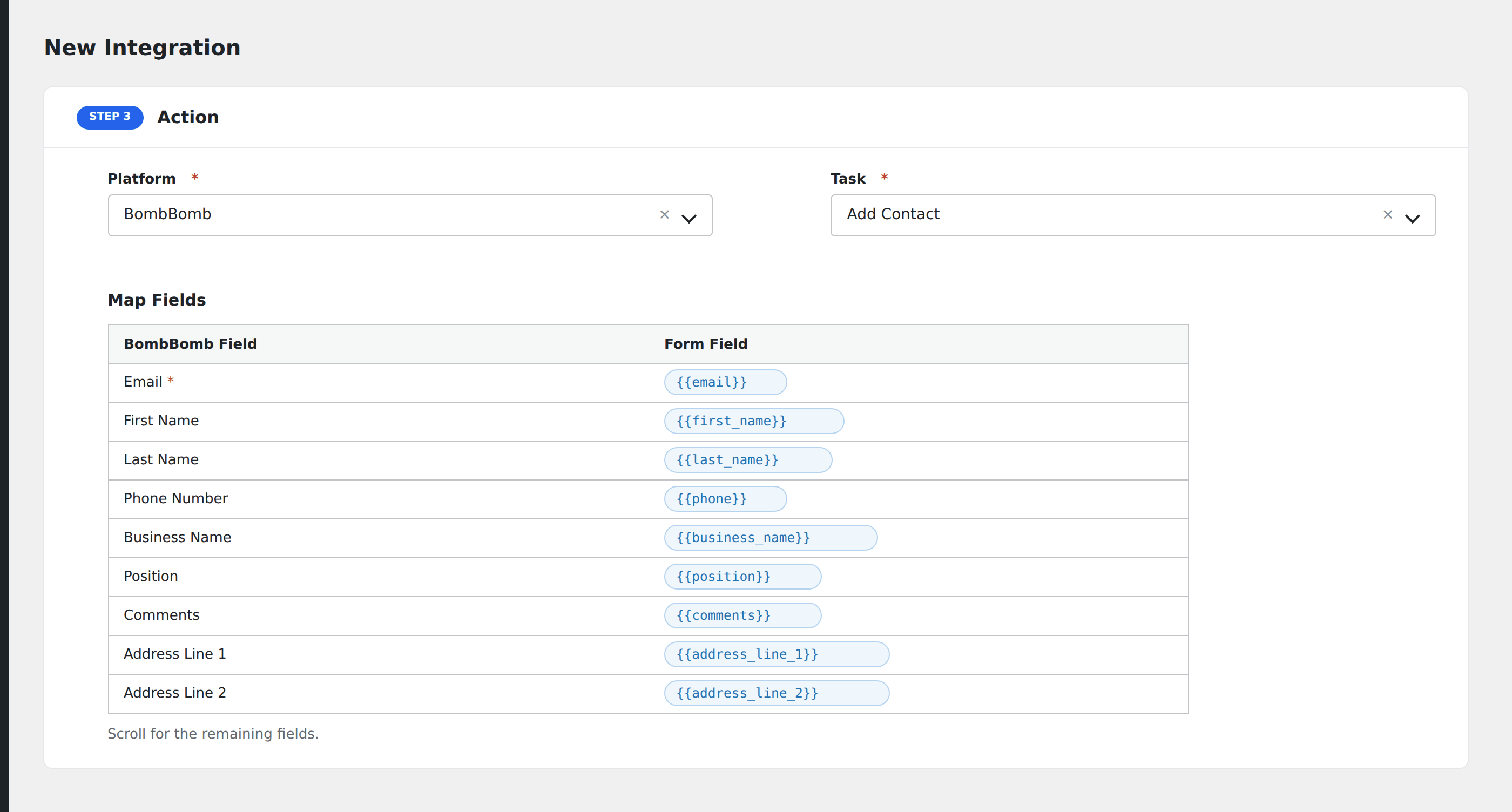
- In Action → Platform, select BombBomb.
- In Task, choose Add Contact.
- Pick the List: AFI loads your BombBomb lists automatically.
- Map the form fields:
- Email (required), First Name, Last Name, Phone Number.
- Business Name, Position.
- Comments.
- Address Line 1, Address Line 2, City, State, Country, Postal Code.
- Optional: configure Conditional Logic.
- Click Save Integration.
Tasks supported
Add Contact
Adds the form submitter as a contact on the chosen BombBomb list. If the email already exists in BombBomb, the contact is updated rather than duplicated.
Conditional logic example
Add the contact to your “VIP customers” BombBomb list only when the form’s customer_tier field equals “VIP”. Standard customers go to the general list via a separate integration.
Troubleshooting
Integration doesn’t fire
Open AFI → Log and find the most recent entry. The log shows the request payload sent to BombBomb and the response received, usually pointing straight at the cause.
Re-authorization needed
If integrations stop firing with a 401, the BombBomb OAuth app may have been revoked from the developer portal. Return to AFI → Settings → BombBomb and click Authorize again.
List dropdown empty
Your authorized BombBomb user must own at least one list. Create a list inside BombBomb first, then re-open the integration.