AFI
AFI
How to Send Contact Form 7 Submissions to Google Sheets


Contact Form 7 is the most-installed form plugin on WordPress, and Google Sheets is one of the most popular spreadsheet tools. The problem is that Contact Form 7 has no built-in way to send submissions to external platforms. The usual fix is Zapier, but that means a monthly subscription, a per-task meter, and your data routed through a third-party cloud.
This guide shows you how to connect Contact Form 7 to Google Sheets directly from WordPress, with no code and no per-task fees. Every form submission is sent automatically.
What you will need
- A WordPress site with Contact Form 7 installed and at least one form created.
- A Google Sheets account.
- The Advanced Form Integration plugin installed and activated.
Connect your Google Sheets account
Google Sheets uses OAuth 2.0 for authentication. You will need to create a Google Cloud project, enable the Sheets and Drive APIs, and authorize the connection once. See the Google Sheets documentation for the full step-by-step with screenshots.

Step-by-step: Contact Form 7 to Google Sheets
Step 1: Install Advanced Form Integration
In your WordPress dashboard, go to Plugins, then Add New, search for “Advanced Form Integration,” install it, and activate it.
Step 2: Connect Google Sheets
Open Advanced Form Integration in the admin menu and go to Settings to connect your Google Sheets account. Click Authorize and grant access. This is a one-time step.
Step 3: Create a new integration
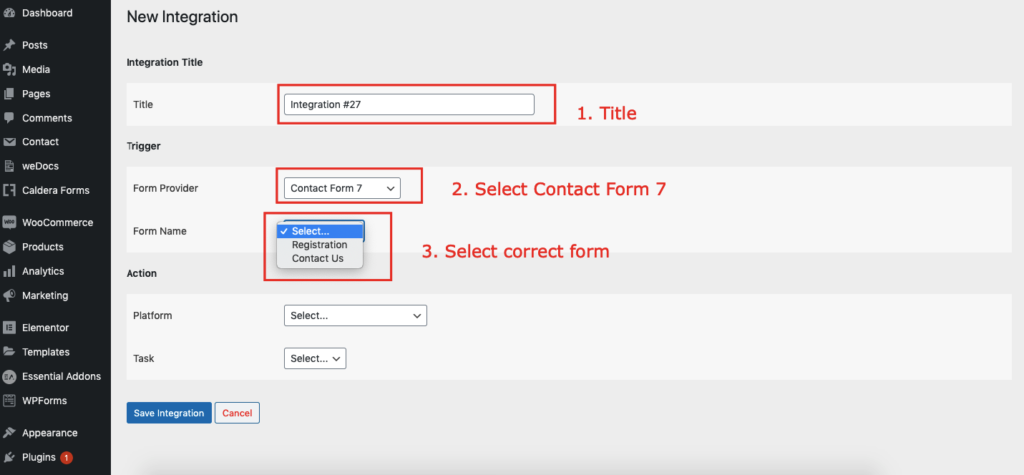
Click Add New Integration. You will choose a trigger (your form) and an action (Google Sheets).
Step 4: Choose Contact Form 7 as the trigger
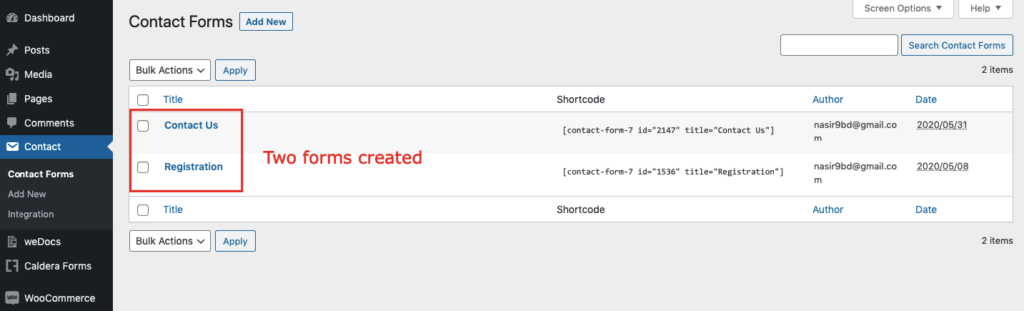
Select “Contact Form 7” as the form provider, then pick the specific form you want to connect, such as your “Contact Us” form. The plugin reads that form’s fields automatically.
Step 5: Choose Google Sheets as the action
Select Google Sheets as the destination and choose the “Add New Row” action. This appends a new row to the spreadsheet you select, with each form field mapped to a column.
Step 6: Map your fields
Match each Contact Form 7 field to the corresponding Google Sheets field. You can also mix in static text and dynamic tags such as the submission date or a UTM campaign value.
Step 7: Add conditional logic (optional)
If you only want to send certain submissions, add a rule. For example, only send data when a specific field matches a value, so your spreadsheet stays clean.
Step 8: Save and test
Save the integration and submit a test entry on your form. The data appears in Google Sheets in real time. Every call is recorded in the activity log, so if a submission ever fails you can see exactly why.
Free vs Pro
The free version sends Email, name, and standard form fields to Google Sheets with no limit on the number of submissions. Pro adds Additional sender field types (phone, date, dropdown, hidden, custom fields) for richer column mapping, plus update row, upsert, delete row, and WooCommerce order item rows. Submissions stay unlimited on every plan.
Frequently asked questions
Do I need to touch any code?
No. The whole setup is point and click, including the field mapping.
Will it slow down my forms?
No. The data is sent to Google Sheets in the background after submission, so the form itself stays fast.
Can I connect more than one form?
Yes. You can create as many integrations as you like, from different forms to different actions, all from one dashboard.
Do blank columns in my sheet cause problems?
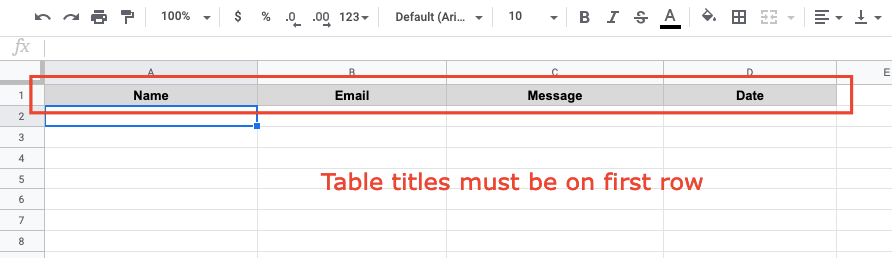
Yes. Blank header cells in row 1 cause column shifting, where every mapped value lands one cell to the right. Either remove blank columns or give every column a title.
Get started
Send your Contact Form 7 submissions straight into Google Sheets without a monthly automation bill. Install Advanced Form Integration free from WordPress.org and connect your first form in a few minutes.