AFI
AFI
How to Send Contact Form 7 Submissions to OneHash CRM


OneHash is a cloud CRM and ERP built on the Frappe framework, offering leads, contacts, customers, and billing in one system.
If you are running Contact Form 7 and want to push submissions into OneHash, you could use a third-party automation tool. Or you could do it directly from WordPress for free. This guide covers the direct route.
Why connect directly?
Third-party automation tools charge per task and route your data through their servers. Advanced Form Integration runs entirely on your WordPress site. No per-task fees, no external dependencies, and every request is logged for troubleshooting.
What you will need
- A WordPress site with Contact Form 7 installed and at least one form.
- A OneHash account.
- The Advanced Form Integration plugin (free from WordPress.org).
Connect OneHash to AFI
- Log in to your OneHash account.
- Go to User → API Access and generate API Keys.
- In WordPress, go to AFI → Settings → OneHash.
- Enter your company subdomain, API Key, and API Secret, then save.
Setting up the integration
1. Create a new integration
Go to AFI → Add New. Give it a name that helps you identify it later, like Contact Form to OneHash.
2. Choose your trigger
Select Contact Form 7 as the form provider. Pick the specific form you want to connect. AFI reads the form fields automatically.
3. Choose OneHash as the action
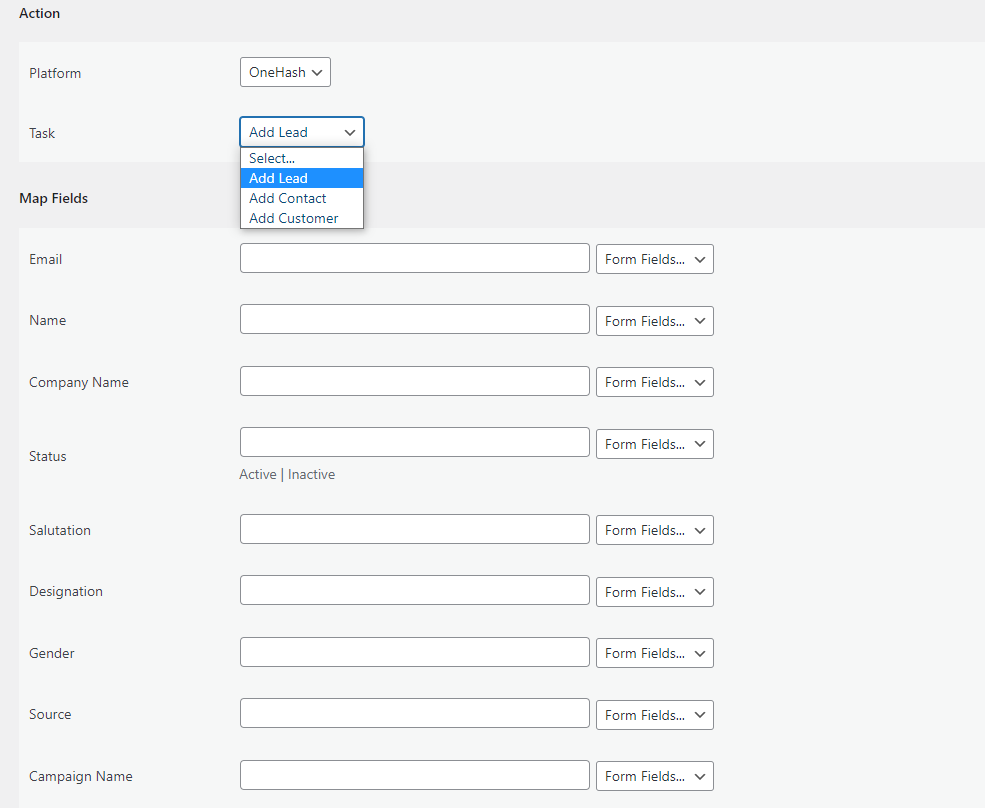
Select OneHash from the platform dropdown, then pick Add Lead. This creates a lead in OneHash.
4. Map your fields
For each OneHash field on the left, choose the matching Contact Form 7 field on the right. Map email to email, name to name, and so on. You can also add static text or dynamic tags like {{_submission_date}} and {{utm_source}}.
5. Add conditions if needed
Want to send only certain submissions? Add a conditional logic rule. For example, only create a contact when the form includes a valid email address, or route different form values to different OneHash lists.
6. Save and test
Hit Save Integration. Submit a test entry on your Contact Form 7 form. Check OneHash to confirm the data arrived. If something is off, open AFI → Log to see the exact request and response.
Free vs Pro
The free version handles email, name, company, and phone with unlimited submissions. The Pro upgrade unlocks custom field mapping and three task types (lead, contact, customer). There are no per-submission fees on any plan.
Frequently asked questions
Will this slow down my Contact Form 7 form?
No. AFI processes the data asynchronously after the form submission completes. The visitor sees the normal success message with no delay.
Can I connect multiple forms to OneHash?
Yes. Create a separate integration for each form. You can also send one form to multiple platforms by stacking integrations.
What happens if OneHash is temporarily unavailable?
AFI queues the data in the background and retries. You can also manually resend from the log if needed.
Get started
Install Advanced Form Integration free from WordPress.org and connect Contact Form 7 to OneHash in five minutes. No code, no Zapier, no per-task fees.