AFI
AFI
How to integrate Gravity Forms to Elastic Email | 3 Minutes Solution

Overview
Advanced Form Integration plugin allows you to integrate Gravity Forms to Elastic Email. When a user fills a form on your website, the plugin will send the data to your Elastic Email account and create a contact in the preferred list. You can also add custom fields.
Supported Features
- Create a new contact with all basic (First Name, Last Name, Email) and custom fields. It also allows adding the contact to a preferred list.
Requirements
- The feature requires a Pro license. BUY NOW!
- Make sure that the Pro version of the Advanced Form Integration plugin is installed and activated. You should have got the links in the email after purchase. You can also download it anytime by logging into the user dashboard.
- Read plugin documentation for Gravity Forms and Elastic Email. It is not required but helpful for a better understanding.
Obtaining Elastic Email API Key
Before start, you are required to save the API Key in plugin settings.
- Go to your Elastic Email account, then click on your Settings > API.
- Click on Create API Key and copy it.
- Go to the WordPress admin area, click AFI > Settings.
- Select the Elastic Email tab.
- Paste the Key in the API Key input box and click Save Changes.
Create New Integration
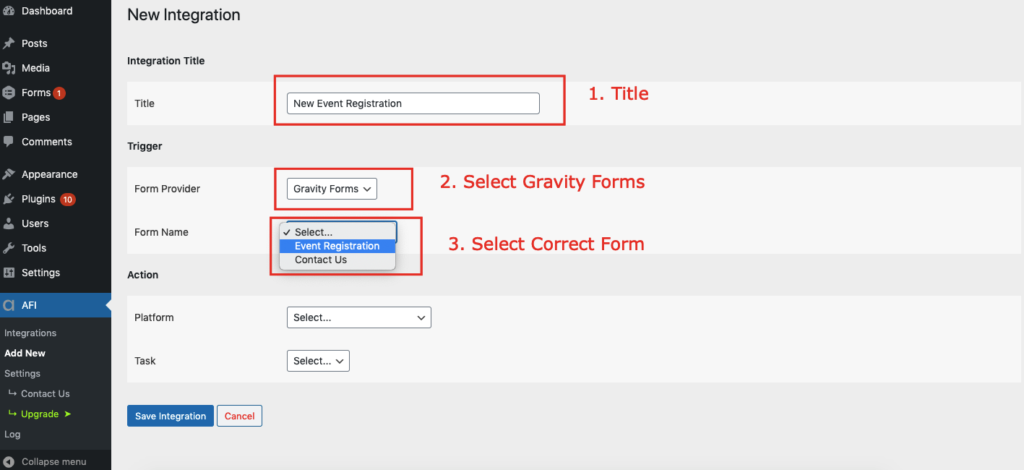
Once API Key is saved you can start creating new integration. Click on Add New under AFI menu, New Integration page will appear.
Title
A default title will be auto-generated with an auto incremental number. You can rename it to something related to the task. It will help you to quickly recognize the correct one when there is multiple integrations setup.
Trigger
Select Gravity Forms in From Provider dropdown. Gravity Forms plugin must be installed and activated otherwise you won’t see it listed. After selecting Gravity Forms, all forms built under Gravity Forms will be fetched and auto-populated in the Form/Task Name dropdown. Select the form that you want to integrate.
Action
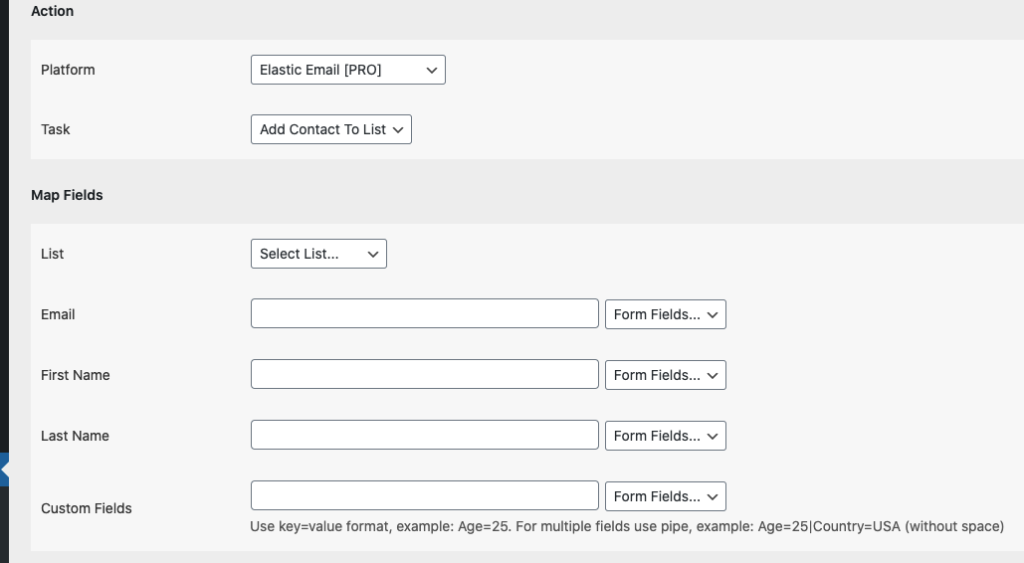
Select Elastic Email [PRO] in Platform dropdown.
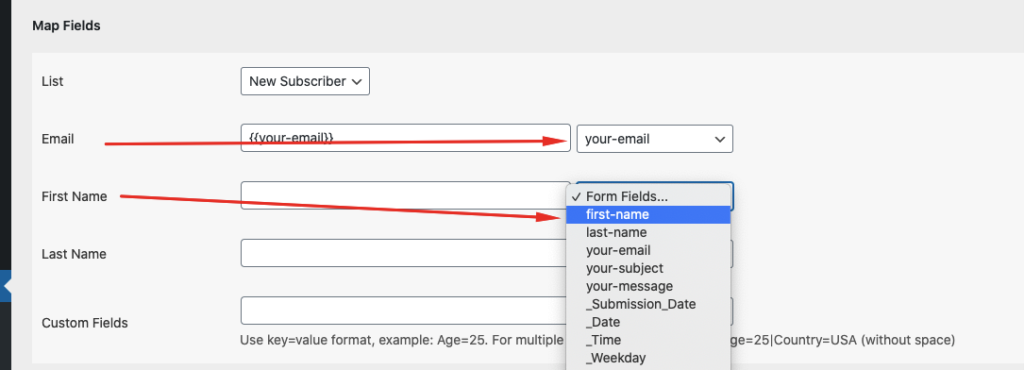
Ma p Fields
Available contact lists will be auto-populated. Select the desired one. Map Email, First Name, Last Name, etc., and other fields that you want. Skip the fields that not needed. Finally, click the Save Integration button.
Conditional Logics
Frequently asked questions
Troubleshooting
Still need help?
Reach our support team at su*****@*********************on.com